Google Meet translation workflow

Need live translation for a Google Meet call?

Use a MeetBridge meeting room when participants need to speak and follow the conversation in different languages, then keep the transcript and follow-up context connected.

Use a MeetBridge meeting room when participants need to speak and follow the conversation in different languages, then keep the transcript and follow-up context connected.
  • Let each participant choose the language they speak and follow.

  • Combine translated audio with live transcript context.

  • Keep summaries, decisions, and actions attached to the meeting record.

Google Meet ·

Compatibility

MeetBridge works as a separate multilingual meeting room that you can use instead of the Google Meet room when live translation is required.

How to use it

  1. 1

    Create the multilingual room

    Schedule or start the conversation in MeetBridge and share its invitation with the people who would otherwise meet on Google Meet.

  2. 2

    Choose languages and devices

    Each participant joins the MeetBridge room, selects the language they speak and follow, and confirms microphone, camera, and voice preferences.

  3. 3

    Meet and review

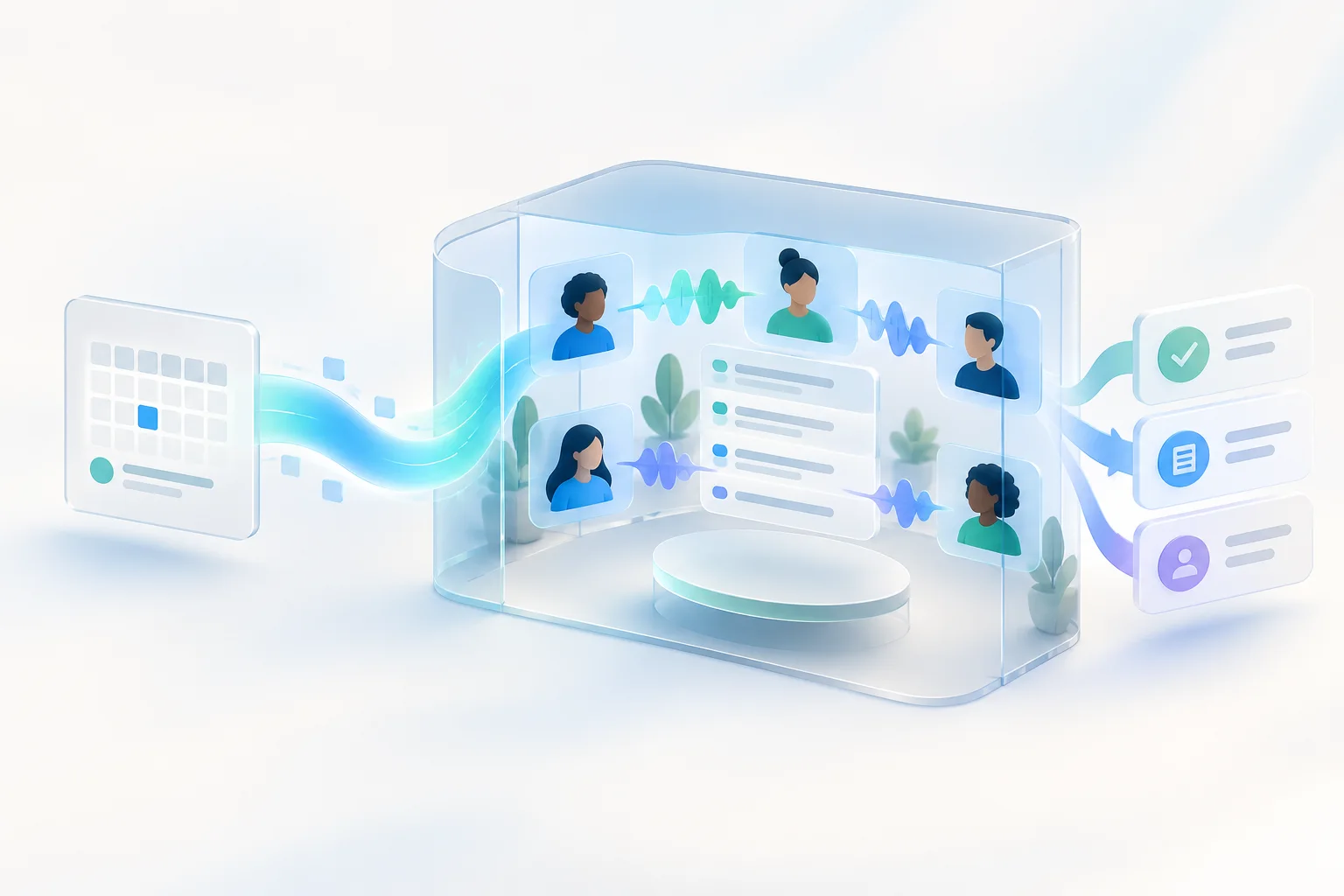
    Run the call with live translation, then return to the connected transcript, summary, decisions, and action items.

A clear path from a Google Meet invite

If language would slow down a planned Google Meet call, move the live conversation to a MeetBridge room before it begins and send participants the MeetBridge link.

  • Use one dedicated room for the multilingual conversation.
  • Set expectations in the invitation so participants open the correct link.
  • Keep the original calendar context while running the translated call in MeetBridge.

Follow speech in the format that works for you

MeetBridge pairs translated audio with transcript context so participants can keep pace and still check names, numbers, and technical terms.

  • Listen to translated speech during the discussion.
  • Use the transcript when a detail needs closer review.
  • Let participants communicate more naturally in their selected languages.

Built for customer and candidate conversations

The workflow supports multilingual discussions where requirements, objections, experience, and commitments need to remain clear after the call.

  • Run international discovery calls and product demos.
  • Interview candidates and support global onboarding conversations.
  • Preserve questions and next steps for the responsible team.

Continue after the call ends

Translation is connected to the meeting record, helping teams review the conversation and prepare a more reliable follow-up.

  • Return to transcript and chat context.
  • Review summaries, decisions, and action items.
  • Reduce the need to rebuild multilingual notes from memory.

Important limitations

  • MeetBridge is not a native Google Meet add-on, extension, or bot.
  • It does not translate audio inside an active Google Meet call.
  • Participants must join the MeetBridge room and choose their language and device settings there.

Google Meet translation FAQ

Does MeetBridge translate directly inside Google Meet?

No. MeetBridge is a separate multilingual meeting room, not a Google Meet add-on, extension, or bot. Participants join MeetBridge for the translated conversation.

Can I keep using my Google Calendar invitation?

You can keep the calendar context, but participants need the MeetBridge room link for the live translated call. Make the destination clear in the invitation.

What does each participant need to do?

Each person opens the MeetBridge link, selects the language they speak and follow, and confirms their microphone, camera, and voice preferences before joining.

What is available after the meeting?

Depending on your MeetBridge workflow and plan, the meeting record can include transcript context, summaries, decisions, and action items for review and follow-up.