
On this page
The product in practice
Make it easier to explain, question and confirm
A participant may follow the presentation in a second language and still struggle to explain why a requirement will not work. Live translation makes room for that answer. The aim is a two-way conversation: people ask questions in their own language, hear the reply in theirs and confirm the meaning before the group moves on.
How translation works
The room is shared. The language choice is personal.
Each participant selects a language from the available room options and speaks in that language. MeetBridge uses those selections to deliver translated speech when a listener and speaker use different languages. People using the same language hear each other directly.
The group does not have to choose a single common language. An English-speaking host can ask a German-speaking client about a requirement, and the client can respond in German. Check the selected language before the first substantive exchange; a mismatch between the setting and the language being spoken can make the conversation harder to follow.
Translation takes time to prepare. Leave a pause for the other person to hear the completed thought and respond. Clear turns work better than several people finishing one another’s sentences, particularly when the listener is hearing translated speech.
- Confirm that the languages you need are available before inviting the group.
- Use the language selected in your participant settings when speaking.
- Pause after a complete point, then let the other participant respond.
Choose your meeting format
Meet in MeetBridge, or keep the video call you already use
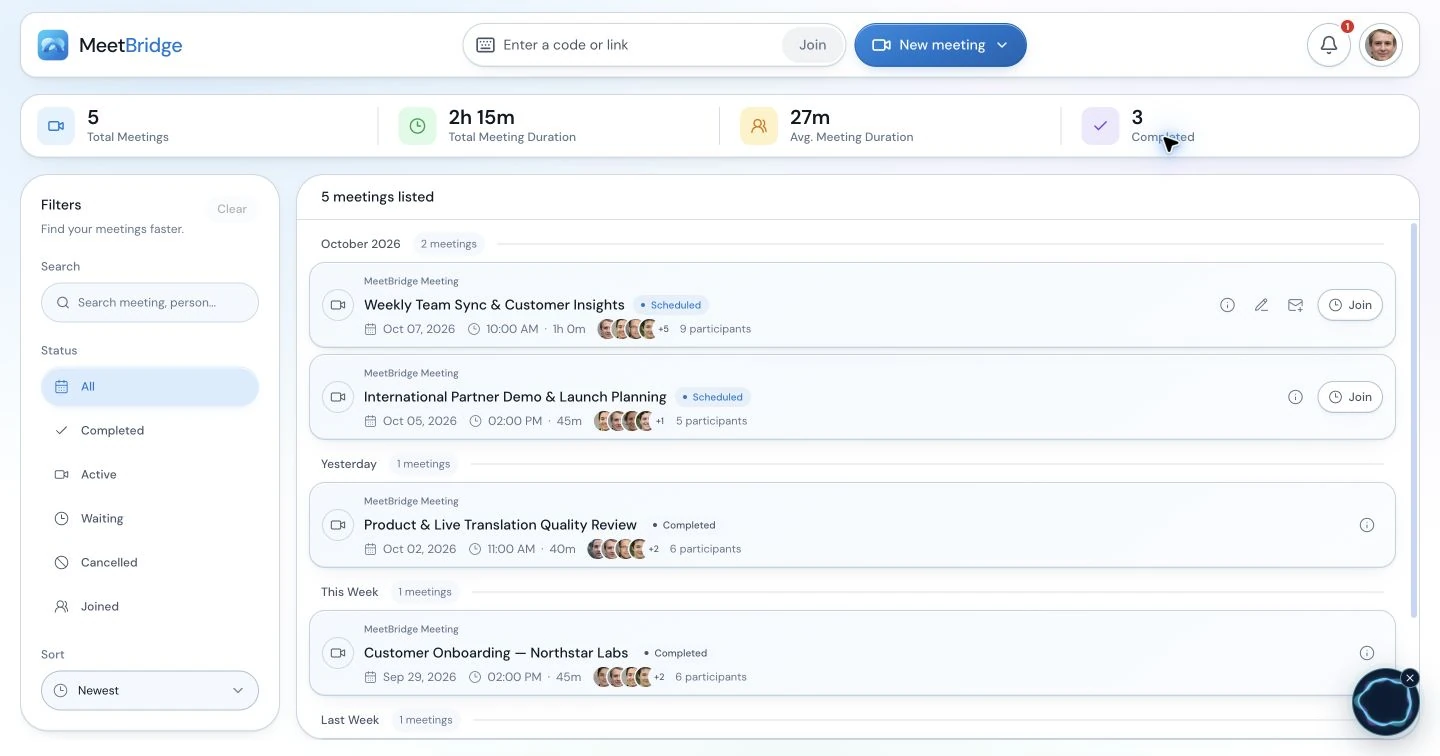
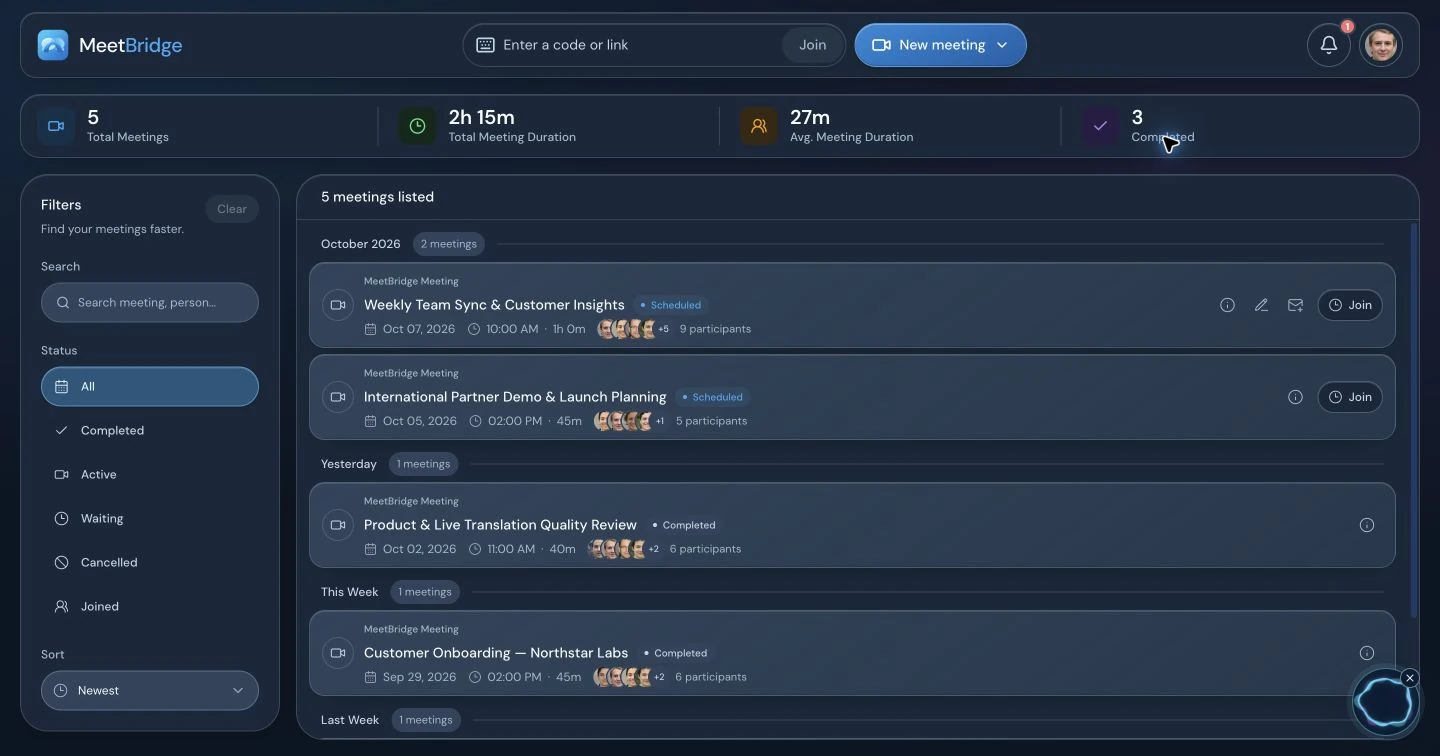
A full MeetBridge meeting brings video, live translation, chat and transcript context into one meeting room. Use it when you want the broader preparation and meeting record workflow. MeetBridge Voice is the companion option for a group that wants to keep Teams, Zoom or Google Meet for video and screen sharing.
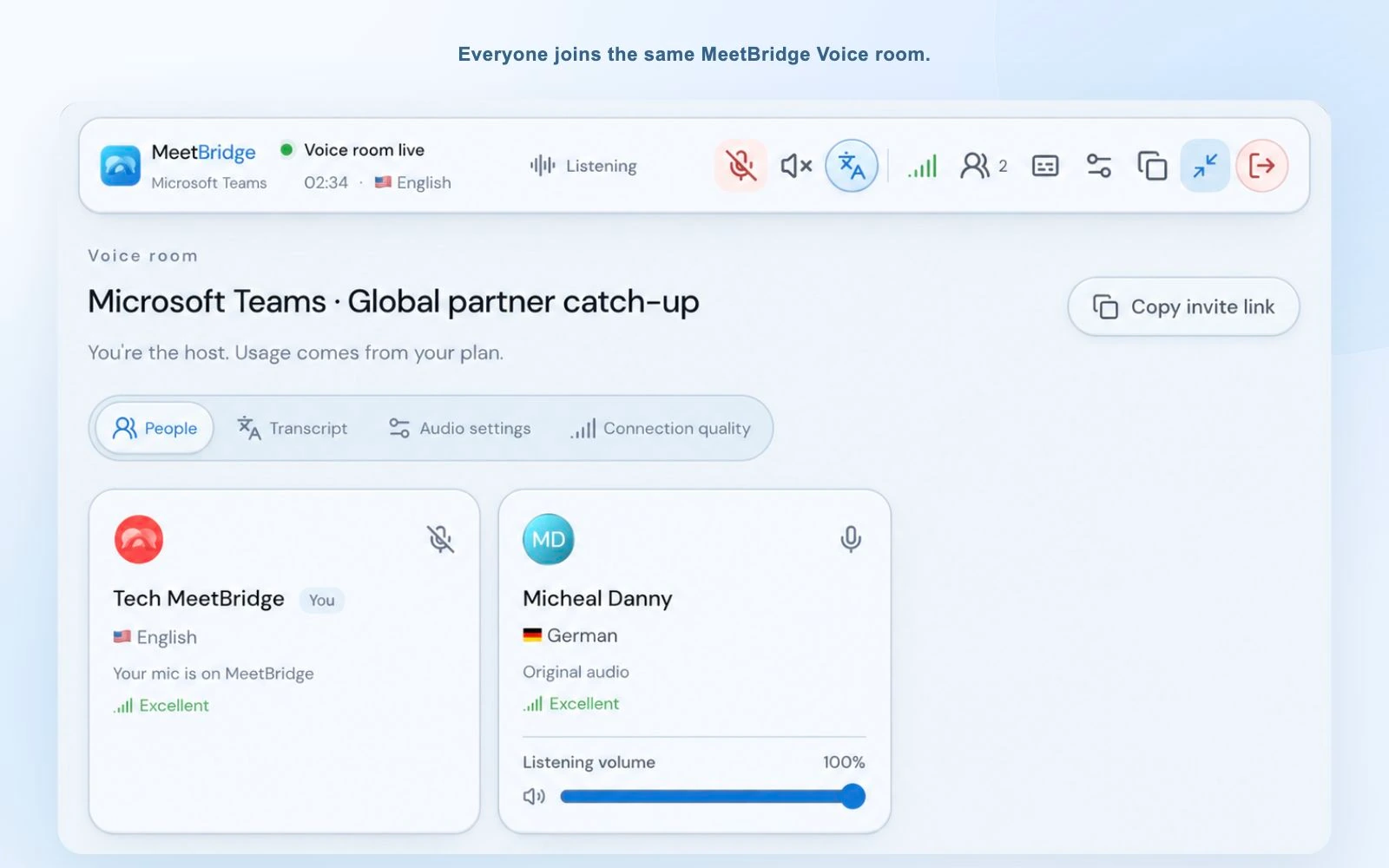
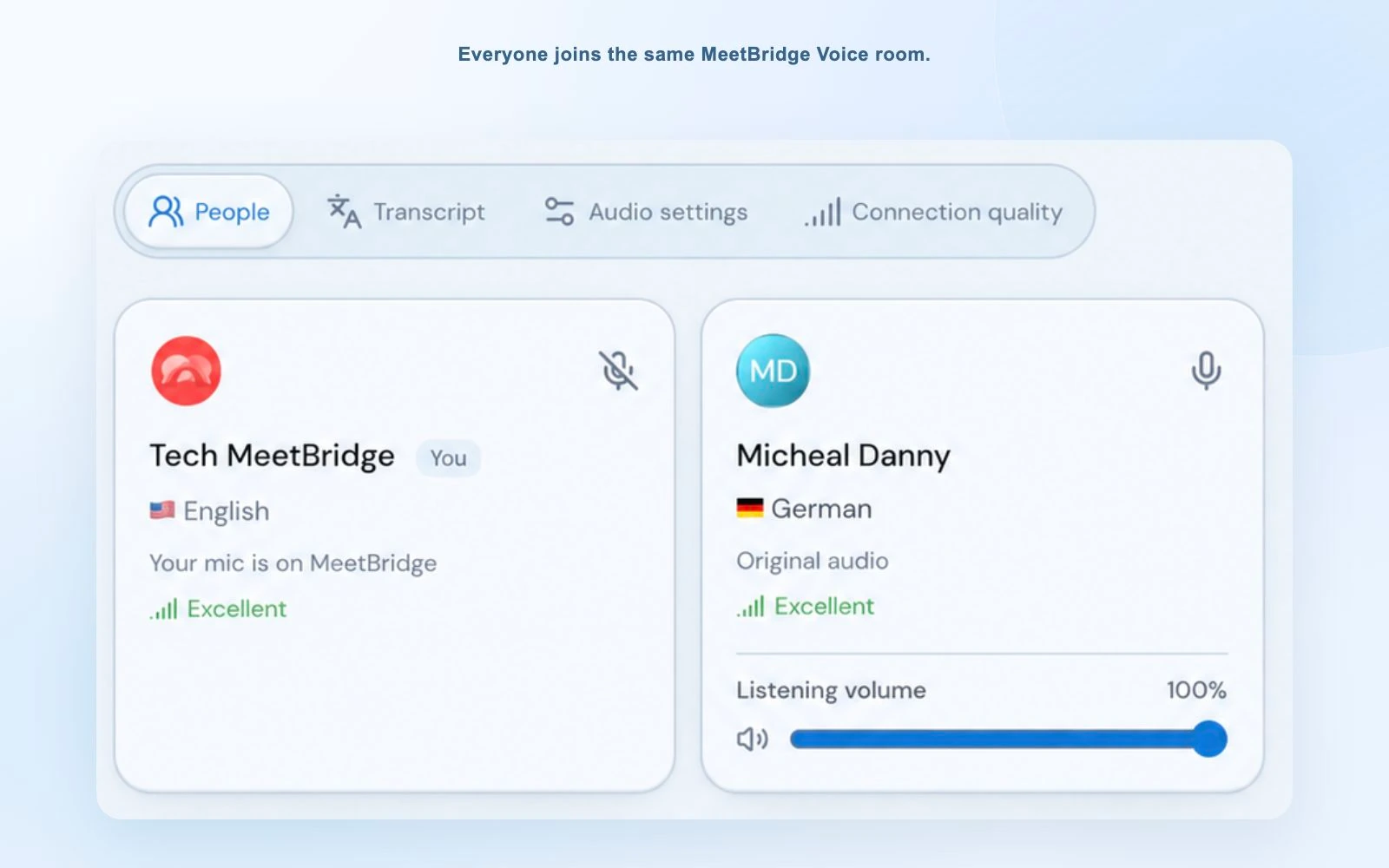
Voice is a separate conversation room. It does not listen to everybody in the original platform and translate them automatically. Share the Voice invitation with every person who will speak, have them join the same room, and disable the original platform’s microphone and incoming meeting audio.
- Choose the full meeting workflow when a saved meeting record matters.
- Choose Voice when the existing video meeting is the right place for your visual collaboration.
- Include both invitations and clear audio instructions when using a companion Voice room.
| Question | Full MeetBridge meeting | Companion MeetBridge Voice |
|---|---|---|
| Where is video? | In the MeetBridge meeting room | In your existing video platform |
| Where is the conversation? | In the MeetBridge meeting | In a separate shared Voice room |
| How do participants join? | Through the MeetBridge meeting link | Through the Voice invitation, as well as the video meeting link |
| What audio should be enabled? | The MeetBridge room’s microphone and output | Voice audio; original platform microphone and incoming audio off |
| What record should I expect? | Available meeting transcript, chat and summary features | Live context; saved history and AI summary are not guaranteed |
Prepare the participants
A clear invitation is part of the translation setup
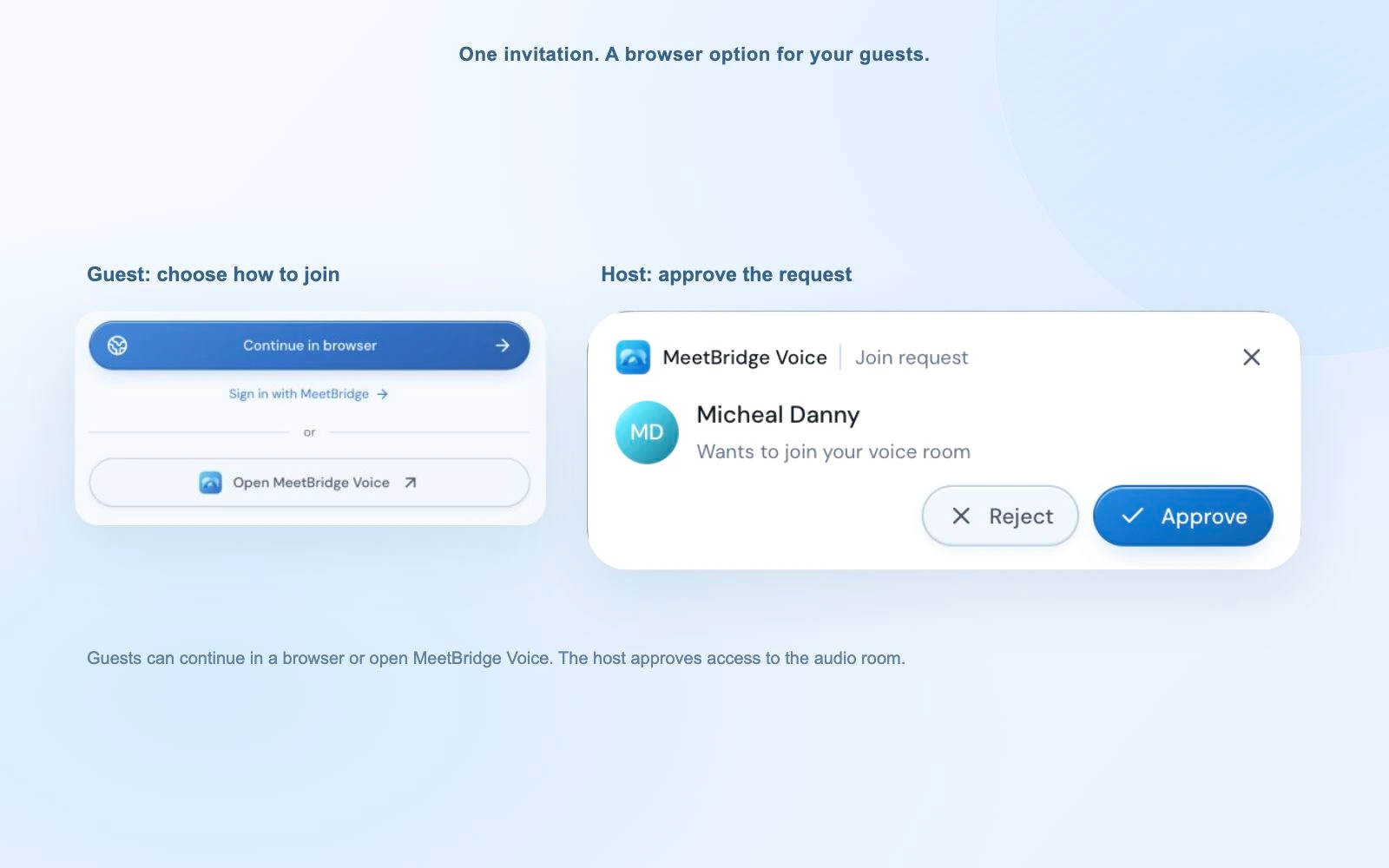
The Voice host creates a room in the macOS or Windows desktop app and shares its invitation. An invited guest can open the desktop app or continue in a supported browser. They enter their name, allow microphone access and request admission; the host approves them separately from the video platform’s own lobby.
Explain the audio change before the meeting. Joining Voice alone does not stop Teams, Zoom or Google Meet from playing another audio stream. Every participant should switch off both the original microphone and incoming meeting audio, then speak and listen through Voice. A headset helps keep microphone input separate from speaker output.
A browser guest should keep the room tab open and enable room audio if prompted. If somebody can see the video but cannot follow the translated discussion, first check whether they joined Voice and were admitted. Then check their language, microphone permission and listening device.
- The host needs the desktop app; invited guests can use a supported browser.
- Approve guest admission and check the participant list before starting.
- Run a short exchange between two languages to confirm the audio path.
Follow the exchange
Listen to the translation and check the detail in context
Translated voice helps you stay in the conversation without reading every line. Live transcript context gives you another way to inspect an unfamiliar phrase or catch the wording around a question. Use them together when names, specifications or dates need closer attention.
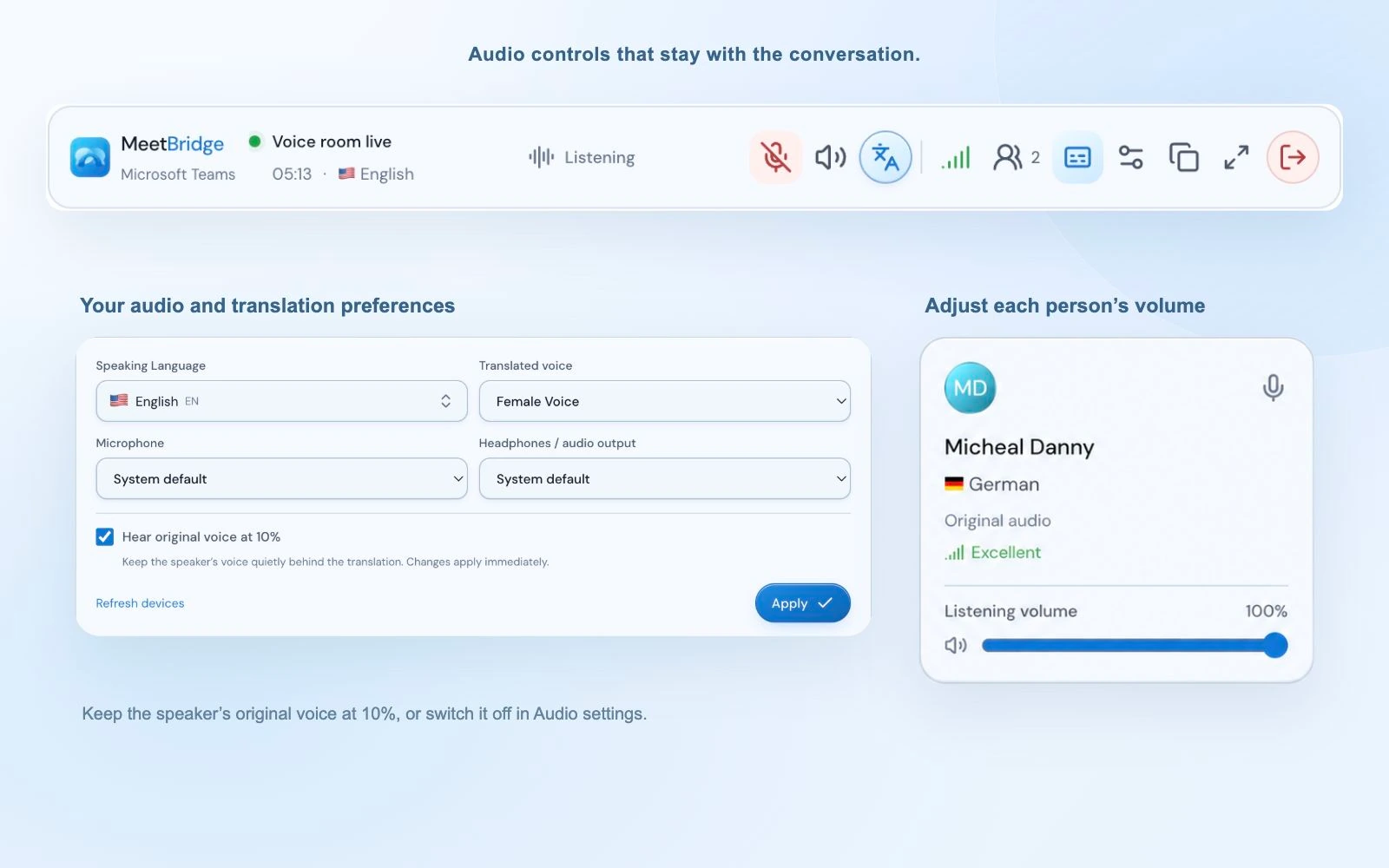
In Voice, the original speaker can remain quietly audible at 10% of your listening level when translated audio is ready. Turn off “Hear original voice at 10%” in Audio settings if you prefer only the translation. That option starts enabled in a new room. While translation is preparing or unavailable, original audio remains normally audible.
You can also adjust an individual participant’s listening volume for yourself. The desktop compact bar keeps microphone, translation and caption controls accessible while you work in another window. Browser participants use the expanded room. These controls support the live exchange; they do not turn a companion Voice session into a guaranteed saved meeting record.
- Put exact names, amounts and references in chat or the shared document.
- Check the meaning with the speaker when the transcript or translation seems unusual.
- Use personal listening controls to follow the room comfortably.
Use the right support
Translated speech and written context serve different moments
A participant explaining a process may want to hear the reply while keeping the shared diagram in view. A participant checking a part number may need the exact written reference. Spoken translation, transcript context and a visible document can support the same meeting without being interchangeable.
Voice translation
Helps people hear and answer another language during a conversation. Give speakers time to complete a thought before replying.
Live text context
Helps you check the wording while the meeting is underway. Speech recognition and translation can still misread jargon, names or overlapping voices.
Reviewed follow-up
Confirms the decision after the discussion. In a full meeting, review the available record and summary; in companion Voice, use the documentation plan you prepared.
- Use translated speech to follow the two-way discussion.
- Use transcript context to revisit a phrase or locate the surrounding explanation.
- Use written confirmation for the details the team must carry into its work.
Do not assume Voice translates your shared slides, documents, video platform chat or screen automatically. Keep key written material understandable and use your usual document review process.
Put this into practice with the guide:
Run a useful meeting
Make room for corrections before they become commitments
Good facilitation matters as much as the language settings. Explain one point at a time, avoid talking over a response and let the other person correct your interpretation. A fluent-sounding translation is still an AI output and can be wrong.
Keep technical terms visible and expand local abbreviations the first time you use them. For an important statement, ask a specific confirmation: “Is Friday the date you can ship, or the date you expect approval?” That answer is more useful than a general request to repeat the sentence.
The workflow is well suited to customer discovery, project reviews, interviews and supplier discussions where participants need to explain and question. When an assignment calls for specialist interpretation, use the qualified support it requires and verify material wording in the relevant document.
- Take turns and allow time for the translated reply.
- Separate an estimate, a suggestion and an agreed obligation.
- End with owners, dates and open questions that the participants explicitly confirm.
Beyond the live room
Decide how you will review the meeting before it begins
A full MeetBridge meeting can connect the multilingual discussion to available transcript, chat and summary features. After the call, review those outputs before writing the recap. A summary may be pending or have insufficient usable content, and generated text should be checked against the conversation.
For a companion Voice session, plan manual notes or another agreed documentation method. Do not assume the video platform’s recording or captions include the translated discussion: its audio is disabled in this workflow. Voice’s live transcript provides current context rather than a promise of the saved record associated with a full meeting.
Before scheduling recurring sessions, check the current host plan, available usage and participant capacity. Voice guests do not need to buy their own plan to request admission; room usage comes from the host’s MeetBridge plan. Confirm device and language availability as part of preparation.
- Use the full meeting workflow when reviewed meeting history is central to the outcome.
- Explain the note-taking plan to the group in a companion Voice session.
- Carry confirmed actions into your existing delivery process after review.
Step by step
Set up a translated conversation people can join
Choose the full meeting or companion Voice workflow first, then prepare the invitation, languages and audio together.
Choose the room
Create a full MeetBridge meeting for the broader meeting workflow, or have the desktop host create a Voice room alongside the existing video call.
Invite every speaker
Share the meeting link. For Voice, also share the separate Voice invitation and explain browser joining, host admission and the original platform’s audio settings.
Select languages and devices
Check each person’s language, microphone and listening output. Keep microphones off while finishing setup and switch off the original platform’s audio when using Voice.
Confirm the conversation works
Admit guests and try a short question and answer across languages. Resolve missing audio or an incorrect language choice before the agenda begins.
Discuss, confirm and document
Take clear turns and put exact details in writing. Confirm the next step, then review the available full meeting record or the notes planned for your Voice session.
Illustrative conversation
A supplier review where an estimated date needs clarification
An English-speaking buyer and a German-speaking supplier keep their existing Teams video meeting for the specification sheet. They add MeetBridge Voice so each can explain the delivery constraints in their own language.
Everyone enters the same Voice room
The buyer creates the room in the desktop app. The supplier follows the invitation in a supported browser and is approved. Both disable their Teams microphone and incoming audio, select their languages in Voice and check a short exchange.
Keep the date and its condition visible
The supplier describes a possible Friday shipment. The buyer writes the date beside the specification and asks whether it is confirmed. The reply explains that the date depends on an approval from the production team.
Record the unresolved approval accurately
Using the notes planned for this companion session, the buyer writes “provisional shipment date, awaiting production approval.” The supplier confirms who will check the approval and when they will report back.
Translation supported the exchange, while a direct confirmation kept an estimate from becoming a promise. The shared video document and separate Voice conversation each had a clear job.
Practical outcomes
What your team can improve
- Participants can explain constraints and ask questions in their own language.
- Important details receive a deliberate confirmation before the group moves on.
- The meeting format and documentation plan match the follow-up the team needs.
Before you get started
Frequently asked questions
How does live voice translation work in MeetBridge?
Each participant chooses an available language and speaks in it. MeetBridge uses those choices to translate speakers using another language into the listener’s selected language. People using the same language hear each other directly. Take clear speaking turns and allow time for the translated reply.
Can everyone choose a different language?
Yes, language choices belong to individual participants. The group does not need one common speaking language. Confirm the available options before the meeting and check that each participant’s selected language matches the language they will use.
Can I translate a Teams, Zoom or Google Meet conversation?
Use MeetBridge Voice alongside the original platform. Keep the video call for video, screen sharing and chat, and invite every speaker to the same separate Voice room. Turn off both the original microphone and incoming meeting audio. Voice does not capture people who remain only in the original audio call.
Can an invited guest join without installing anything?
A Voice guest can continue from the invitation in a supported browser, enter their name, allow microphone access and request admission. The desktop host approves the request. Keep the room tab open and enable audio if prompted. Guests do not need a browser extension or their own paid subscription to request admission.
Who needs the desktop app, and which devices are available?
The Voice host creates the room in the macOS or Windows desktop app. Invited Voice guests can use a supported browser or desktop app. The full MeetBridge product is available on the web and iOS, while Android is coming soon. See the download page for current public releases.
Can I hear the original speaker as well as the translation?
In Voice, Hear original voice at 10% starts enabled in each new room. When translated audio is ready, the original voice is mixed quietly at that listening level. You can turn the option off in Audio settings. Original audio remains normally audible while translation is preparing or unavailable.
What should we do if a participant cannot hear the conversation?
First confirm they joined the correct Voice room and the host admitted them. Check their listening device, room audio permission and participant language. A browser guest may need to enable audio. Echo or duplicated speech is a reason to check that both microphone and incoming audio are disabled in the original video platform.
Will translation also change our shared slides or documents?
This workflow translates spoken conversation. It does not promise automatic translation of slides, documents, screen content or the original platform’s chat. Put exact terms and numbers in writing and make sure the group can understand the material being discussed.
Will we get a saved transcript and AI summary after a Voice call?
Voice provides live transcript context, but that does not guarantee saved meeting history or an AI summary. Plan the documentation you need for companion sessions. A full MeetBridge meeting supports the broader available transcript, chat and summary workflow; review enabled features and check generated outputs before sharing them.
How should we handle terminology and important commitments?
Keep technical terms visible, expand abbreviations and ask the speaker to clarify unusual wording. AI translation can make mistakes. Confirm dates, amounts and approval status in writing before acting on them, and use qualified specialist interpretation when the assignment requires it. A clear confirmation is part of the meeting, even when the translated speech sounds fluent.
Continue exploring
Build the right meeting workflow
Microsoft Teams live translation
Follow the Voice setup alongside a Teams video meeting.
Zoom live translation
Prepare the separate Voice room and Zoom audio settings.
Google Meet live translation
Keep Google Meet for video and move the conversation into Voice.
MeetBridge vs DeepL Voice
Compare workflows around the conversation and follow-up you need.
Product overview
Connect preparation, multilingual discussion and reviewed follow-up.
Transcripts and meeting memory
Understand the available record in a full MeetBridge meeting.