
In this guide
01 / A familiar meeting, a new audio path
How live translation works alongside Microsoft Teams
A customer explains their priorities in German. You want to answer in English. Everyone can see the same presentation in Teams, but the language gap makes a simple discussion feel like hard work. Microsoft Teams live translation with MeetBridge Voice gives that conversation its own multilingual audio room.
You keep Teams open for the camera, shared screen and chat. In parallel, the same participants join one MeetBridge Voice room. Each person selects their own language. When somebody speaks in another language, MeetBridge delivers translated speech in the listener’s selected language. The other person can reply in their own language, and the conversation continues in both directions.
Everyone taking part in the translated conversation must join the Voice room. Turn off both the Teams microphone and Teams meeting audio, then speak and listen through MeetBridge Voice.
Voice works alongside Teams as a separate app or browser room. It does not insert a translator into Teams, capture another participant’s Teams audio, or import the Teams attendee list. Selecting “Microsoft Teams” in Voice identifies your meeting platform; it does not connect to your Microsoft account. This gives you a clear setup you can explain to a customer before the call.
02 / Prepare the room
What you need before your first translated Teams call
The host needs a MeetBridge account, access to MeetBridge Voice and a plan with enough room usage for the conversation. Check the download page for current client availability, or contact us about a Voice rollout. You also need a microphone, speakers or headphones, and an internet connection for both the video meeting and the Voice room.
- One Teams meeting link: open it yourself and share it through your usual invitation. Voice does not open or manage the Teams meeting for you.
- One Voice room invite: this is the separate link that carries the translated conversation. Include both links and a short audio instruction in your invitation.
- Everyone’s language choice: each person chooses the language they will speak and listen in, using the options available in the room.
- A quick audio check: speakers work, too. If you notice echo or your room is noisy, headphones can make the exchange easier to follow.
For a first meeting with an external customer, allow a few minutes for joining. Tell them they can use the browser from the Voice invitation and that the host will approve their request. They do not need to buy their own MeetBridge subscription to join your room; usage comes from the host’s plan.
03 / The practical walkthrough
How to set up Microsoft Teams live voice translation
Use this sequence for a one-to-one conversation or a small multilingual team. The goal is simple: keep one video meeting and one shared audio room, with every speaker on the same audio path.
Open Teams and prepare your video meeting
Join your existing Teams meeting as usual. Keep your camera and screen sharing available. Before starting the translated conversation, turn off the Teams microphone and meeting audio. Muting only the microphone is not enough: if Teams still plays sound while Voice is playing sound, people can hear the conversation twice.
Sign in to MeetBridge Voice and create a room
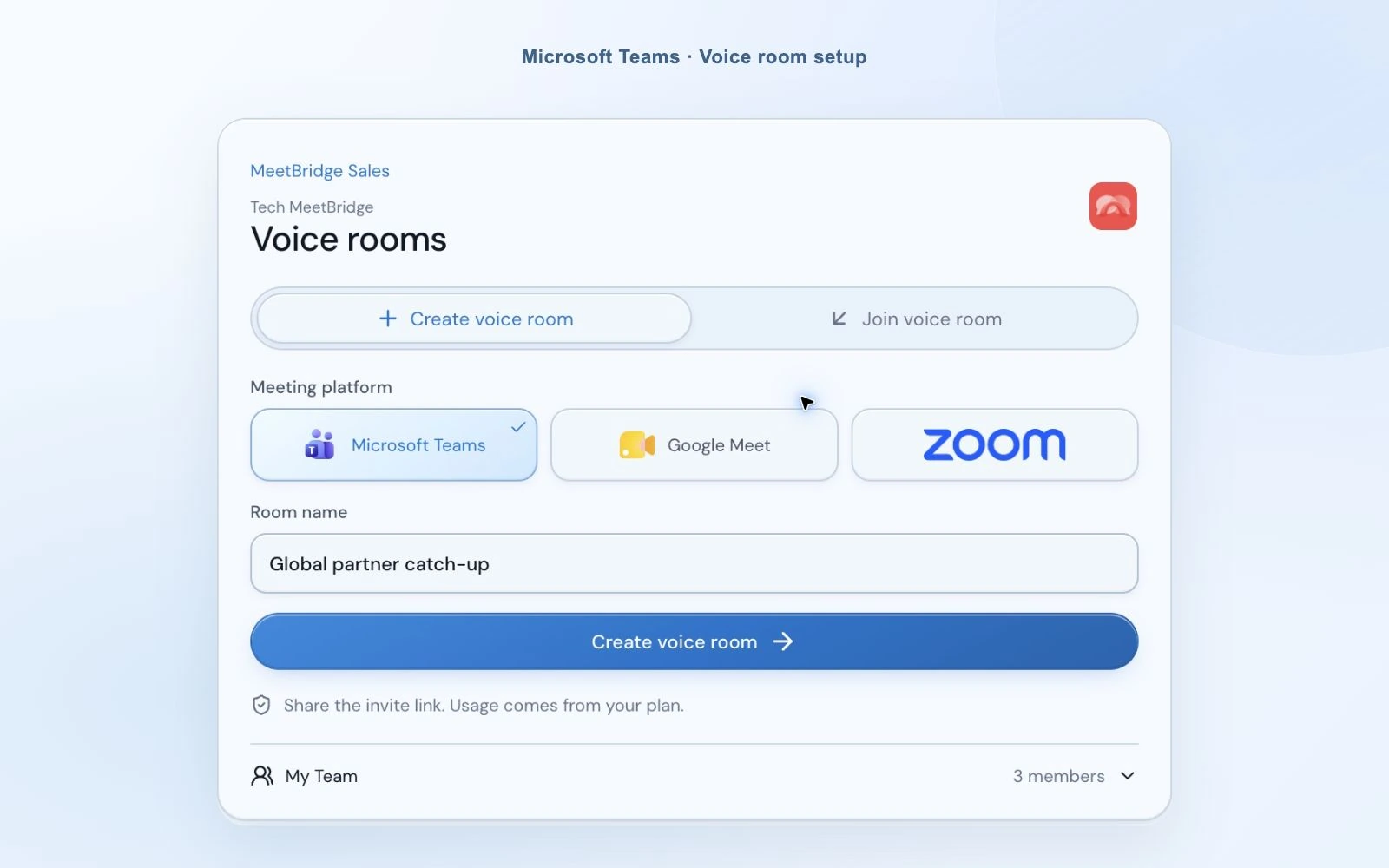
Open the desktop app and use your MeetBridge account. You can select “Login with MeetBridge” to continue the sign-in in your browser, or sign in with email. Choose “Create voice room”, select Microsoft Teams and give the room a name that your guests will recognize. Creating a Voice room creates the translated audio space; it does not create a new Teams meeting.
Choose your language, microphone and speaker
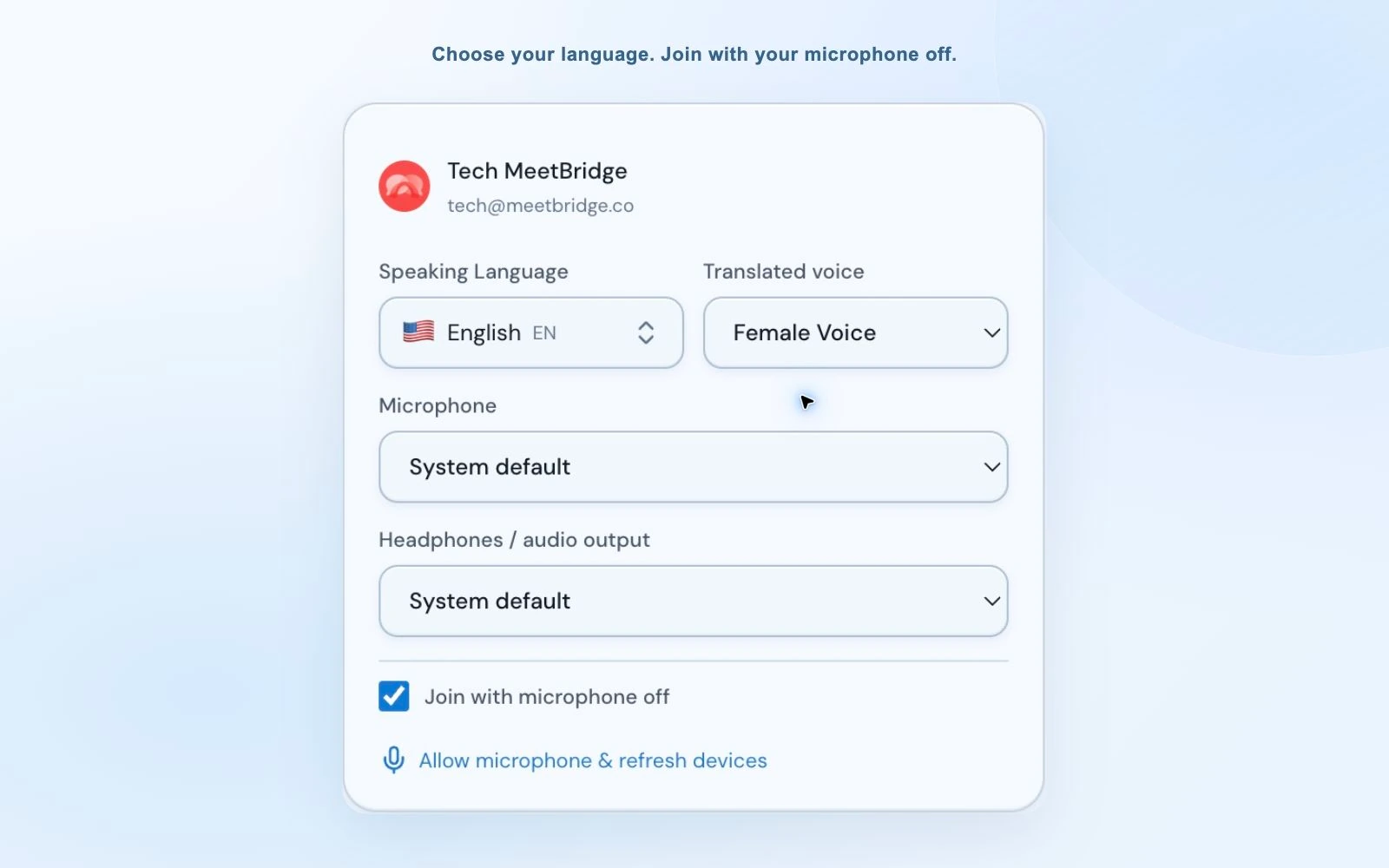
Select your own language and the devices you want MeetBridge to use. If you speak Turkish and the other person speaks English, you select Turkish and they select English. Voice uses those choices to decide which speech needs translation for each listener. Choose a translated voice if you want to change the voice used for the translation.
Use “Join with microphone off” when you need a moment to get ready. Your microphone stays off when you enter; turn it on from the Voice bar when you are ready to speak. Previously selected devices are remembered, but if a device is missing, choose an available one or the system default.
Send the Voice room invitation to the other participants
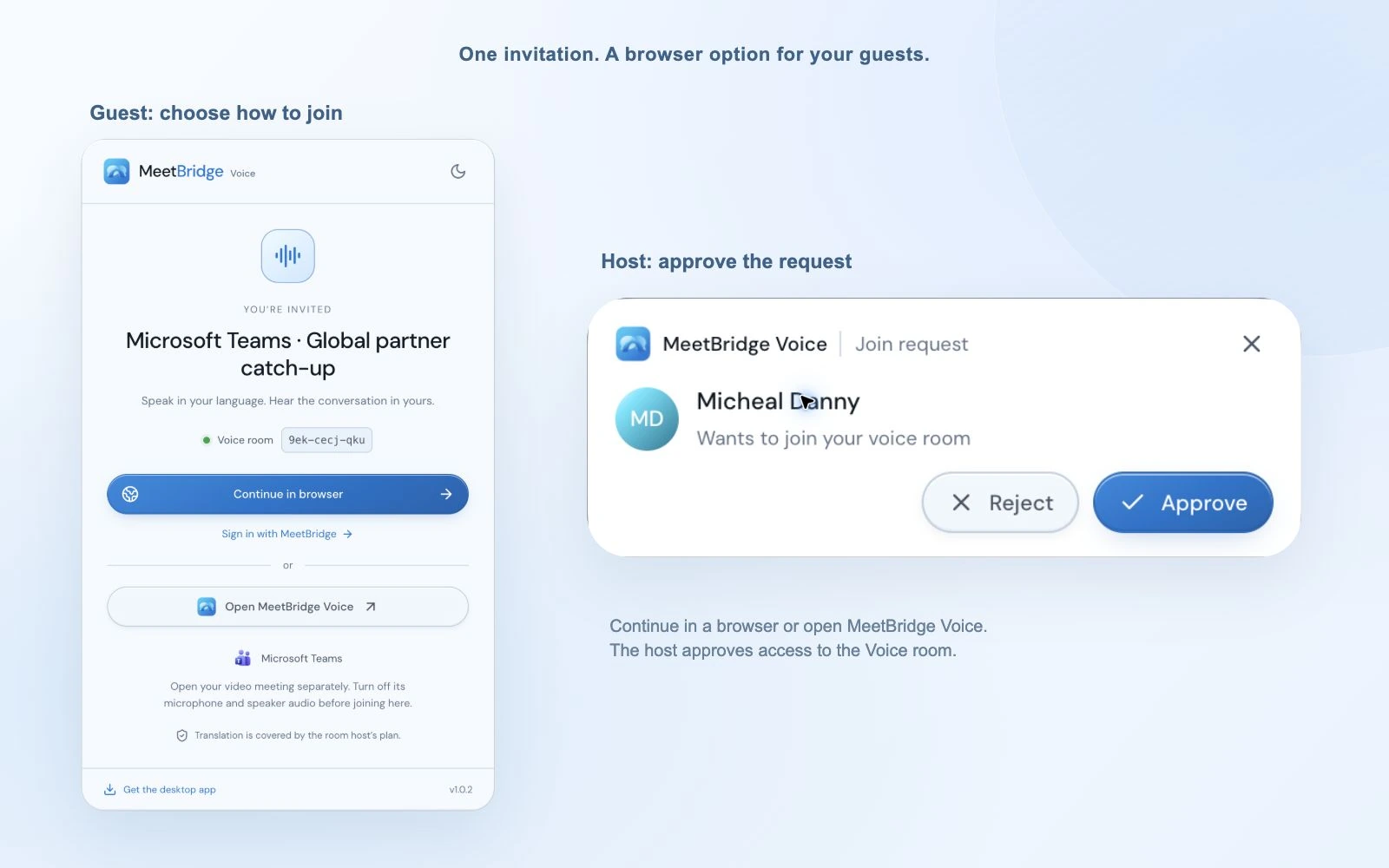
Copy the invite link and share it in the Teams chat, calendar invitation or your usual communication channel. The other person opens that link and chooses either to open MeetBridge Voice or continue in a supported browser. Their Teams video meeting can stay open. A signed-in web user can continue with their MeetBridge account; a guest provides their name.
Approve the request and check everyone’s audio path
The host receives a join request and can approve or reject it. In the desktop app, the request appears in a separate notification, so you can handle it while using the compact bar. Before the first sentence, confirm that everyone has joined the same Voice room, selected the right language, and disabled Teams microphone and meeting audio.
Speak naturally, then leave a little room for the translation
Wait for “Voice room live”, switch on your MeetBridge microphone and start with a short test sentence. Speak in the language you selected. When the listener uses a different language, they hear the translated speech; when your languages match, they hear you directly. Take turns and allow a short pause for a translation to finish before responding. Live translation needs processing time, so overlapping speech makes a conversation harder to follow.
“We’ll use Teams for video and screen sharing, and MeetBridge Voice for the translated conversation. Please open both links, join the Voice room, and choose your language. Keep your Teams microphone and meeting audio off, and use the microphone in MeetBridge instead.”
04 / Stay focused on the conversation
A small translation bar, with the controls you actually need
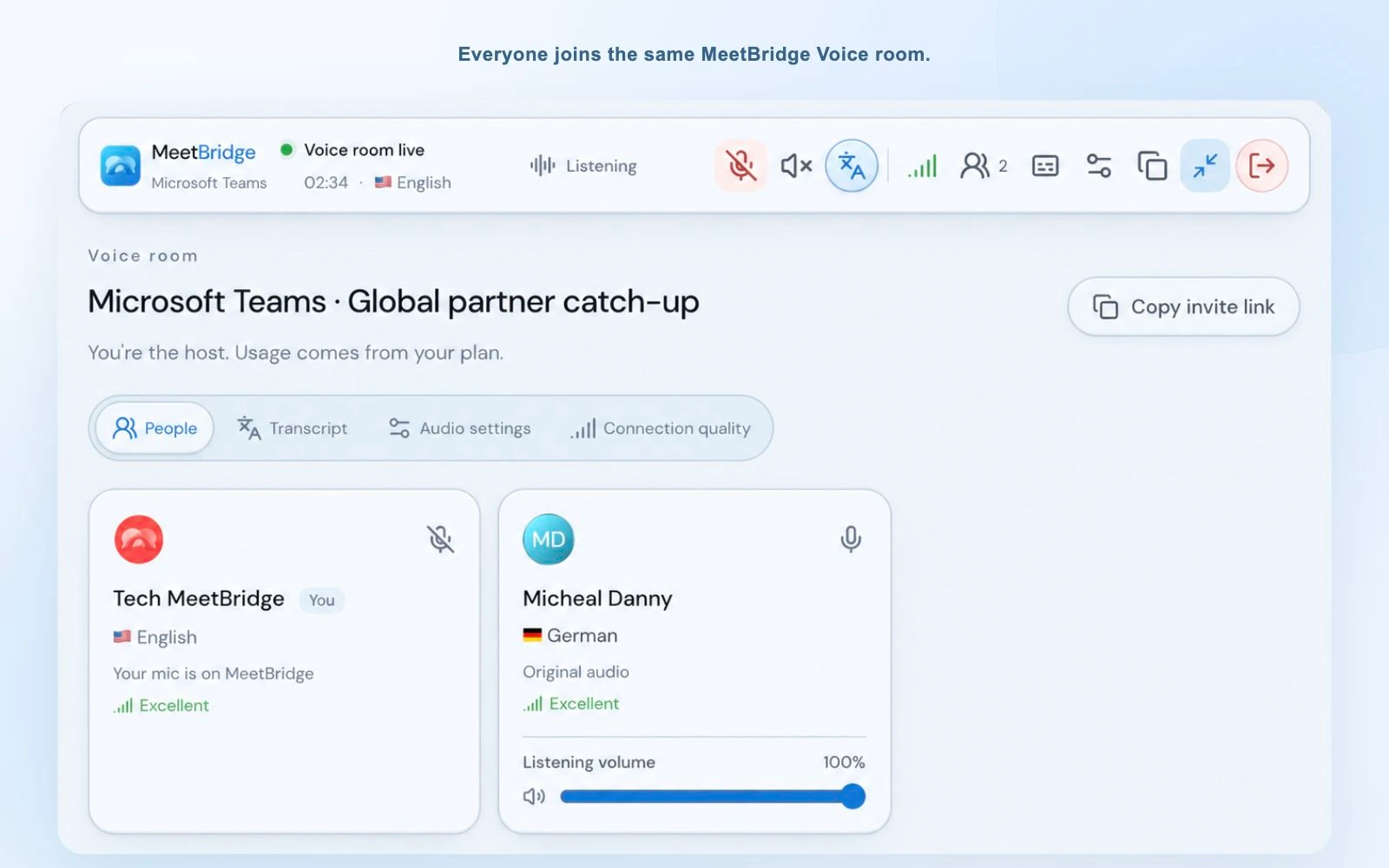
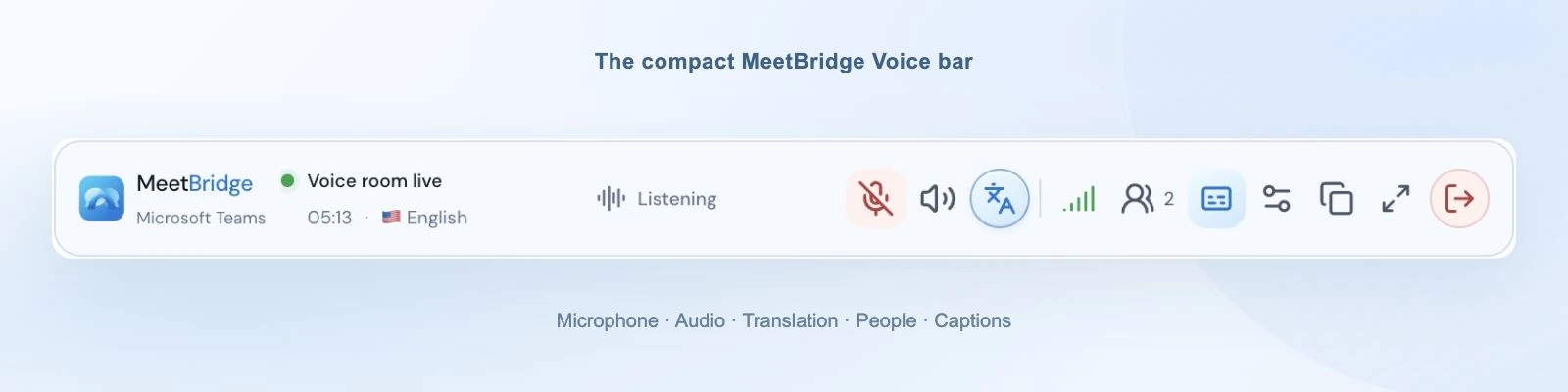
Once connected, the desktop app can stay as a compact bar above your Teams window. You can see whether the room is live, who is speaking or being translated, and which language you are using. Keep the presentation in view while you mute your microphone, adjust the conversation, or open a wider panel when you need more detail. Browser participants use the expanded room view.
Hear the translation and keep a little of the original voice
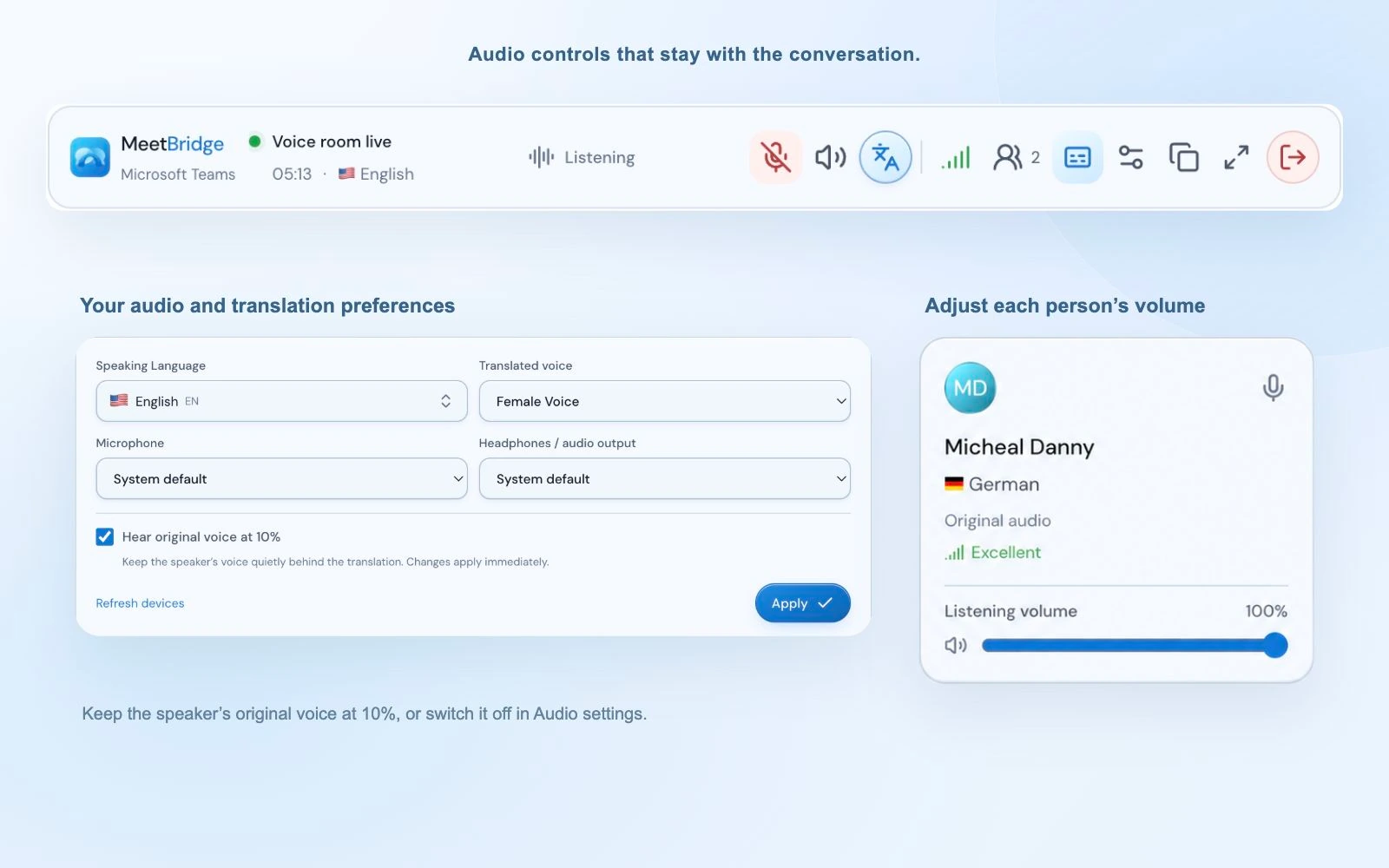
When a translation is ready, MeetBridge Voice plays the original speaker quietly at 10% of your listening level, with the translation at your normal listening level. This keeps a little of the speaker’s delivery present while you follow the words in your own language. If you prefer only the translation, turn off “Hear original voice at 10%” in Audio settings. The change applies immediately, and the option starts enabled in each new room.
While translation is preparing or its connection is unavailable, original audio stays audible normally. Turning translation off also returns you to the original conversation. The 10% option changes what you hear locally; it does not lower another participant’s microphone or change what everyone else hears.
Check a word without losing the meeting
Open the two-line compact caption area to glance at the latest translation, or expand the transcript view for more context from the current session. Captions help when you want to check a product name, a figure or a sentence you missed. Confirm important numbers and commitments aloud or in Teams chat, rather than treating generated text as a perfect record.
Balance people, not your whole computer
Use a participant’s listening-volume slider if one speaker is louder than another. This adjusts that person for you. The connection-quality panel also separates the room connection, participant connections and translation connection, helping you decide whether to check your network, the other person’s microphone, or the translation service.
When the conversation is finished, use the leave icon in Voice and confirm the action. The host can end the Voice room for everyone; a guest leaves their own connection. Leave the Teams meeting separately when your video call is finished. Ending one room does not close the other application.
05 / Where it fits
Keep your existing Teams workflow for multilingual conversations
A Teams translation app is most useful when it fits the way people already meet. Voice lets you keep a customer’s existing video invitation while giving the discussion a language setting that belongs to each participant.
Sales and customer calls
Demonstrate a product in the Teams screen share, ask discovery questions in your own language, and let the customer answer in theirs. Repeat prices, dates and specifications to confirm the details together.
Explore sales workflowsInterviews and onboarding
Give a candidate room to explain their experience without turning every answer into a language test. Explain the translation setup first, and let the candidate ask for repetition or clarification whenever needed.
Explore HR workflowsPartners and distributed teams
Use the Teams agenda and shared documents for a supplier review or regional check-in, then route the conversation through Voice. Each participant keeps their own language and personal listening level.
Explore partner workflows06 / Choose the right kind of translation
Teams translated captions, Interpreter, or MeetBridge Voice?
“Live translation” can mean reading translated text, hearing an AI voice, or listening to a human interpreter. These are different experiences. Choose the one that suits your conversation and the people joining it.
| Option | What participants use | What to check |
|---|---|---|
| Teams translated captions | Translated on-screen text inside Teams. | The organizer’s eligible Microsoft license and Teams policies. |
| Teams Interpreter | Microsoft’s AI speech interpretation inside Teams. | Copilot licensing, supported languages and participant eligibility. |
| Human language interpretation | An interpreter assigned to the Teams meeting. | Arrange your interpreters and the relevant language channels. |
| MeetBridge Voice | A shared translated audio room alongside Teams video. | Everyone joins the Voice room; host usage comes from MeetBridge. |
Microsoft documents translated captions with eligible Teams Premium or Copilot licensing. Its Interpreter feature provides spoken interpretation with its own language and access requirements. Human interpretation requires your organization to arrange interpreters. Check the official guides below for current availability. MeetBridge Voice follows a separate room workflow, so its translation does not depend on enabling a Teams translation feature.
For customers or partners outside your organization, a browser invitation can make the Voice workflow easier to explain. Guests still have to join the room; installing Voice on your computer alone does not translate people who continue speaking only through Teams. That distinction matters more than a feature checklist.
07 / Make the first call easier
If something sounds wrong, check these first
- I hear an echo or the same sentence twice.
- Check that Teams meeting audio is off as well as its microphone. Keep only one Voice room open for yourself. If speakers feed sound back into your microphone, reduce their level or try headphones.
- The other person cannot hear me.
- Make sure they joined the Voice room and the host approved them. Check the MeetBridge microphone button, the selected input device and the microphone permission in your operating system or browser. Unmuting Teams does not fix the Voice audio path.
- I hear the original language but no translation.
- Confirm translation is enabled and the speaker’s selected language differs from yours. Check the translation connection status. Original audio plays normally while translation is preparing or unavailable; a same-language speaker is also heard directly.
- The browser room is silent.
- If the browser shows “Enable room audio”, select it to allow playback. Check the browser’s microphone permission, your selected output device and the room’s speaker control. Keep the Voice room open while using Teams.
- I cannot find the other person in Voice.
- A Teams attendee is not automatically a Voice participant. Send the Voice invite, ask the person to open it and approve their request. Confirm you are using the same room link rather than two separately created rooms.
For clearer translations, use one language consistently, speak in manageable sentences and avoid interruptions. Put unusual names, technical terms and important numbers in the meeting chat when needed. AI speech translation can make mistakes; checking a detail together is part of a good multilingual meeting.
Explain the separate audio room before inviting people, and review your organization’s requirements for cloud audio processing. Our security information and meeting voice processing information can support that conversation.
08 / Or bring everything into one room
You can also meet directly in MeetBridge
You do not need Teams to use MeetBridge live translation. If your team can choose the meeting platform, create a full MeetBridge meeting and invite participants there. Video and translated speech then belong to the same meeting, without coordinating a Teams link and a separate Voice link.
Depending on the plan and enabled meeting features, the full meeting workflow can also give you transcript context, summaries, decisions and action items for follow-up. Choose Voice when an existing Teams call is where your video needs to stay. Choose a MeetBridge meeting when you want the conversation and its working context together.
The two workflows share the goal of helping participants speak in their own language, but their meeting records are different. Do not assume Teams captions or a Teams recording will contain the Voice conversation: audio in this setup is carried outside Teams. The live Voice transcript view is also not a promise of the full meeting’s saved record.
Explore live translation in MeetBridge09 / Your questions, answered
Microsoft Teams live translation FAQ
How can I translate a Microsoft Teams meeting in real time?
Keep Teams open for video and screen sharing, then create a MeetBridge Voice room and invite the same participants. Each person joins the Voice room, chooses their own language, and turns off Teams microphone and meeting audio. MeetBridge Voice carries the conversation and delivers translated speech to listeners in other languages.
Can I use MeetBridge Voice if only I have it installed?
The other person does not have to install the desktop app, but they must join the same MeetBridge Voice room. The room invitation lets them continue in a supported browser. Voice does not capture or translate somebody who remains only in the Teams audio call.
Do guests need a MeetBridge subscription?
Guests can join through the room invitation without buying their own plan. They provide their name and request admission; the host approves them. Voice room usage is charged to the host’s MeetBridge plan. Check the current pricing page for plan limits and included usage.
Do I need Teams Premium or Microsoft Copilot for MeetBridge Voice?
MeetBridge Voice uses its own Voice room and translation service, so it does not require a Teams translation add-on. You still need access to the Teams meeting and an eligible MeetBridge host plan. Microsoft’s own caption translation and Interpreter features have separate licensing and policy requirements.
Can each participant use a different language?
Yes. Each participant selects their own language from the room’s available options and speaks in that language. MeetBridge Voice uses those choices to translate speakers in another language into the listener’s selected language. Participants speaking the same language are heard directly.
Can I hear the original speaker as well as the translation?
When translation is ready, the original voice is mixed quietly at 10% of your listening level by default. Turn off “Hear original voice at 10%” in Audio settings to hear just the translation. That option starts enabled in each new room. While translation is preparing or unavailable, original audio remains audible normally.
Will Teams captions or recordings include the translated Voice conversation?
Do not assume they will. MeetBridge Voice is a separate audio room, and Teams meeting audio is disabled in this setup. The Voice transcript view provides live context, but it is not a Teams transcript or a guarantee of a saved recording. Use a full MeetBridge meeting if you need the broader transcript, summary and follow-up workflow.
Can I hold the entire meeting in MeetBridge instead of Teams?
Yes. Create a full MeetBridge meeting and share its meeting link when you want video and live translation together in one place. Depending on your plan and enabled meeting features, you can also use transcript context, summaries and action items. Voice is the companion workflow when you want to keep your existing Teams video meeting.