On this page
The product in practice
A booking link should prepare the conversation.
A calendar slot tells you when someone wants to meet. A useful request also tells you who they are, what they need and which language will help them explain it. MeetBridge brings those details into a reviewable booking workflow, then connects an approved request to a full MeetBridge meeting.
A clear first step
Give people a way to request your time.
Share your public booking link with a prospective client, candidate or partner. They choose an offered duration and time, enter their details and submit a request. The host can review the purpose and preparation needed before accepting the session.
Submission and confirmation are separate steps. A pending request is waiting for a decision; it is not permission to join a meeting. Successful approval creates the scheduled MeetBridge meeting and associates its meeting code with the request.
That review is useful when a conversation needs the right specialist, a suitable scope or a little preparation. Make the approval step clear wherever you share the link so the visitor knows what happens next.
- Use a public /book/ link for external meeting requests.
- Review contact details, requested time, language and intake answers together.
- Approve a suitable request or reject one you cannot accommodate.
Booking settings
Offer times that match the work you can take on.
Configure the link before sharing it. The public address, scheduling timezone, meeting lengths and weekly windows determine what visitors can request. A focused set of options makes the invitation easier to understand.
For a discovery call, you might offer 30 minutes across a few weekday windows. A longer consultation may need a different duration and more preparation. Choose the settings around the session you intend to deliver, and keep the booking horizon short enough to reflect your actual commitments.
| Setting | What it controls | Practical choice |
|---|---|---|
| Public link address | The slug in your shareable /book/ address. | Choose a recognizable name and use the saved link consistently. |
| Scheduling timezone | The timezone used for your weekly booking windows. | Use the region in which the host or team plans its working day. |
| Allowed durations | The meeting lengths a visitor can select. | Offer lengths you can support; the settings include common duration presets. |
| Weekly windows | Enabled days and one or more time ranges per day. | Leave room outside the published windows for preparation and other work. |
| Booking horizon | How far ahead requests can be made. | Choose a period that matches your planning cycle. |
| Custom questions | The additional context requested before submission. | Ask only what helps you accept and prepare the session. |
International scheduling
Make the date, time and timezone explicit.
Your weekly windows use the link’s scheduling timezone. The public page lets a visitor choose their display timezone and a 12-hour or 24-hour time format. Their request stores the selected timezone alongside the actual start and end times.
A client traveling abroad may need to change the timezone suggested by their device. Ask them to confirm the region and date before submitting. Named regions are more useful than assuming a fixed offset, especially around seasonal clock changes.
Offered slots account for configured windows, durations and booking horizon, plus relevant MeetBridge meetings and pending or approved requests for eligible hosts. Capacity can change while a visitor completes the form, so the selected slot is checked again at submission.
- Confirm the visitor’s display timezone when discussing the appointment.
- If a selected slot becomes unavailable, choose another offered time.
- Keep commitments outside MeetBridge in mind when setting booking windows.
The availability described here uses MeetBridge scheduling information. It does not promise synchronization with an external calendar. Publish windows you can honor and review the requested time before approving.
Preparation with purpose
Ask questions that change how you prepare.
The request form collects first and last name, email and a language selection, with company and notes available for additional context. Custom questions let you collect the details that matter for your own service or team.
Use short text, long text, a single-choice list, a number or a yes/no question. Add a helpful placeholder and mark a question required when the answer is needed before you can make a decision. A short, deliberate form is easier to complete than an exhaustive questionnaire.
Language is preparation context. Check that the required language is available in the meeting workflow you plan to use, and confirm participant settings when the meeting begins. An intake answer does not establish that every attendee shares that preference.
| Question | Suitable input | How the host uses it |
|---|---|---|
| What would you like to achieve in this call? | Long text | Build a focused opening question and identify the expected outcome. |
| Which service are you interested in? | Single choice | Decide whether the request fits the team’s scope. |
| How many people will join? | Number | Prepare the discussion format and clarify who needs an invitation. |
| Is there a specific deadline? | Yes/no, with details in notes | Ask about urgency without treating it as an agreed delivery date. |
| Which organization are you representing? | Company field or short text | Understand the client context before the introduction. |
Host review
Turn a request into a considered decision.
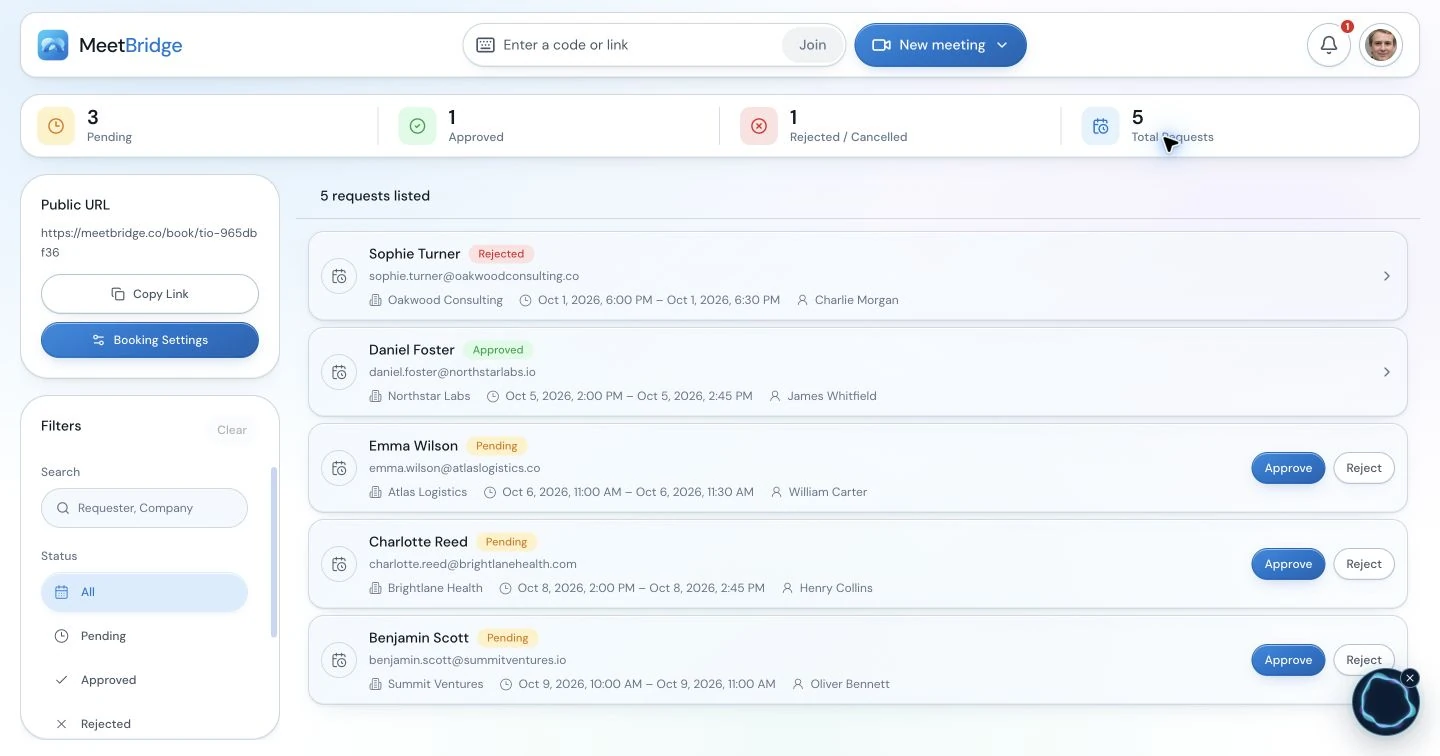
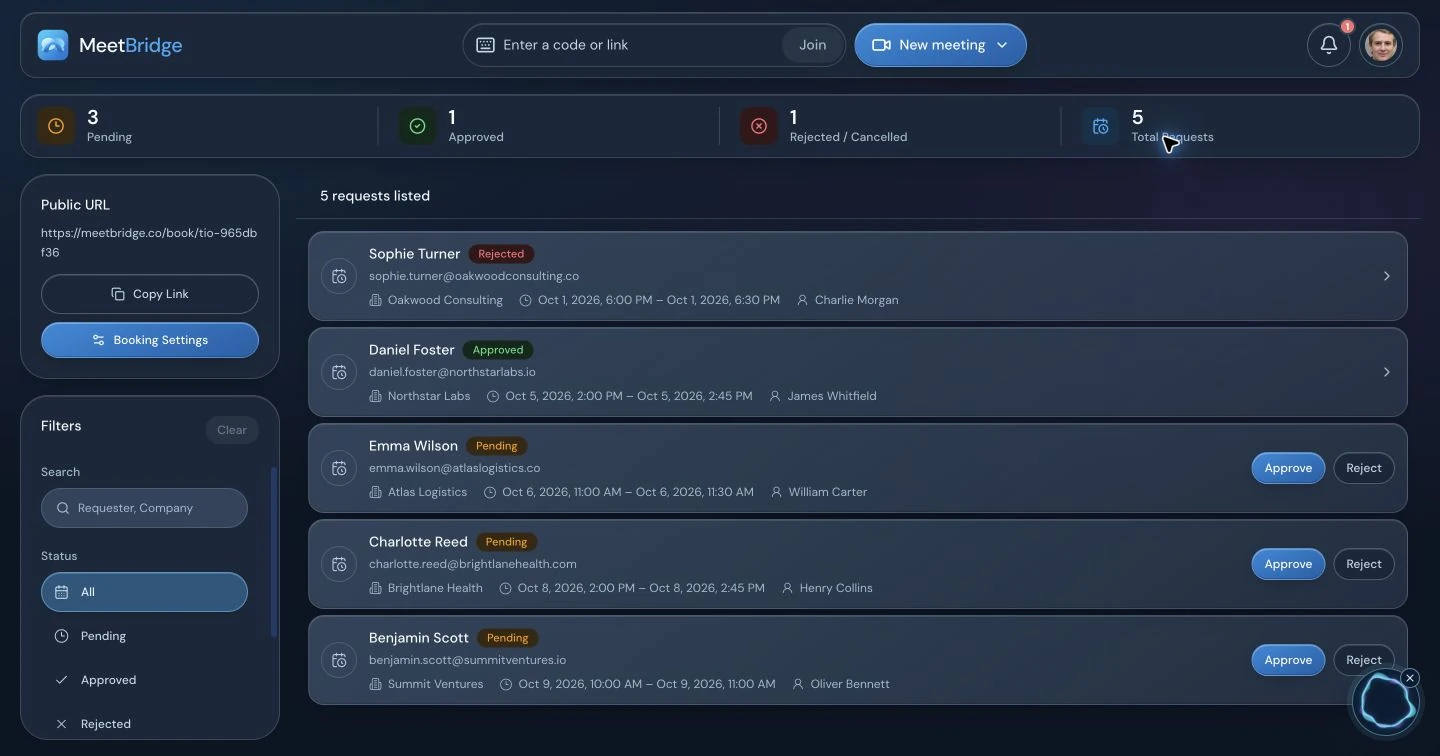
The booking workspace keeps the request’s status visible. Open its details to review the person, proposed slot, assigned host, timezone, language, notes and custom answers. Decide whether the session is appropriate while there is still time to prepare.
Approval depends on the request still being eligible and a host being available. A time that has already passed cannot be approved. Read any availability or host-assignment message before treating the session as ready, especially when several people manage the same team queue.
Pending
The visitor has asked for the session. Review the intake and requested time, then make a decision. The request is awaiting approval.
Approved
The request is associated with a scheduled MeetBridge meeting. Use its meeting details to prepare the session and confirm the final host.
Rejected or cancelled
The request will not proceed in its current form. Give a useful reason where appropriate and agree a different next step if the conversation is still needed.
Shared team intake
Keep an accountable host behind the team link.
Personal booking links are tied to their owner. An organization link supports a pool of active members enabled to receive bookings. Authorized team managers can control that pool in booking settings, keeping the shared link connected to people who can actually host.
A request shows its assigned host. For an eligible organization booking, an authorized user can select another enabled member; the change checks whether that person can take the slot. Approved bookings can change host while the associated meeting is still waiting, subject to the workflow’s permissions and checks.
Decide who monitors requests and who reviews the final assignment. An offered team slot reflects eligible host capacity; it is not a promise that a particular specialist will be free. Use the intake to assess fit and make the assignment clear before the conversation.
- Enable only members who should receive requests through the shared link.
- Review the assigned host when approving or changing a team booking.
- Use availability feedback when a proposed host change cannot proceed.
From request to conversation
Continue into the full MeetBridge meeting workflow.
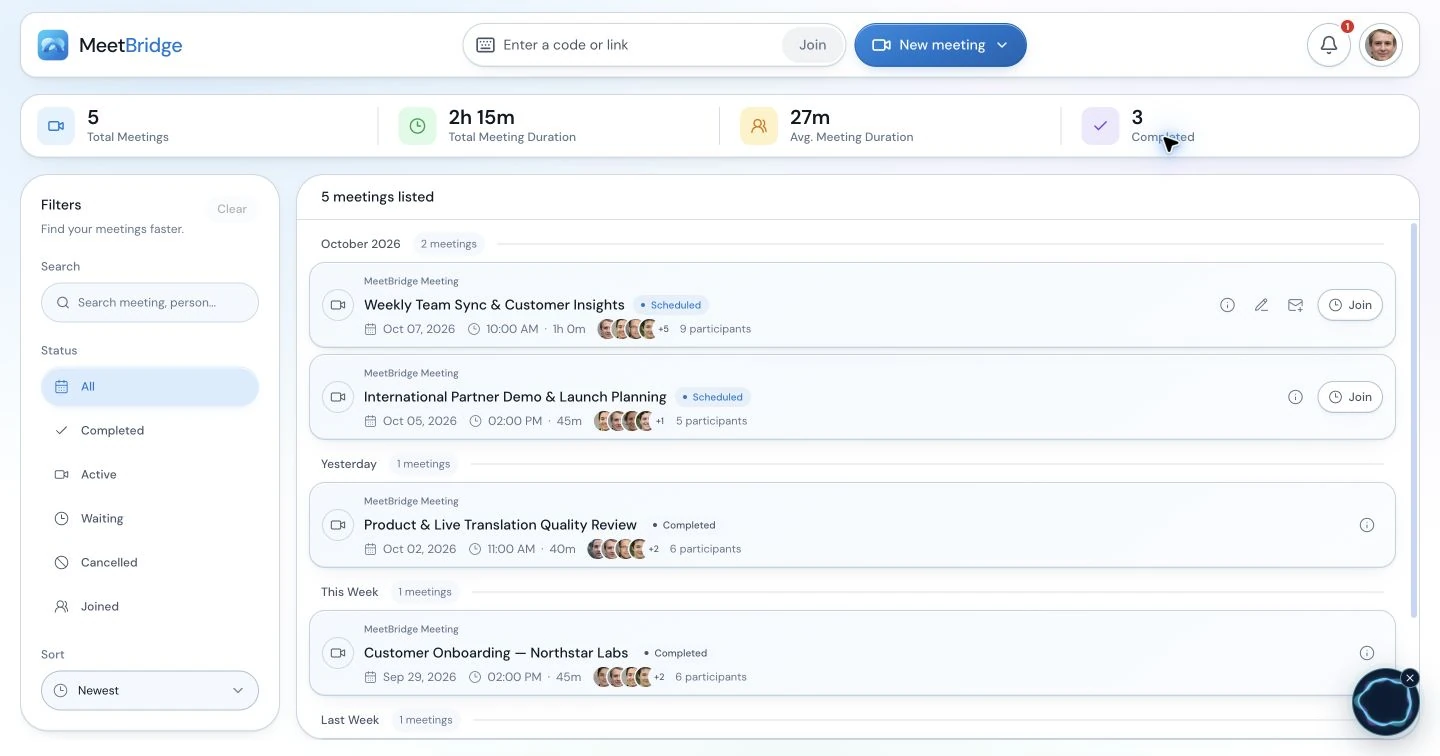
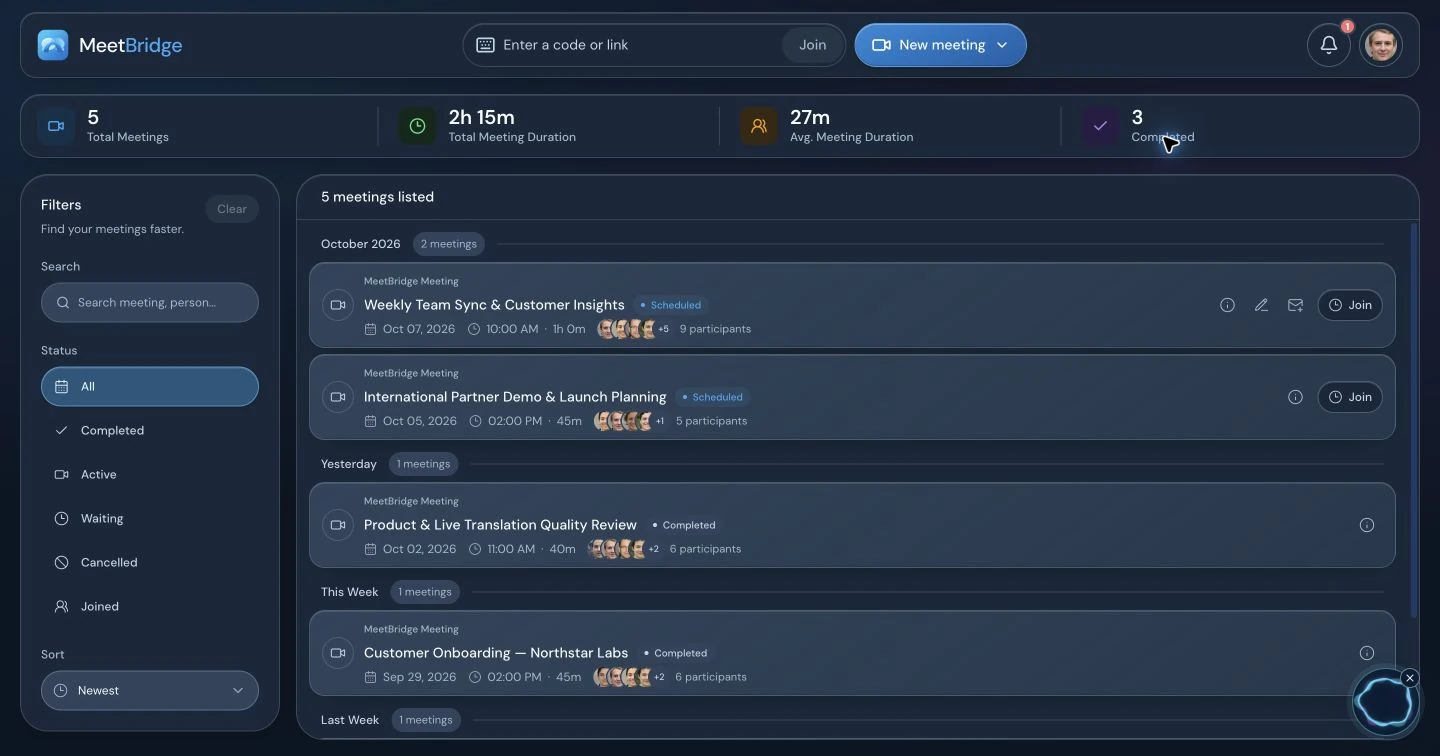
An approved booking creates a full MeetBridge meeting. The host can use the intake to frame the agenda, confirm language choices and begin with the client’s stated goal. During the session, clarify anything that has changed since the request.
Available live translation, saved transcripts, meeting summaries and actions belong to the meeting workflow and depend on your plan and enabled features. Review the resulting record before sharing it, and confirm owners and dates for follow-up. The original intake describes expectations; the meeting record should reflect what participants actually discussed.
MeetBridge Voice is a separate companion workflow for spoken conversation alongside Teams, Zoom or Google Meet. A booking request does not automatically schedule those platforms or create a companion Voice room. If you use that approach, prepare its separate invitation and audio setup, and agree how you will document the call.
- Use the linked meeting details after successful approval.
- Confirm the intake with the participant rather than assuming it is still complete.
- Review available meeting outputs before turning them into a client recap.
A repeatable booking process
Keep the invitation useful as your work changes.
Review your booking windows, host pool and questions whenever your service or staffing changes. A link that collects the right information today may need different questions for the next engagement. Keep the form aligned with the conversation you can deliver.
Explain that requests need review when placing the link in a proposal, website or email signature. Set a practical internal routine for reviewing pending requests, then use the client’s answers to prepare a concise agenda. If the time or purpose no longer works, agree the next step directly with the participant.
- Ask for enough context to prepare, with clear wording and useful examples.
- Keep organization hosts and published working windows current.
- Review pending requests before their proposed time passes.
- After each session, identify which intake answers helped and simplify the rest.
Step by step
Set up a booking link in six deliberate steps.
Start with the meeting you want to offer, then configure the request path and host review process around it.
Define the session
Choose the purpose, suitable meeting lengths and information you need before accepting. Make the outcome understandable to a first-time visitor.
Configure the public link
Save a recognizable address, scheduling timezone, allowed durations, weekly windows and booking horizon. Complete the setup before sharing it.
Write focused questions
Use the built-in contact and language fields, then add custom questions for missing context. Choose input types and required answers deliberately.
Prepare the host process
For a team link, confirm the enabled host pool and who reviews requests. Keep the final assignment visible to the person preparing the session.
Share and review
Share the public link with a clear explanation of approval. Review each submitted request, its time and intake before accepting or rejecting it.
Prepare the approved meeting
Use the associated meeting details, confirm the agenda and check language needs. Decide which meeting outputs you need for follow-up.
Illustrative client request
A discovery call begins before the introduction.
Imagine a consulting team receiving a request from a prospective client in another country. The client wants to discuss expanding a service into a new market.
The client explains the purpose
They choose an offered 30-minute slot in their display timezone, select their language and describe the target market in a custom answer. The request is submitted for review.
The team checks fit and ownership
A reviewer reads the intake, checks the time and confirms an eligible host. Approval creates the scheduled MeetBridge meeting. The consultant prepares questions about the client’s market and constraints.
The host starts with useful context
At the meeting, participants confirm language choices and the stated goal. They clarify the deadline and distinguish an exploratory discussion from an agreed engagement.
The recap reflects the actual discussion
Where enabled, the host reviews the available transcript, summary and actions. They confirm the next step with the client before sharing a recap or preparing a proposal.
The booking form supplies a starting point. Host review makes the appointment deliberate, and the meeting establishes the decisions that belong in follow-up.
Practical outcomes
What your team can improve
- Clients arrive with a clear request and the host has context to prepare.
- Teams can review timing, scope and host ownership before confirming.
- Approved requests connect to the full MeetBridge meeting workflow.
Before you get started
Frequently asked questions
Does submitting a booking request instantly confirm the meeting?
No. A submitted request starts as pending and needs host approval. Successful approval creates the scheduled MeetBridge meeting. An assigned host name or submission success message does not by itself mean the appointment has been approved.
Does a visitor need a MeetBridge account to request a meeting?
The public booking page accepts requests without an account sign-in. Visitors select a slot, provide the required contact and language details, answer required custom questions and complete the page’s submission checks. Joining an approved meeting is a separate step.
Can visitors see appointment times in their own timezone?
Yes. The public page lets them select a display timezone and choose a 12-hour or 24-hour time format. Your weekly windows still use the link’s scheduling timezone. Ask traveling participants to confirm the selected region and date before submitting.
Which custom question types can I use?
You can use short text, long text, single-choice options, numbers and yes/no questions. Questions can have placeholders and be required or optional. Start with questions that help you judge fit or prepare the agenda, and keep optional background details easy to skip.
What does the language choice in the request do?
It records the requester’s language for host preparation and appears with their intake details. Confirm language availability in the meeting workflow you plan to use. Participants should still check their own language settings at the meeting; the booking answer is not a substitute for that check.
How are available times determined?
Slots use configured weekly windows, durations and booking horizon, together with relevant MeetBridge meetings and pending or approved requests for eligible hosts. The selected slot is checked again at submission. This does not promise external calendar synchronization, so include other commitments when planning your windows.
Can an organization choose which members receive bookings?
Authorized managers can enable members in the organization’s booking host pool. Each request shows its assigned host. Eligible organization bookings support a host change to another enabled member when permissions, status and availability checks allow it; a waiting approved meeting can also be subject to those checks.
Can a requester cancel an appointment?
The public request-management flow supports cancelling a pending request or an approved meeting while it is still waiting. The requester needs the request’s management access. If a different time is needed, agree the next step with the host; this guide does not promise an automatic rescheduling flow.
Does a booking include transcripts, summaries and actions?
Approval links the request to a full MeetBridge meeting. Saved transcripts, summaries and actions depend on your plan and enabled meeting features. Booking intake is preparation context; review the available meeting record before using it to describe decisions or assign follow-up work.
Can the booking link create a Teams, Zoom or Voice session?
The approved booking creates a MeetBridge meeting. It does not automatically schedule an external video platform or create a companion Voice room. If you choose Voice alongside Teams, Zoom or Google Meet, prepare that separate invitation, audio setup and documentation workflow.
Continue exploring
Build the right meeting workflow
Live translation
Prepare participants to speak and listen in their selected languages.
Transcripts and meeting memory
Understand the available meeting record and return to the discussion.
Meeting summaries and actions
Review the outcome before sharing a recap and assigning next steps.
Consulting live translation
Apply the workflow to discovery calls, workshops and project reviews.