
Inside the customer workflow
01 / Understand the customer’s reality
A quiet training session can still leave important questions unanswered.
You finish explaining the configuration. The customer nods, but a week later the same task is still incomplete. Their administrator wanted to ask how permissions work for a regional team, or which step comes before importing data. They were following the presentation in another language and did not find a comfortable moment to explain.
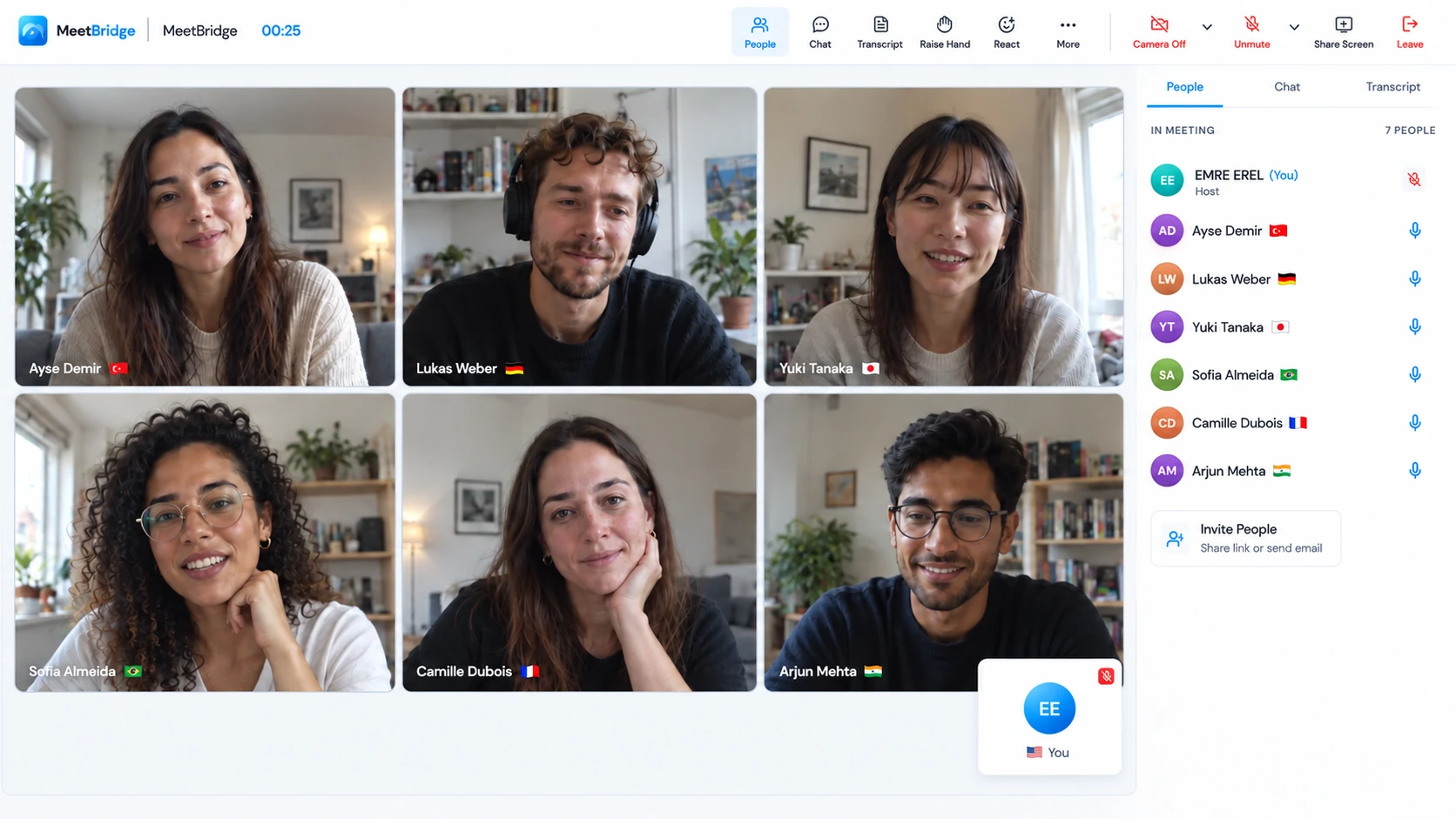
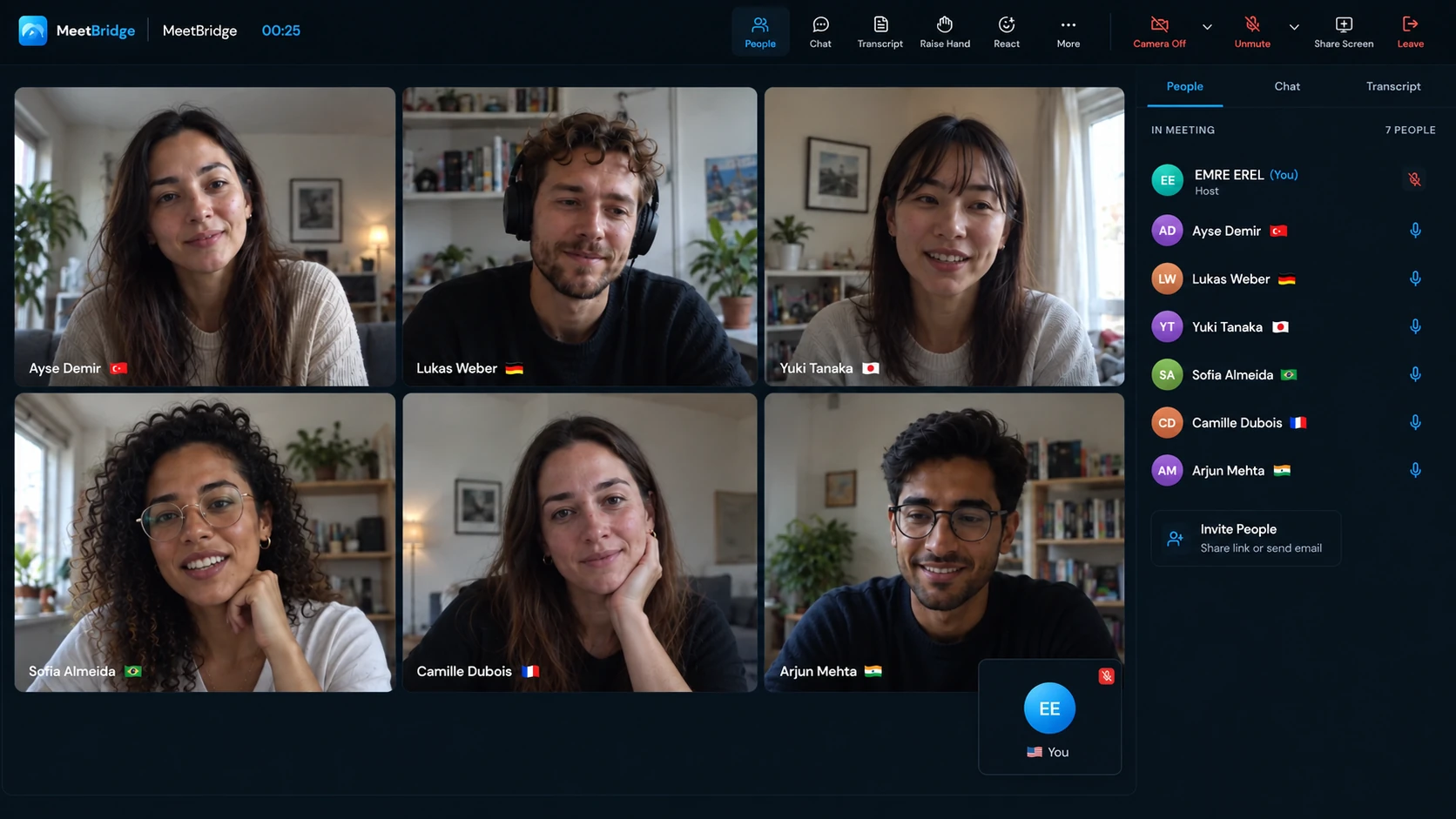
Live translation for customer success calls gives the discussion more room. Each participant speaks in their chosen language; MeetBridge delivers translated speech in the listener’s language. A customer can describe their process, your implementation lead can ask a follow-up and another stakeholder can clarify their responsibility. Same-language participants hear each other directly.
The aim is practical: understand what the customer is trying to do and agree on the next step. Your team still brings the product knowledge, diagnosis and account context. Translation helps those conversations happen across languages.
“Can you show us where that task stops?” gives the customer a concrete starting point. Repeat the blocker back before changing settings or opening an escalation.
02 / Throughout the relationship
Use the language the customer needs at each stage.
Agree what the first working setup should look like.
An implementation meeting can involve a project lead, administrator and regional users. Let each explain their own workflow. Separate the configuration you agreed to implement from a requirement that still needs technical review.
Let the people doing the work ask the questions.
During customer training, demonstrate one useful task and pause. Ask a participant to explain how they would use it in their team. The translated answer helps you find the step that needs another example.
Build the issue description together.
Ask what happened, what the customer expected and which people are affected. Use the shared screen to check the exact error and document the evidence before deciding who needs to investigate.
Hear the priorities behind the account update.
Invite the customer’s regional and executive stakeholders to explain what has changed. A business review should leave you with confirmed goals and owners, including the concern someone might have skipped in another language.
03 / Match the meeting to the account
Meet in one room. Or keep the customer’s invitation.
A full MeetBridge meeting
Keep video and translated speech in one meeting. Available transcript context, saved summaries, decisions and actions can support your later review, depending on your plan and enabled meeting features.
Explore MeetBridge meetingsMeetBridge Voice beside their platform
Keep Teams, Google Meet or Zoom for video, screen sharing and chat. The host creates a separate Voice room in the desktop app. Everyone who speaks joins that room; invitees can continue in a supported browser.
Get MeetBridge VoiceIn the Voice workflow, turn off the original platform’s microphone and incoming meeting audio. Speak and listen through MeetBridge instead. Voice is a shared audio room alongside the video call: it does not automatically import the attendee list or translate someone who stays only in the original audio call.
Choose a full MeetBridge meeting when the conversation and its available follow-up record should live together. Choose Voice when the customer needs to keep an existing video platform. Explain the choice with the invitation so your onboarding session can start with the customer’s goal.
04 / From kickoff to a usable workflow
Build the first task around the customer’s own process.
Ask what a useful first result would be.
Choose one workflow the customer wants to complete: approving a request, inviting a team or producing a report. Confirm who will perform it and what has to be ready first. Send the agenda, language instructions and relevant meeting links.
Make admission and audio straightforward.
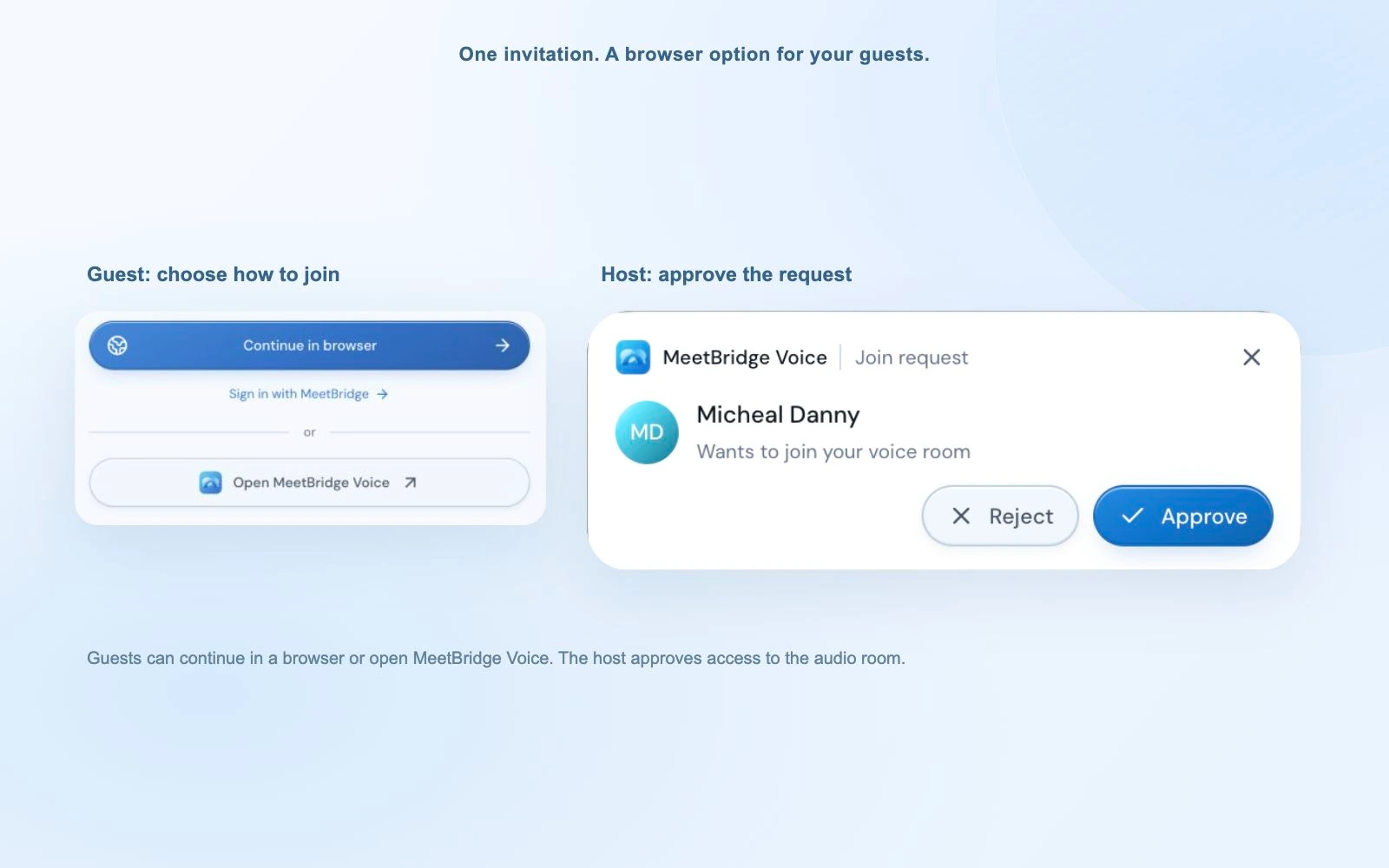
For Voice, a guest opens the invitation, continues in the browser and requests entry with their name. The host approves the request. Confirm everyone is in the Voice room, check language and devices, and try a short exchange before beginning the walkthrough.
Demonstrate, pause and let the customer try.
Show one meaningful step, then ask the customer to describe what they would do next. Keep their question attached to the relevant screen. Take turns and let the translated response finish before explaining the next action.
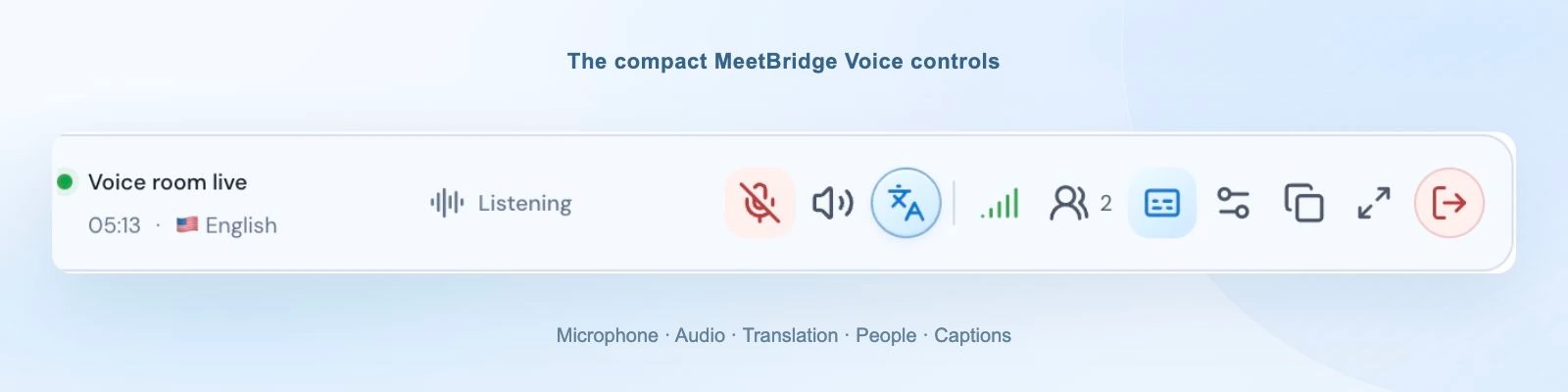
The compact desktop bar keeps Voice controls close to the shared screen. Browser customers stay in the expanded room. Before closing, confirm the next task, the customer’s owner and the date you will review it. Put exact field names and dates in writing where everyone can refer to them.
05 / Make troubleshooting precise
Translate the explanation. Keep the error code exact.
A customer’s issue rarely fits into the first sentence. Ask them to describe the sequence, show the relevant screen and explain who is affected. Keep the expected result separate from the observed result. Paste error messages, version numbers and timestamps into chat or a shared document rather than relying on spoken translation for every character.
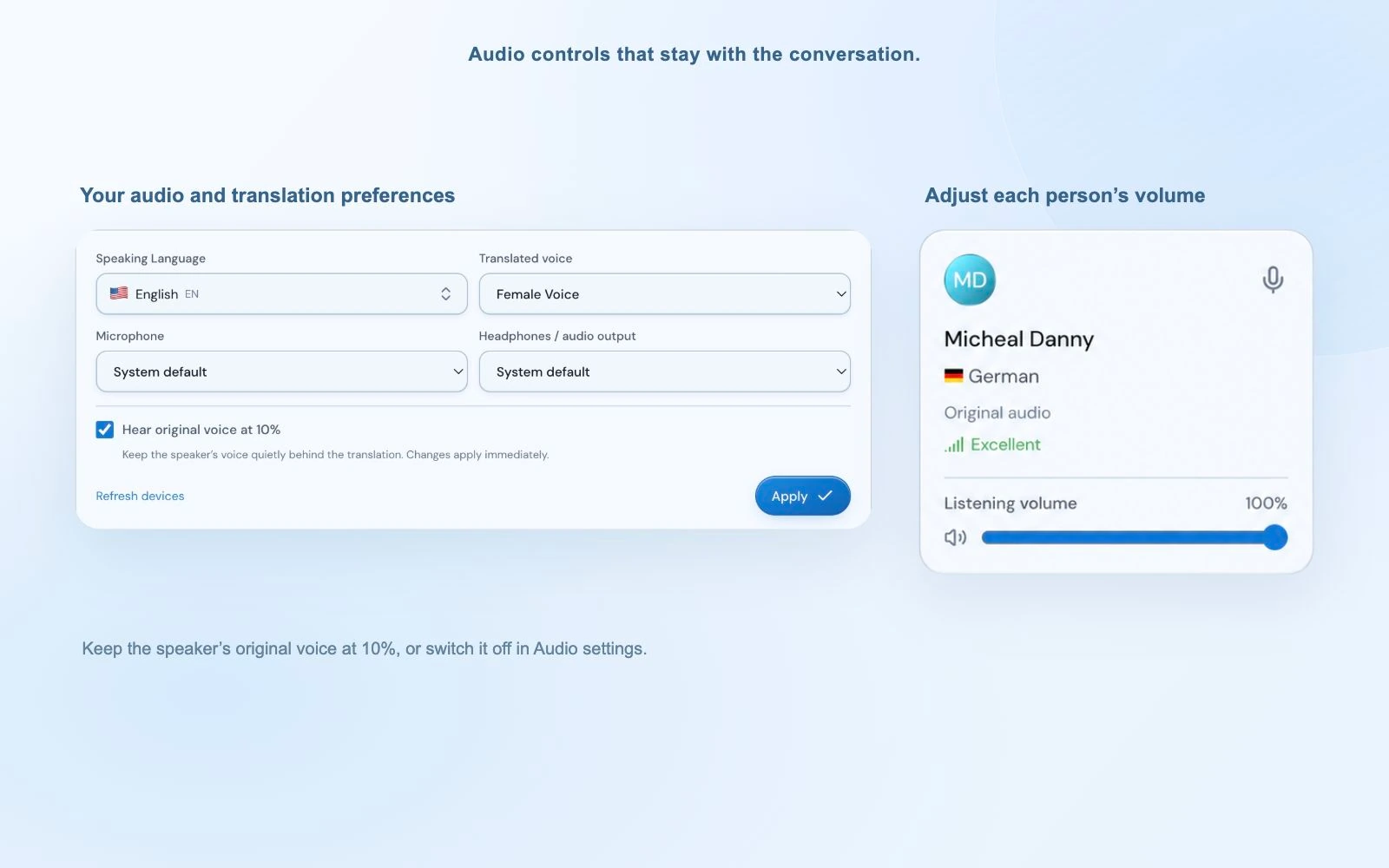
Voice lets you adjust a participant’s listening level when one speaker is louder than another. When foreign-language translation is ready, the original voice stays quiet at 10% by default. Disable “Hear original voice at 10%” in Audio settings if you prefer translation alone. During translation startup or an unavailable connection, the original remains audible normally.
Use the caption area to check a word and the connection-quality panel to locate an audio problem. If the translated description seems inconsistent with the screen, ask the customer to explain the step again. AI translation can make mistakes; the written error and the customer’s confirmation give the investigation a firmer starting point.
Before handing the issue to another team
Confirm the affected workflow, the evidence collected, any agreed workaround and who will send the next update. Keep “we will investigate” distinct from a promised fix or release date.
06 / Bring the stakeholders into the review
Give the customer a say in what happens next quarter.
A multilingual QBR can include an executive sponsor, regional users and your account team. Each person can keep their own language choice. Start with the customer’s agreed goals, show the relevant progress and ask what has changed in their priorities.
The GitLab customer-success handbook connects success plans with desired outcomes, milestones, timelines and owners. That is a useful discipline for the conversation: the customer should be able to question the plan and confirm what it means for their team.
| Discuss | Ask the customer | Confirm together |
|---|---|---|
| Progress | Which part of the workflow is now working for your team? | The result, its evidence and the period being reviewed. |
| Blockers | What is still stopping the next group from using it? | The unresolved question and who will investigate. |
| Next priority | What should we focus on before the next review? | The milestone, named owner and review date. |
Allow each stakeholder time to answer. A translated review gives you a way to hear the regional concern behind an account-level update. Confirm the plan in writing, especially dates, scope and responsibilities.
07 / Keep the promise through the handoff
The next person needs the customer’s context, not another guessing exercise.
After a full MeetBridge meeting, review the transcript, summary and actions available under your plan. Check generated text before preparing the customer recap. Separate confirmed decisions, open questions and your own interpretation so an implementation specialist or support lead can pick up the discussion accurately.
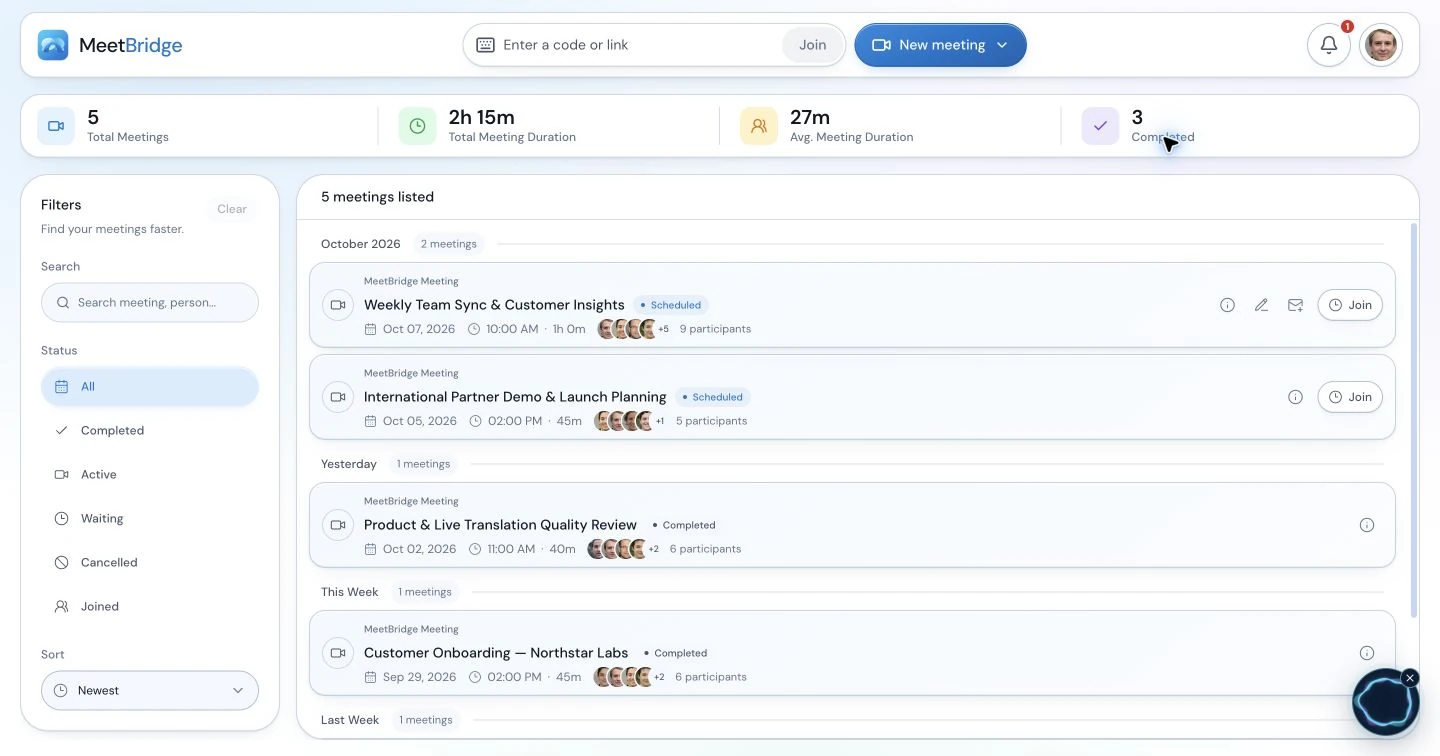
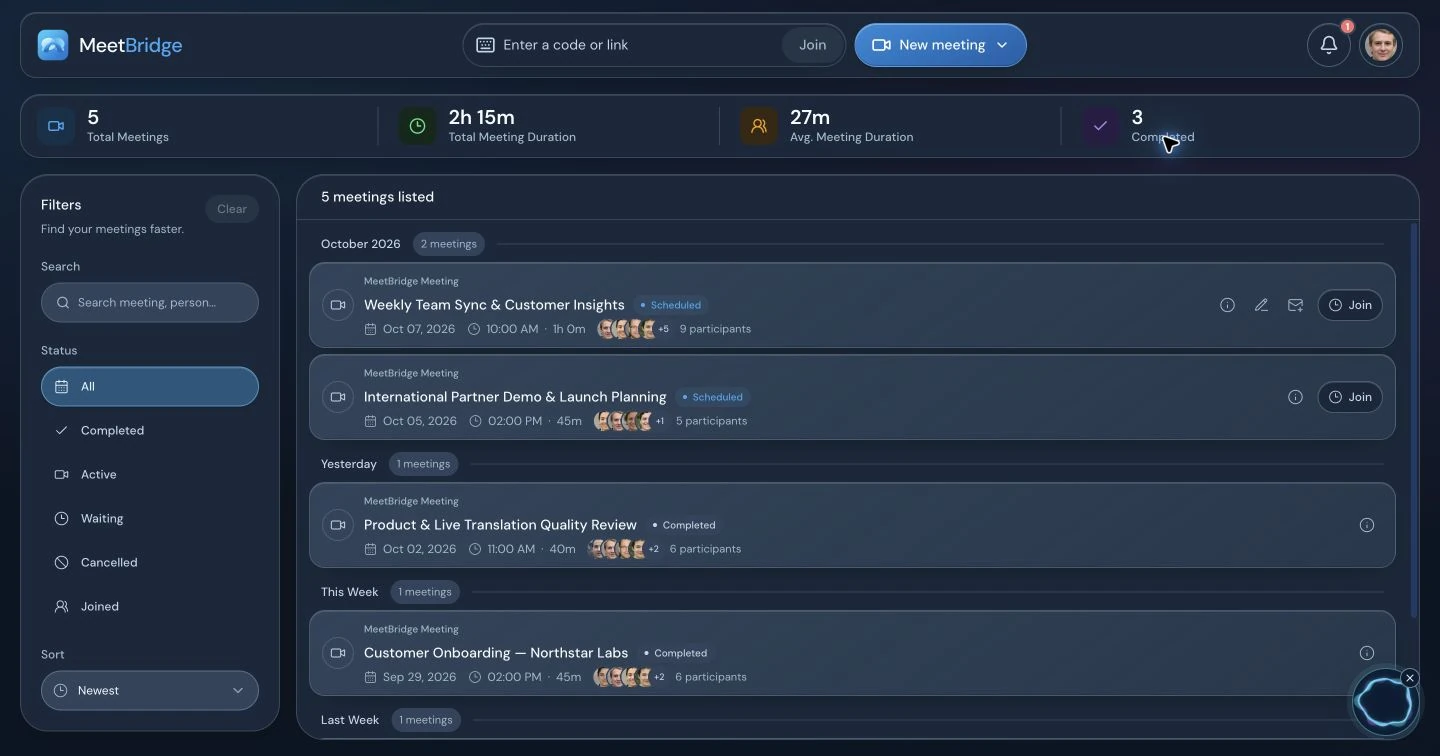
Carry the reviewed details into your account plan or support process. This workflow does not promise automatic updates to every CRM, ticketing system or customer-success platform. Your team remains responsible for the issue, the communication and the agreed delivery.
Voice’s live text is current-session context; do not assume a saved full-meeting record or that a Teams, Meet or Zoom recording includes the Voice conversation. Explain cloud voice processing, review meeting voice processing and security information, and follow your organization’s requirements.
Voice room usage comes from the host’s MeetBridge plan. Check current plans and usage before rolling it out across recurring customer sessions. Try one familiar meeting type with colleagues, then ask whether customers could explain their blocker and leave with a clear next action.
Explore meeting summaries and actionsPractical setup / Before the discussion
Set up a shared translated conversation in six steps.
Before an onboarding or training session, tell the customer which task you will work through and ask who actually performs it. Include the administrator and a representative end user when their responsibilities differ. The person demonstrating the workflow should not also be expected to solve every joining problem; name a host who can handle admission.
1. Agree on the room and the speakers. Choose a full MeetBridge meeting when video and translation should share one invitation. If the existing Teams, Google Meet or Zoom invitation must stay, use a separate Voice room for sound. Confirm every speaker’s language and who will approve guests.
2. Create and share the Voice invitation. The host signs in to the desktop app, selects the relevant platform and creates the room. Send the copied Voice link beside the video link. Selecting a platform identifies the room; it does not connect that platform’s account or import participants.
3. Admit the intended guests. An invitee can continue in a supported browser or open the installed Voice app. A guest enters their name and requests admission; the host approves the request. A signed-in web user can continue with their account. Video-lobby approval and Voice approval are separate.
4. Use one speaking and listening path. Every speaker turns off the original video platform’s microphone and incoming meeting audio. Microphone mute alone leaves its speakers active. For a browser video call, use site-specific sound controls rather than muting all browser sound, because browser Voice needs its own playback.
5. Choose the language and connected devices. Each person selects their actual speaking/listening language, microphone and output. A remembered headset may be disconnected. Allow microphone access to the MeetBridge site when joining in a browser. “Join with microphone off” lets someone prepare quietly; unmute Voice before speaking.
6. Wait for live status and check both directions. Ask a short question and let the other person respond in their language. Confirm that each speaker appears in Voice and hears the intended sound once. Resolve missing guests, duplicate audio or device issues before beginning the working discussion.
The host owns the invitation, admission and final room closure. Each participant owns their language and device choices. The presenter keeps the shared material visible and pauses for the translated response. Voice usage comes from the host’s plan; guests do not need their own subscription to request entry.
We will keep our video meeting for the product screen and use MeetBridge Voice for the discussion. Open both links, choose your language in Voice and request entry. You can continue in your browser. Turn off the video meeting’s microphone and incoming sound; we will speak and listen in Voice. Our customer-success host will approve the request and check a short exchange before training.
An illustrative workflow / From question to next step
A translated onboarding conversation that reveals the missing permission.
Consider an illustrative implementation session with an English-speaking customer-success manager, a Spanish-speaking end user and a German-speaking customer administrator. They keep their scheduled Google Meet call for the shared screen and join one Voice room for conversation. The purpose is to complete one routine task, rather than present the entire product. This is an editorial example, not a reported customer outcome.
The manager demonstrates the first step, then asks the end user to describe what happens on their own screen. The user explains that the action is missing. The administrator asks which workspace is open. The group discovers that the person is in a different workspace from the one shown in the demonstration. They write the exact workspace and permission names in chat so the discussion refers to one environment.
The administrator confirms the intended access through the customer’s normal approval process. The manager leaves that question open until the responsible person answers it. A translated conversation can clarify what the user sees; it does not grant a permission, diagnose every issue or authorize the access change. If the team cannot resolve the question in the session, it becomes an assigned follow-up.
Before ending, the manager asks the user to explain the first task and where they will go for help. The customer-success note records the intended workflow, the unresolved access question, its owner and the next update. Training attendance is distinct from successful task completion. This distinction helps the next session begin with the actual blocker instead of repeating the same presentation.
Choose the format / Listening, reading and review
Choose language support around the actual meeting task.
Translated speech and translated text serve different needs. A participant who is studying a shared screen may prefer listening; another may be comfortable reading captions. Establish how questions will travel back as well as how the presentation will be understood. A transcript translated after the call cannot help a guest ask the next question during it.
A full MeetBridge meeting keeps video and translation in one room and offers meeting-record features according to your plan and enabled options. Companion Voice keeps the existing video platform, requires all speakers in its separate audio room and supplies live session context. Native captions depend on the video platform’s current requirements. Qualified interpretation can be appropriate when the discussion requires specialist support or a process your organization specifies.
Choose before sending the invitation. Use the detailed Teams, Google Meet and Zoom setup guides linked on this page for their current audio steps and official feature sources. Do not assume a platform recording includes separate Voice audio, or that captions provide the same two-way spoken experience.
Practical recovery / Follow one audio path
Resolve joining and sound problems without losing the discussion.
Separate a product blocker from an audio blocker. If the customer cannot hear the question, first resolve the room or device problem. If they hear it but the product behaves differently, collect the exact screen, environment and written message before escalating. Changing audio settings cannot resolve a missing product permission.
| Symptom | First useful action |
|---|---|
| The person is on camera but missing from the conversation. | Send the same Voice link, check admission and confirm live room status. Video attendance does not add someone to Voice. |
| Two versions of the speech or an echo. | Turn off incoming audio as well as the video-platform microphone. Check for another open Voice tab or nearby microphone. |
| The browser room is visible but silent. | Allow MeetBridge site sound, use “Enable room audio” if offered and check the output device. Keep Voice sound available when silencing the video site. |
| The guest hears but cannot speak. | Confirm MeetBridge microphone permission, the connected input and the Voice mute control. |
| Original speech without the expected translation. | Check translation status and each speaker’s selected language. Same-language speech is direct; original audio can remain audible during translation startup or reconnecting. |
| A term or number seems inconsistent. | Write the exact reference, ask the speaker to rephrase and confirm the relevant meaning before acting. |
Use the connection-quality panel to distinguish room, participant and translation connections. When using speakers, keep playback comfortable and avoid nearby open microphones picking it up. Restore any video-site sound setting you changed when the companion call ends.
A usable handoff / Confirm and assign
Keep customer understanding separate from a completed task.
Review the details with the people involved before carrying them into the next team’s work. The note should show what was confirmed, what remains open and who owns the answer. In a full MeetBridge meeting, use the transcript, summary and actions available under your plan as context, then review generated text. For Voice, keep the agreed written note through your normal process rather than assuming a saved full-meeting record.
An adaptable recap: Customer goal: [workflow they want to use]. Demonstrated: [step and environment]. Confirmed by the customer: [what they can now do]. Still open: [permission, configuration or product question]. Owner: [named person]. Next update: [agreed date and channel]. Customer input needed: [example or document].
Ask the other party to correct the recap while the group is still present. Keep an estimate distinct from a confirmed date and a request distinct from an approved commitment. A concise reviewed handoff is easier for the next person to use than a long unreviewed account of everything said.
Team rollout / Start with a familiar task
Pilot one customer task before expanding the training program.
Choose a familiar onboarding task, a customer-facing host and a small group with different language preferences. Observe whether invitees can join, explain what they see and ask a follow-up without losing the shared screen. Close by checking who owns the remaining question. Refine the invitation and turn-taking routine from those observations before using the workflow for a regional training series or executive review.
Keep the joining note, room ownership and confirmation routine consistent across the team. Check current plan usage before arranging recurring sessions. At the end, the host closes the Voice room and everyone ends the separate video meeting. The useful pilot outcome is a process people can follow, not an assumed business-performance improvement.
08 / Your questions, answered
Customer success translation FAQ
How can customer success teams use live translation?
Use it for online onboarding, implementation discussions, customer training, troubleshooting reviews and business reviews where participants speak different languages. Each person speaks and listens in their chosen language. Translation supports the conversation; the customer success team still explains the product, checks understanding and owns the agreed follow-up.
Can we keep the customer’s Teams, Google Meet or Zoom meeting?
Yes. Keep that platform for video, screen sharing and chat. The host creates a MeetBridge Voice room in the desktop app and invites all speakers into it. Turn off the original platform’s microphone and incoming meeting audio, then speak and listen through Voice. This is a separate shared audio room, not automatic capture of the other platform.
Do customers need to install an app or buy a subscription?
Voice invitees can continue in a supported browser from the public room invitation. Guests enter their name and request admission; the host approves them. Room usage comes from the host’s MeetBridge plan. Customers still need to join the same Voice room if they will speak.
Can an account team and several customer stakeholders use different languages?
Yes. Each participant selects their own language from the available options. This can support a discussion involving an implementation lead, customer administrator and executive sponsor. Use clear speaking turns and check everyone has joined the audio room.
Does MeetBridge automatically solve support tickets or sync our customer platform?
This meeting workflow does not promise automatic support resolution, ticket updates or synchronization with every CRM or customer-success platform. Review the conversation and carry confirmed issues, owners and next dates into your existing account and support processes.
Can we use the conversation for a customer recap?
For full MeetBridge meetings, review the transcript, summary and actions available under your plan before preparing a customer recap. Voice’s live text provides current-session context and is not a guarantee of a saved full-meeting record. Do not assume a separate video platform’s recording includes Voice audio.
How do we handle technical terms, error messages and dates?
Show the relevant screen and paste exact error codes, version numbers, field names and dates into chat or a shared document. Ask the customer to confirm the detail before acting on it. AI voice translation can make mistakes, so important operational details should also be checked in writing.
Will translation automatically improve retention or adoption?
No specific retention, adoption or resolution result is guaranteed. MeetBridge gives customers and your team a way to discuss requirements across languages. Track whether the workflow helps people ask questions, understand the next step and follow the agreed plan, using your own customer-success measures.
What should we do when the customer’s screen differs from the training screen?
Ask the customer to describe the actual step and share the relevant screen through your video meeting. Put environment names, error messages and permission labels in writing. Confirm which difference is established and which explanation still needs investigation. Translation helps the customer explain the blocker; the implementation or support team owns diagnosis and any approved change.
Can an executive sponsor and regional users join the same translated QBR?
Yes. Each participant chooses their own language in the same shared room. Keep the current goal and review period visible, invite one contribution at a time and allow translated speech to finish. Confirm the priority, milestone, owner and date in writing. Someone admitted only to the video meeting still needs to join Voice when you use the companion workflow.
How do we tell whether translated onboarding was useful?
Use a concrete task rather than attendance alone. Ask the customer to explain what they will do next, observe whether they can follow the relevant workflow and record the remaining question. Check that joining instructions were understandable and the next action has an owner. These observations inform your training process; they are not a promised adoption or retention improvement.
Should customer training use spoken translation or captions?
Choose around the task and the customer’s preference. Reading translated captions may suit someone following a presentation; listening to translated speech may help someone working on a shared screen while asking questions in their own language. Review current native-feature requirements if you choose platform captions. Try the actual task with the selected format before running a larger session.