
Inside the sales workflow
01 / Start with the buyer
The most important part of a demo is often the question after it.
The presentation is ready. Your prospect can see the dashboard, the workflow and the pricing slide. Then they explain a concern in German, Spanish or Turkish—and the discussion becomes harder than the demo itself. You catch the main topic, but miss the reason it matters, the exception they described or the objection behind a polite answer.
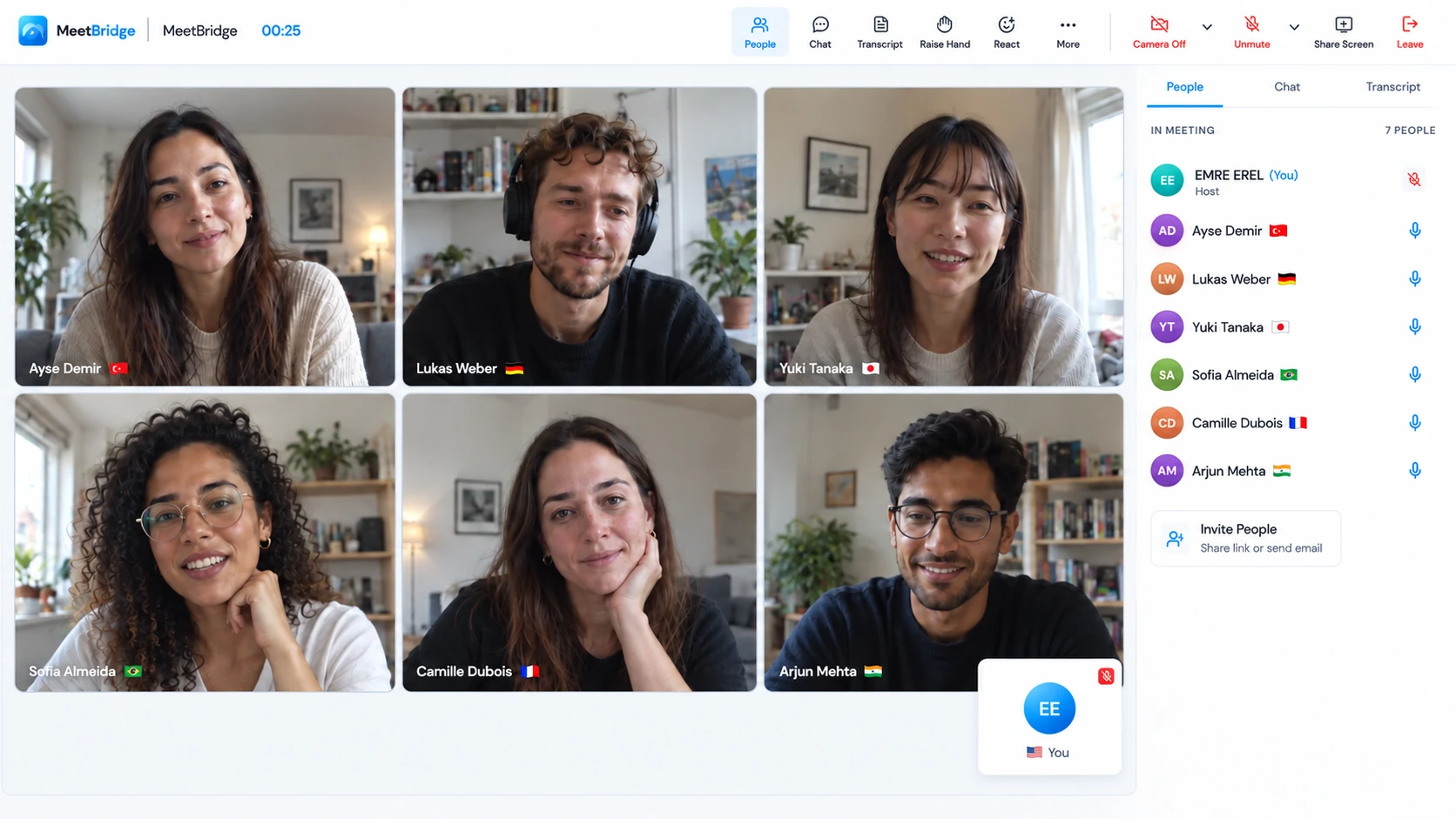
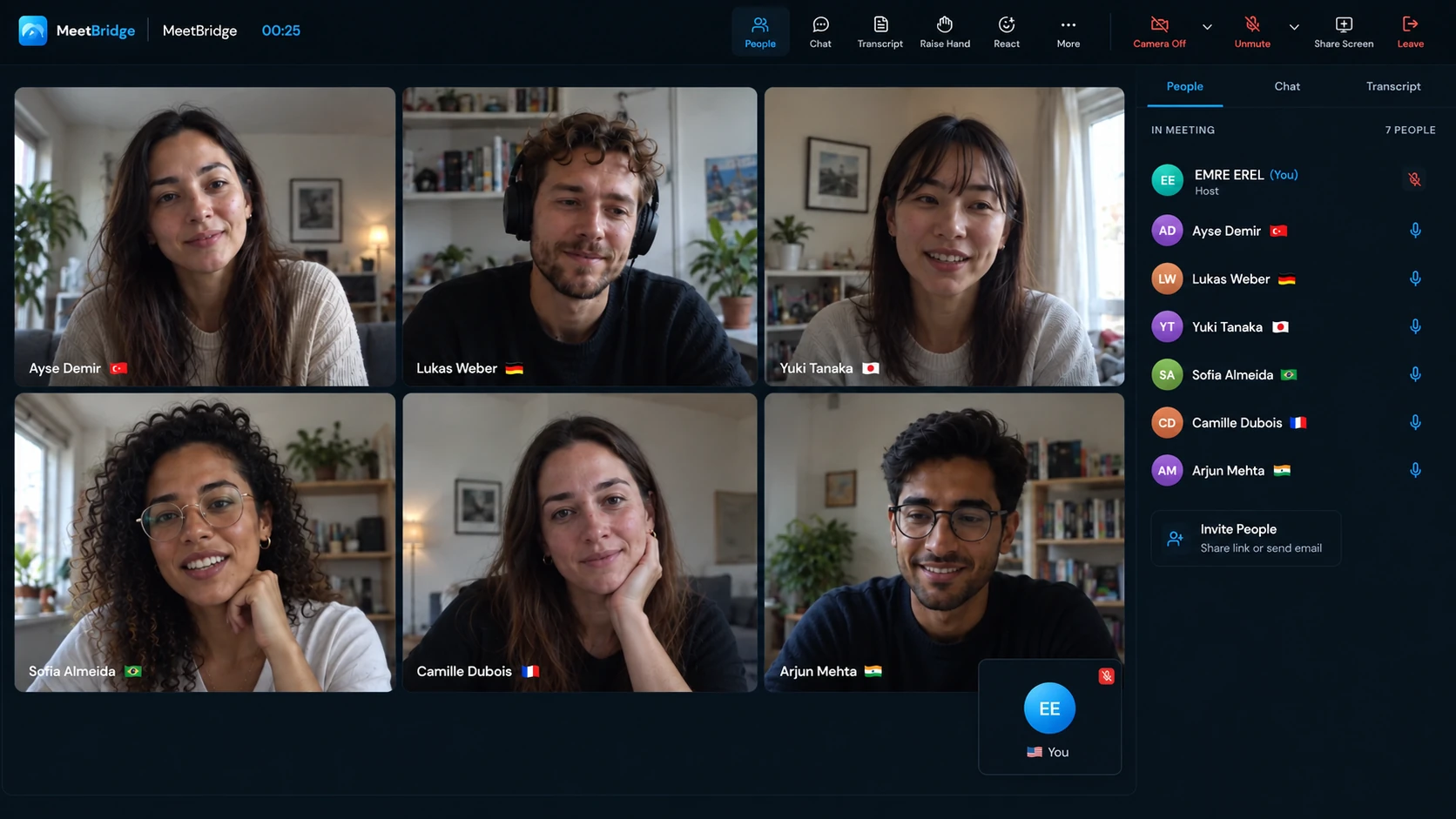
Live translation for sales calls gives that exchange more room. Each participant selects their own language and speaks in it. When the listener uses another language, MeetBridge delivers translated speech in the listener’s chosen language. The buyer can answer in their own words; you can ask the next question in yours. People using the same language hear one another directly.
For an account executive, sales engineer or founder selling internationally, the aim is a clearer conversation: what the buyer needs, what your product can do and what both sides agree to do next. Translation supports that conversation. Your listening, questions and product knowledge still do the selling.
Names, quantities, prices and deadlines deserve a second check. Put them in the meeting chat or shared document and ask the buyer to confirm. AI translation can make mistakes, especially with unfamiliar terminology.
02 / Across the sales conversation
Make room for discovery, demos and the objections that matter.
International sales call translation is useful before a deal reaches negotiation. It can help a prospect explain their current process, allow a specialist to ask a technical question and give another stakeholder a way into the discussion. Use it wherever understanding the answer matters more than delivering the pitch.
Salesforce’s discovery-call guide places the prospect’s needs, motivations and buying process at the center of the conversation. In a multilingual call, apply that discipline to the translated answer: establish the situation before choosing a demonstration or promising a next step.
Find the requirement behind the request.
A buyer asks for an integration, but the real issue is a manual handoff between two teams. Ask them to describe the current process, the people involved and the point where work slows down. Let them use their own language, then repeat the requirement back before deciding which feature to show.
Try asking: “What happens today when that handoff fails?”
Keep questions attached to what the buyer can see.
Share the product and pause after a meaningful step. A translated question may reveal that the buyer needs a different permission, report or approval flow. Respond to that requirement while the relevant screen is still visible, rather than postponing every question until the end.
Try asking: “Would this match the way your team works?”
Understand the objection before answering it.
“It is expensive” might be about budget, implementation effort or uncertainty about the value. Give the buyer space to explain and check that you understood. During a proposal review, write the currency, quantity, term and next decision date where everyone can read them.
Try asking: “Which part would you need us to clarify?”
Carry the buyer’s context into onboarding.
When customer success or implementation joins the conversation, revisit the agreed use case and open questions. Different participants can keep different language choices. Confirm who owns the next action so that the buyer does not have to rebuild the same context in another call.
03 / Choose the meeting that fits
Bring the buyer to MeetBridge. Or keep the invitation they already sent.
Some prospects are happy to join your meeting link. Others have already scheduled the demo in their own Teams, Google Meet or Zoom environment. MeetBridge offers two distinct ways to handle those situations. Choose the workflow before sending the invitation so you can explain the joining steps clearly.
| Your situation | A full MeetBridge meeting | MeetBridge Voice |
|---|---|---|
| Video and presentation | In the MeetBridge meeting. | In Teams, Google Meet or Zoom, opened separately. |
| Spoken conversation | Translated within that meeting. | In one shared Voice room. Everyone who speaks joins it. |
| Invitation | One meeting link. | Your existing video link plus a Voice room link. |
| Meeting record | Available transcripts, summaries and actions depend on your plan. | Live transcript context; do not assume a saved full-meeting record or inclusion in the other platform’s recording. |
Keep the Teams presentation and camera; use a shared Voice room for the discussion.
Read the setup guide Google MeetKeep Meet and shared documents open; give the conversation its own Voice audio path.
Read the setup guide ZoomKeep the Zoom demo invitation; disconnect Zoom computer audio and talk through Voice.
Read the setup guideFor Voice, turn off the original platform’s microphone and incoming meeting audio, then speak and listen through MeetBridge. Selecting a platform in Voice does not connect your account or import its attendees. Installing Voice on your own computer does not translate someone who stays only in the other platform’s audio call.
04 / Before the call
Prepare the buyer, not just the deck.
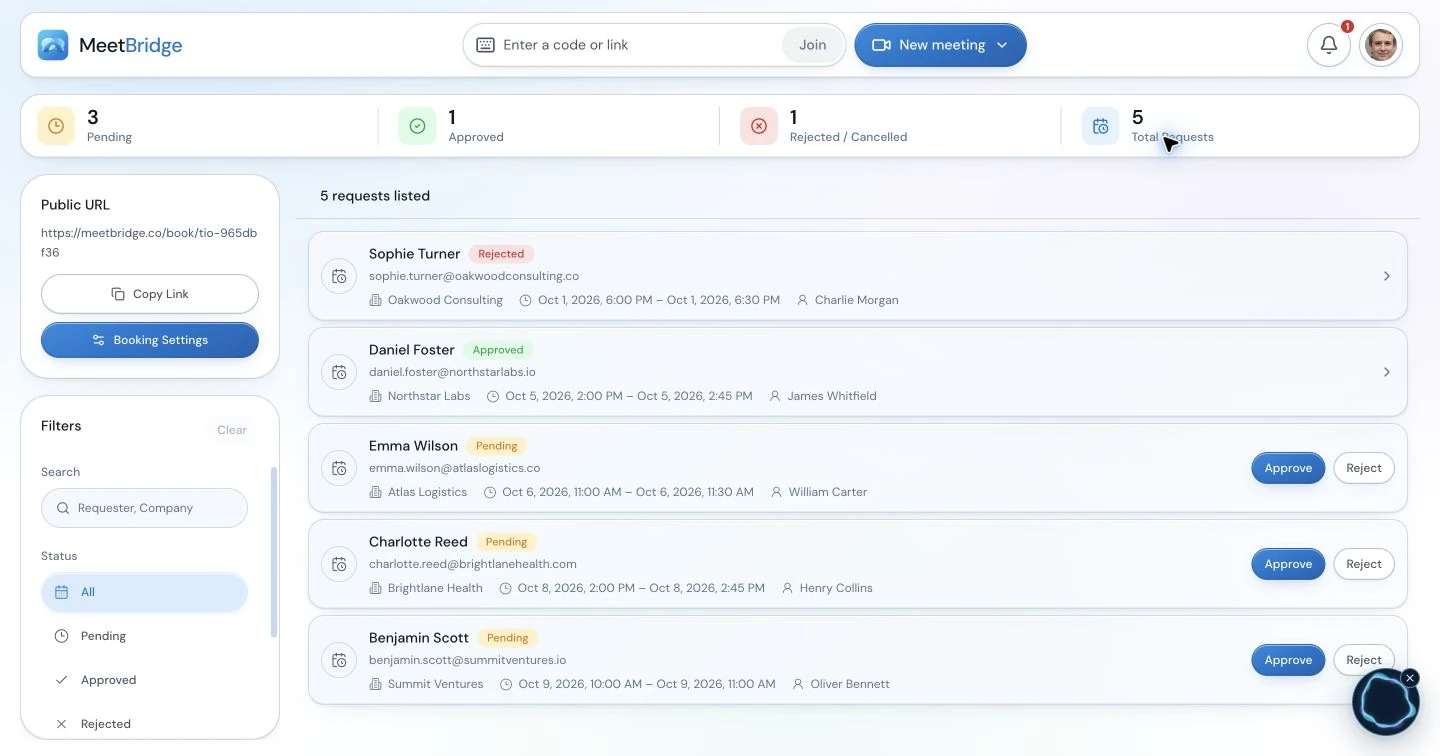
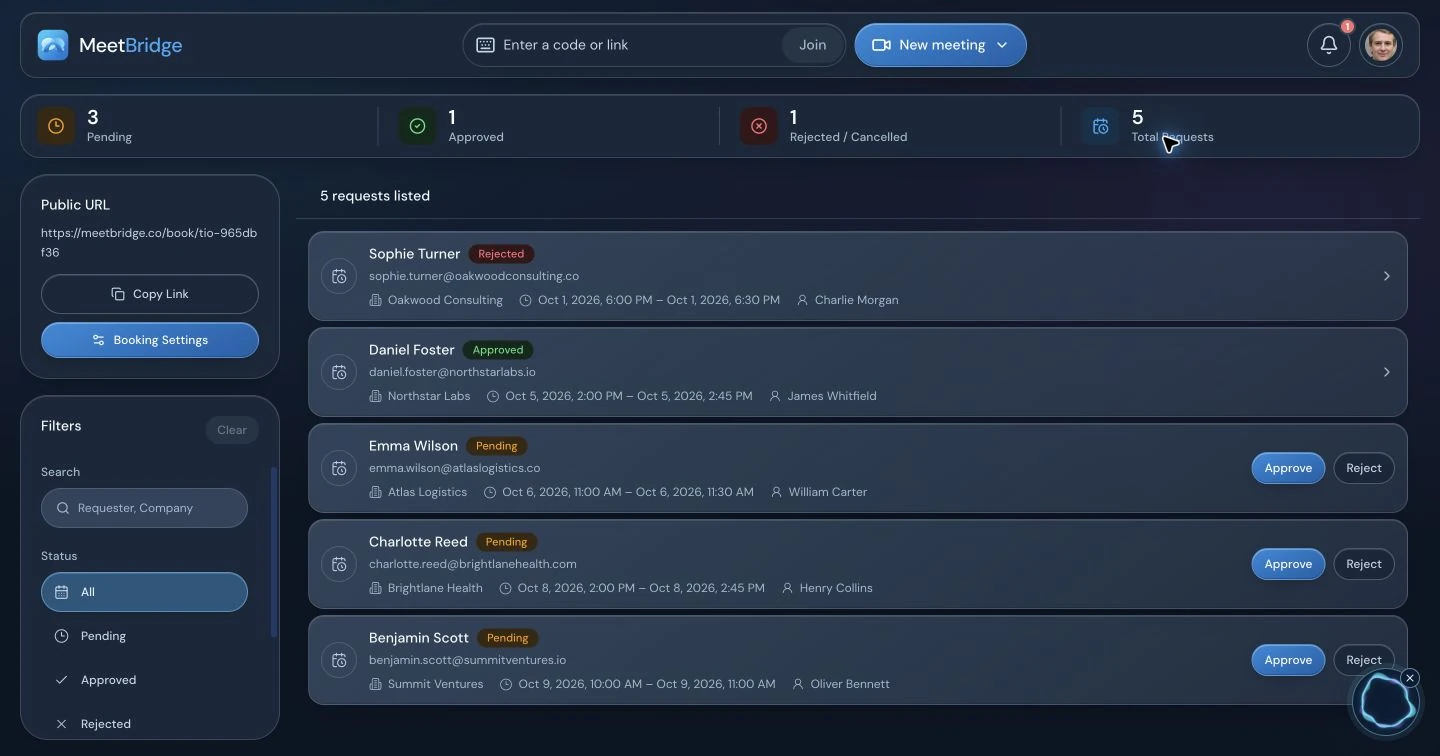
A good multilingual demo starts with a clear invitation. Ask which language the buyer wants to use and who else will join. Collect the main question they want the session to answer. If you use MeetBridge booking links, use the available pre-meeting questions to bring that context into your preparation.
Set up a translated sales call in six steps.
This sequence is for the companion Voice workflow. For a full MeetBridge meeting, send its own meeting link and use the meeting’s language and audio controls; the second video platform and separate Voice invitation are unnecessary.
Agree on the meeting format and participants.
Confirm whether the buyer wants to keep Teams, Google Meet or Zoom. Ask for each speaker’s language and identify the account executive, technical presenter and buyer stakeholders. Choose who will host the Voice room and approve guests. Share the purpose of the discussion and any material the buyer should have open.
Create the Voice room and send both links.
The host signs in to the desktop app, chooses the relevant meeting platform and creates a named Voice room. Copy its invitation link into the calendar note alongside the video meeting link. A platform selection labels the room; it does not connect the buyer’s platform account or import the video meeting. Keep the short joining note visible instead of hiding it in an attachment.
Let the buyer choose browser or desktop entry.
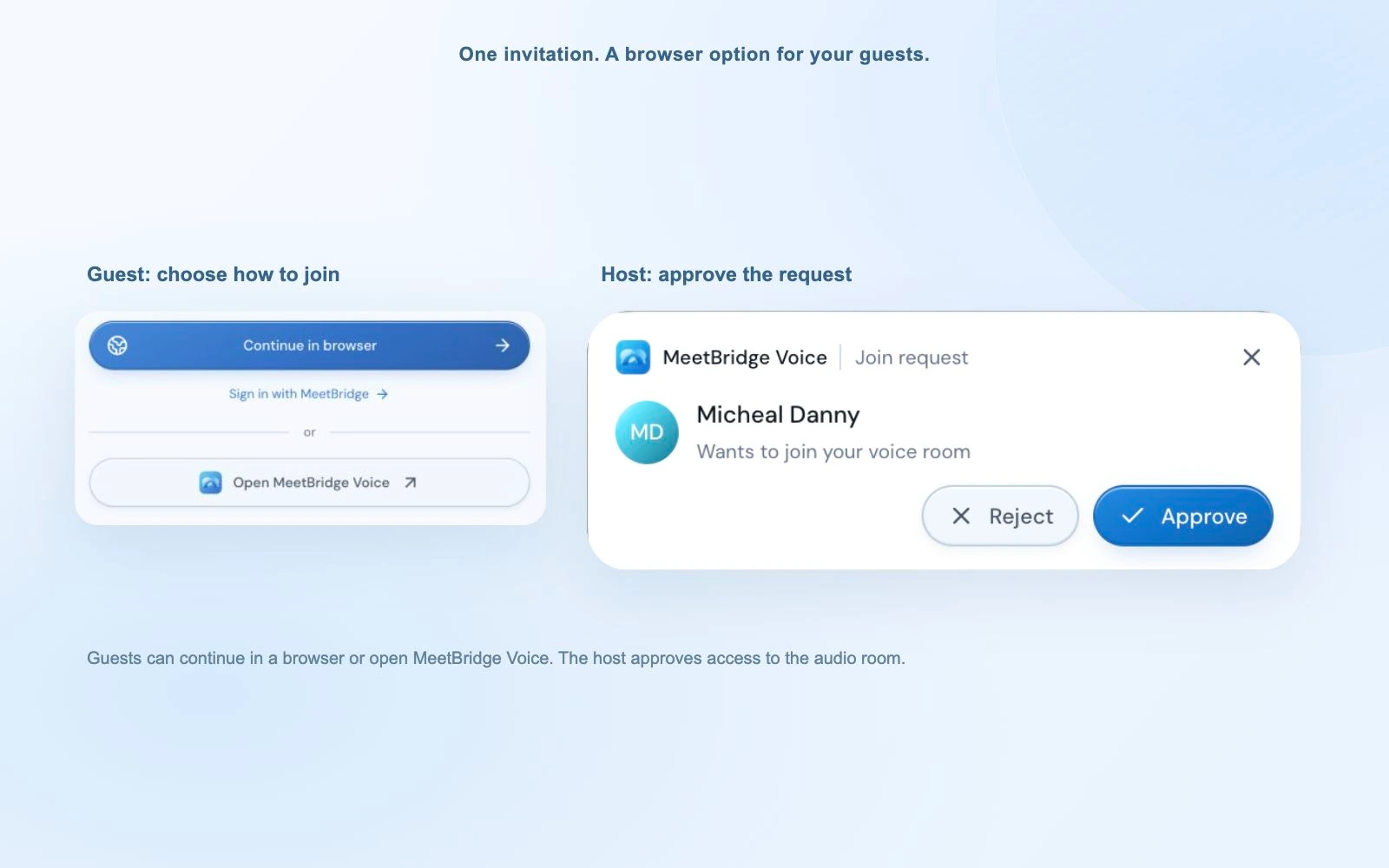
From the public invitation, a buyer can choose “Continue in browser” or open the installed Voice app. A guest enters their name and requests admission; the host approves the request. An existing signed-in MeetBridge web user can continue with that account. Give the guest time to grant microphone permission. Voice approval is separate from the video meeting’s lobby.
Keep video in one platform and sound in Voice.
Every speaker turns off the original video platform’s microphone and incoming meeting audio. A microphone mute alone leaves its speakers active. Use the platform-specific setup guides above: for a browser video call, silence that site rather than all browser sound; otherwise a browser Voice guest may also lose the translated audio. Leave the camera, screen share and presentation in the video meeting.
Select the actual language and audio devices.
In Voice, choose the language you will speak and listen in, then the microphone and output device you are using now. A remembered headset may no longer be connected. “Join with microphone off” gives someone time to prepare; turn the Voice microphone on when ready to speak. Confirm that each buyer appears in the Voice participant list, including colleagues who joined the video call late.
Wait for live status and try a two-way exchange.
Ask a short question in your language and let the buyer answer in theirs. Both sides should hear the intended conversation once. Check translation status and the caption if needed. Only then begin discovery or the demo. If one person is missing or hears duplicate audio, resolve it before presenting; the troubleshooting section below follows the same audio path.
“We’ll keep the video meeting for the product presentation and use MeetBridge Voice for our conversation. Please open both links and choose your language in Voice. You can continue in your browser. Turn off the video platform’s microphone and meeting sound, and we’ll speak and listen through MeetBridge.”
Voice room usage comes from the host’s MeetBridge plan. Guests do not need to buy a separate subscription to request entry. Check current plans and usage before arranging a series of customer demos.
The host owns the room; each participant owns their audio setup. The host sends the right link, approves intended guests and confirms the participant list. The presenter keeps the shared screen readable and pauses for questions. Each buyer selects their own language and devices. This division makes it easier to help someone without interrupting the whole presentation.
05 / During the call
Keep the product in view and the buyer in the conversation.
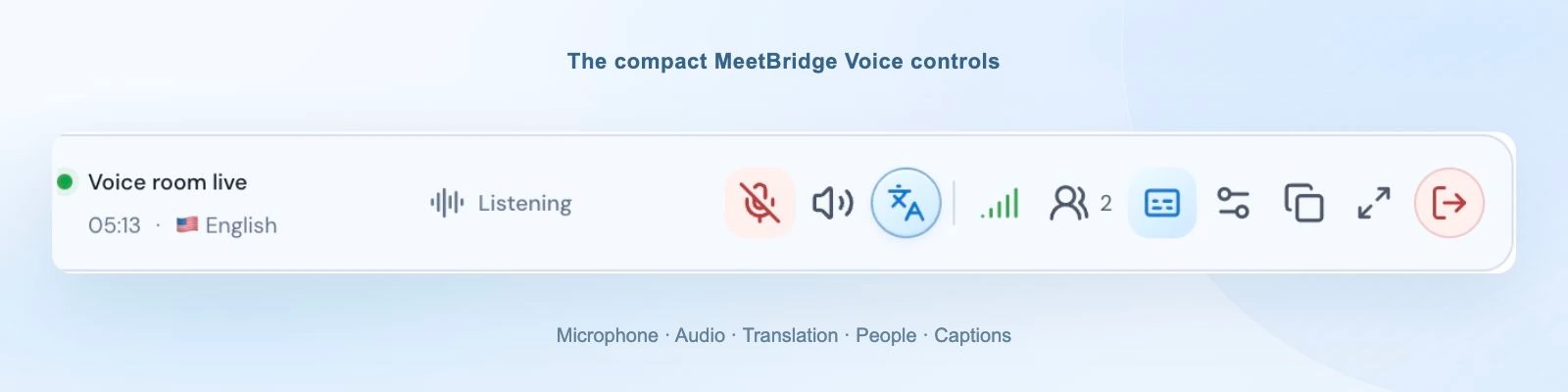
With the desktop app, the compact Voice bar can stay above your video meeting while you present. It shows live room status, your language and speaking or translating activity. Mute the Voice microphone, check the latest caption or open participant settings without turning every question into a tour of the controls. Browser participants use the expanded room.
Let the answer finish before you move the slide.
Use clear turns, especially when a sales engineer and several buyer stakeholders are present. Ask one question, let the buyer finish, and allow the translated speech to complete before responding. A short recap—“So the approval step is your main concern?”—gives both sides a chance to correct the meaning before the demo moves on.
Listen comfortably and check the important words.
When translation is ready, Voice keeps the original speaker quietly at 10% of your listening level by default. Turn off “Hear original voice at 10%” in Audio settings if you prefer the translation alone. This changes your listening mix, not the buyer’s microphone. During translation startup or an unavailable connection, the original voice remains audible normally.
The small two-line caption area helps with a word you missed; the wider live transcript offers context from the current session. Adjust a participant’s listening level if one person is much louder than another. The connection-quality panel distinguishes room, participant and translation connections, so an audio problem has a clearer starting point.
Put product names, integration names, figures and agreed dates in the chat as well. Spoken translation helps the exchange, but a written confirmation is useful when you are about to scope a proposal around a detail.
06 / See the workflow in context
From “show us approvals” to a demo that answers the real question.
Consider an illustrative B2B software call: an English-speaking account executive and sales engineer meet a buyer who prefers German. The buyer has already sent a Teams invitation. The team keeps Teams for the shared product screen and joins one Voice room for conversation. This is a worked example of the process, not a customer testimonial or a promised sales result.
Discover the exception before showing the feature.
The executive asks, “What happens when an approver is away?” The buyer explains that the request waits until someone notices it. Instead of moving directly to a generic approval demo, the executive recaps: “You need a visible substitute and a way to see which requests are waiting—is that right?” The buyer corrects one detail: substitution is allowed only for a specific team. That distinction changes what the engineer needs to demonstrate.
Keep the translated question beside the relevant screen.
The engineer shows the assignment rule, pauses and asks the buyer to describe who should receive the request. A product label is written in chat so everyone refers to the same setting. When the buyer asks about an exception the presenter has not tested, the team marks it as an open technical question. Hearing a clear question does not turn an unverified capability into a confirmed feature.
Close with a decision about the next conversation.
The executive reads back the requirement, the unresolved exception and the next action. The engineer will investigate the rule; the buyer will provide a sample workflow. The group agrees on the people needed for a follow-up. They write that action in the shared note before ending, so the buyer can correct an owner or a date while everyone is still present.
| Keep separate | Example note |
|---|---|
| Buyer requirement | A substitute approver must be limited to the relevant team. |
| Demonstrated capability | The engineer showed the assignment setting used in the demo environment. |
| Unverified detail | The team-specific exception needs a technical answer. |
| Agreed action | The engineer investigates; the buyer sends a sample workflow before the next review. |
The practical value of two-way sales translation is visible in that sequence: the buyer can explain the exception, the presenter can ask a follow-up, and the next task follows the confirmed requirement. Use the same structure for an equipment demonstration, service proposal or distributor discussion.
07 / Keep the buying group together
A translated meeting works when every speaker is in the conversation.
A first call may involve one contact; a technical review may bring procurement, operations and a local specialist. Ask who will join before sending the invitation. Each person selects their own language in Voice, so the entire buying group does not need to adopt the account executive’s language. The host should know whose questions the session needs to answer.
When someone arrives late, pause at a natural point. Send the same Voice link, approve their request, confirm the language and ask for one short response. Seeing them on camera in Teams or Zoom does not establish that they can hear Voice. A silent participant may be waiting for approval or listening to the video platform’s audio instead.
Use one facilitator to invite the next question. An executive sponsor may care about rollout, while a technical specialist needs to inspect a setting. Keep a shared list of open questions with the relevant owner. If you split into private discussions, create separate Voice rooms for the intended groups; a video-platform breakout does not automatically split Voice audio.
08 / Turn the discussion into clear terms
Put the important number where the buyer can confirm it.
A proposal conversation combines figures with assumptions: how many users, which locations, what currency, what is included and when the work can start. Use live translation to discuss those details, then keep the confirmed version in your normal written proposal. A translated sentence is useful context for the discussion; the reviewed document is the reference for the agreement.
| Discuss | Write and confirm |
|---|---|
| Price | Amount, currency, billing period and what the quoted amount covers. |
| Scope | Product, quantity, locations, services and any exclusions being reviewed. |
| Timing | Proposed start, dependencies and whether the date is confirmed or provisional. |
| Approval | Who still needs to review the proposal and what they need to decide. |
Read an important figure as a complete phrase, including its unit or currency, then ask the buyer to confirm the written value. For a negotiated contract or specialist legal question, use the review and language support appropriate to that document. MeetBridge helps the parties discuss the proposal; it does not decide what either party is authorized to accept.
09 / After the conversation
A useful recap starts with what the buyer actually agreed to.
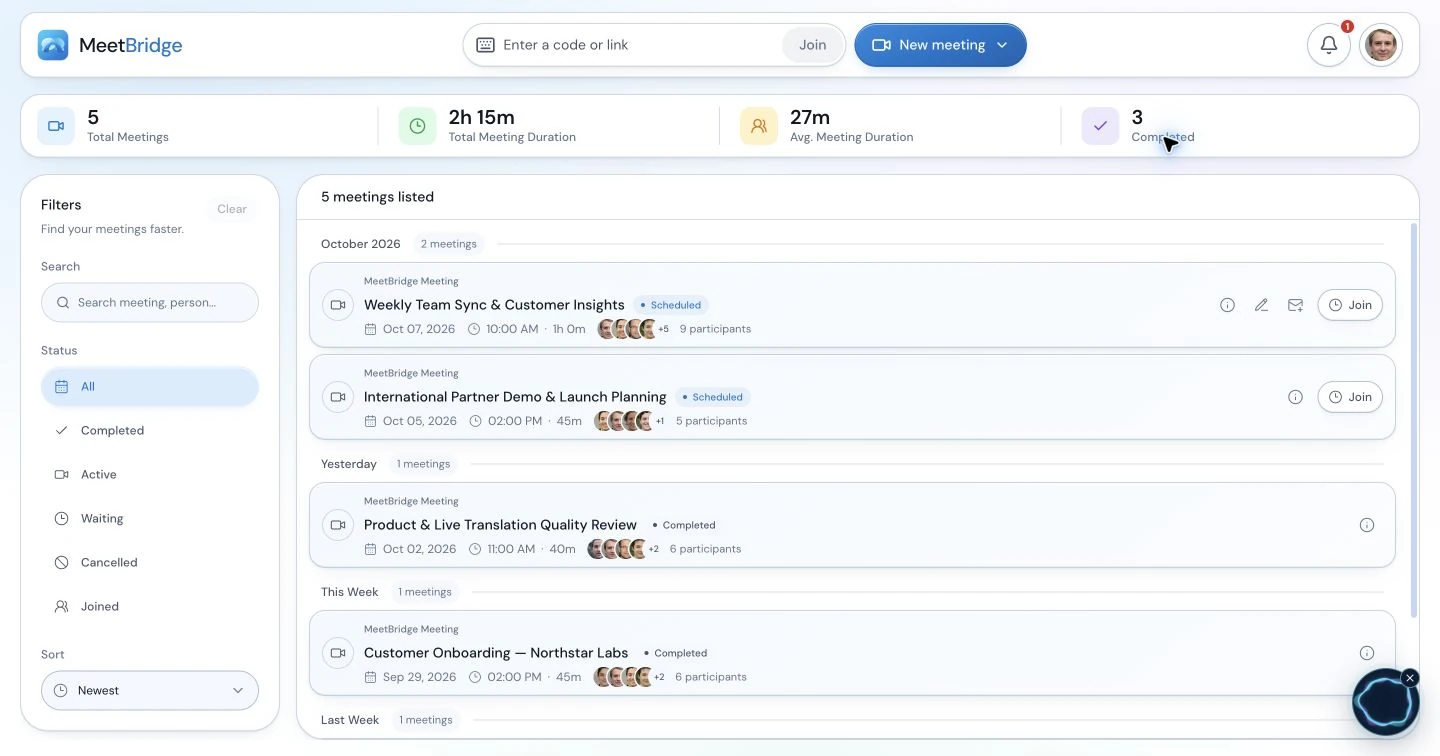
After a demo, the next task is usually a proposal, a technical answer or a handoff. In a full MeetBridge meeting, return to the available transcript, summary and actions before preparing that follow-up. Those features depend on your plan and enabled meeting options. Use the record to recover context, then review it before sharing it with the buyer.
What belongs in the next-step recap
- The buyer’s goal: the process or problem they want to improve.
- The fit you discussed: what you demonstrated and what still needs checking.
- The open question: the detail your team will answer, with a named owner.
- The next step: the date, people and deliverable both sides confirmed.
Carry those reviewed details into your CRM, proposal or customer-success handoff. This page does not promise automatic CRM synchronization or an automatically translated recap email. The useful habit is to distinguish a confirmed commitment from an assumption and keep the same context available to the next person.
If you used the companion Voice workflow, its live transcript is current-session context. Do not assume your Teams, Google Meet or Zoom recording contains the Voice conversation, or that the room provides the saved record of a full MeetBridge meeting. Choose the full meeting workflow when bringing the conversation and follow-up together is the priority.
“You described [buyer requirement]. We demonstrated [specific workflow]. We still need to confirm [open question]. [Named owner] will provide [deliverable] by [agreed date]. Your team will share [input], and our next discussion will include [participants]. Please correct anything we have misunderstood.”
Complete that note from the actual conversation, check it with the people responsible for the actions and use your usual customer communication process. An internal assumption such as “the buyer is ready to buy” should not appear as a confirmed customer statement. Keep unanswered questions visible for customer success instead of passing along only the optimistic interpretation of the call.
Explore meeting summaries and actions10 / Choose the output the buyer needs
Translated speech, captions and reviewed notes solve different tasks.
“Sales call translation” can mean listening to translated speech, reading a caption during a demo or translating the transcript afterward. Start with the buyer’s task. Can they follow the presentation by reading, and can you understand the question they ask back? Or do both sides need to speak and listen in different languages?
| Option | Useful when | Check before the call |
|---|---|---|
| Translated captions | The buyer is comfortable reading along while the product is on screen. | Actual feature availability, supported setup and how questions will travel back. |
| Two-way translated speech | The buyer and presenter want to speak and listen in their own languages. | Everyone’s language, shared room access and one working audio path. |
| Transcript translation after the call | Your team needs to review or share a past conversation. | The available meeting record, review process and permitted sharing. |
| Qualified human interpretation | The meeting requires specialist language support or a process your organization has specified. | The interpreter’s role, scope and how the meeting will be facilitated. |
Native video-platform features change. Use the current official guidance linked from the Teams, Meet and Zoom guides when assessing their requirements. MeetBridge Voice uses its own shared room rather than requiring that native feature to be enabled. For one invitation, video and available follow-up features together, choose a full MeetBridge meeting.
11 / Follow the audio path
Fix the joining or sound problem before restarting the demo.
Keep a simple question in mind: is the problem in the video meeting, the Voice room, the participant’s device or translation? Check the visible room state and connection-quality panel first. Randomly changing several controls at once can hide which step actually resolved it.
| What happens | Check and resolve |
|---|---|
| The buyer is on camera but cannot hear the conversation. | Confirm the same Voice link, approval and live room status. Video admission does not add the buyer to Voice. |
| Everyone hears two versions or an echo. | Disable incoming audio as well as the microphone in the video platform. Check for a second Voice tab or another open microphone in the same room. |
| A browser guest sees the room but hears nothing. | Allow sound for the MeetBridge site, use “Enable room audio” if offered and check the selected output. Muting all browser sound can silence Voice too. |
| The guest can listen but cannot speak. | Check MeetBridge microphone permission, the input device and the Voice mute control. “Join with microphone off” requires unmuting before speaking. |
| The original language plays without translation. | Confirm translation is enabled and each speaker’s language is correct. Same-language audio is direct; original sound can remain audible while translation prepares or reconnects. |
| One stakeholder is much louder than another. | Adjust that participant’s listening level. This changes your playback, not their microphone or the rest of the buyers’ settings. |
| A product term sounds wrong. | Put the exact name in chat, ask the speaker to rephrase and confirm the relevant meaning before scoping the proposal around it. |
When using speakers, keep volume comfortable and avoid nearby open microphones picking up the translated playback. A headset can help if the room produces echo. At the end, restore any video-site sound setting you changed so the buyer’s next ordinary meeting has its normal audio.
12 / Make it repeatable
Give your team a shared way to run multilingual sales meetings.
Start with a meeting type your team already knows: a discovery call, a product walkthrough or a partner review. Agree on the invitation note, who creates the room, how guests are admitted and how important details are confirmed. Try the setup with colleagues before inviting a customer, then reuse the instructions for the next suitable call.
Keep the first rollout focused. Ask whether the buyer could explain their need, whether everyone joined the right audio room and whether the next action was clear. Those observations tell you more about the workflow than a promise that translation will automatically improve your close rate.
What a useful pilot should tell the sales team
- Joining: could the buyer follow the invitation without needing an unexpected installation?
- Conversation: did the buyer ask a real question and understand the response?
- Presentation: could the presenter keep the relevant screen visible while taking turns?
- Handoff: did the recap distinguish the confirmed requirement from the open technical question?
- Ownership: does the next host know who creates the room, approves guests and closes it?
Keep the instruction that worked, revise the one that caused confusion and choose the next familiar meeting type. Compare the current plan’s features and usage with how often your team expects to run these calls. A small repeatable routine is easier to teach across account executives and sales engineers than a different audio setup for every prospect.
Give the conversation a clear beginning and end.
Explain that speech is processed in the cloud and follow your organization’s requirements. Review MeetBridge security information and meeting voice processing when preparing the rollout. At the end of a Voice call, the host can close the room for everyone; end the separate video meeting as well.
MeetBridge supports the multilingual discussion. Keep written prices, scope and commitments clear in your usual sales process, and ask for clarification whenever a translated answer seems unexpected. A repeatable workflow gives the team a useful way to listen, demonstrate and follow through across languages.
Discuss your team’s sales workflow13 / Your questions, answered
Sales call translation FAQ
How does live translation help an international sales call?
Each participant chooses their own language and speaks in it. MeetBridge delivers translated speech when the listener uses another language, so a rep can ask a discovery question and the buyer can answer in their own words. Same-language participants hear each other directly. Take turns and allow a short pause for translation.
Can I keep a customer’s Teams, Zoom or Google Meet invitation?
Yes. Keep that platform for video, screen sharing and chat, and create a MeetBridge Voice room for the spoken conversation. Invite every speaker to the same Voice room and turn off the original platform’s microphone and incoming meeting audio. Voice runs separately; it does not automatically capture people who remain only in the original call.
Does the buyer have to install MeetBridge Voice?
The host creates the Voice room in the desktop app. Invitees can continue in a supported browser from the public invitation without installing the app or an extension. A guest enters their name, requests admission and is approved by the host. Everyone who speaks still needs to join the same Voice room.
Can several buyers and sales colleagues use different languages?
Yes. Each participant chooses their own language from the room’s available options. Translation is delivered for each listener rather than forcing the whole meeting into one language. Keep turns clear and use the participant list to confirm that all speakers have joined.
Who pays for a buyer joining a Voice room?
Voice room usage comes from the room host’s MeetBridge plan. Guests do not need to buy their own subscription to request admission. Check the current pricing page for included usage, limits and the features available to your team.
Will my existing meeting recording include Voice translation?
Do not assume so. Voice carries audio outside Teams, Zoom or Google Meet, with that platform’s meeting audio disabled. The live Voice transcript supplies current-session context and is not a guarantee of a saved meeting record. Choose a full MeetBridge meeting when you need the available transcript, summary and follow-up features together, subject to your plan.
Is this a translator for outbound phone calls?
This guide covers online meetings in MeetBridge and shared Voice rooms alongside Teams, Zoom or Google Meet. It does not describe automatic translation of an ordinary telephone or dialer call. Someone who stays only on a phone connection to another platform is outside the Voice room.
Does MeetBridge automatically update our CRM?
This workflow does not promise an automatic CRM sync. In a full MeetBridge meeting, review the transcript, summary and actions available for your plan, then transfer confirmed details into your sales process. Keep the buyer’s exact requirements, owners and next dates clear before preparing the recap or handoff.
What should we check before using it with customers?
Agree on the meeting workflow, confirm the buyer’s language and microphone permissions, and try a short exchange before the presentation. Explain cloud voice processing and follow your organization’s requirements. Confirm prices, dates, names and commitments in writing when they matter; AI translation can make mistakes.
Are translated captions enough for a product demo?
They can be enough when the buyer is comfortable reading along and can ask questions in a language the presenter understands. Choose translated speech when participants want to speak and listen in their own languages in both directions. A transcript translated after the demo supports review but cannot help a buyer ask the next question during the call. Check the actual output and joining steps of the workflow you select.
What happens if a buyer joins the video meeting late?
Pause at a natural point and send the same Voice invitation if you are using the companion workflow. Approve the request, confirm their language and exchange one short sentence before resuming. The video platform’s participant list does not add them to Voice. Ask them to turn off that platform’s microphone and incoming meeting audio; otherwise they may hear a different conversation from the rest of the group.
Can we translate a sales breakout or a private discussion?
Plan a separate Voice room for a separate discussion and share its link only with the intended participants. Moving into a Teams or Zoom breakout does not automatically move or split the Voice conversation. Confirm who is present in the audio room before discussing a private topic, then bring the correct group back into the main room. If that coordination would distract from the meeting, keep the conversation in one group or schedule a separate call.