
On this page
The product in practice
The useful detail is often one sentence, not the whole meeting.
A client names an exception. A colleague corrects a date. Someone explains why the first proposal will not work. Meeting memory gives you a way to return to those details instead of asking everyone to reconstruct the call. Start with the correct meeting, find the relevant passage and check the surrounding discussion before using it in follow-up.
Keep the context
One meeting record, several ways to understand it
A transcript answers what was captured in speech. The participant list helps identify who took part. Chat preserves written contributions, and the timeline places joining, leaving and session events in order. Together, these views help you distinguish a final agreement from a suggestion made earlier in the conversation.
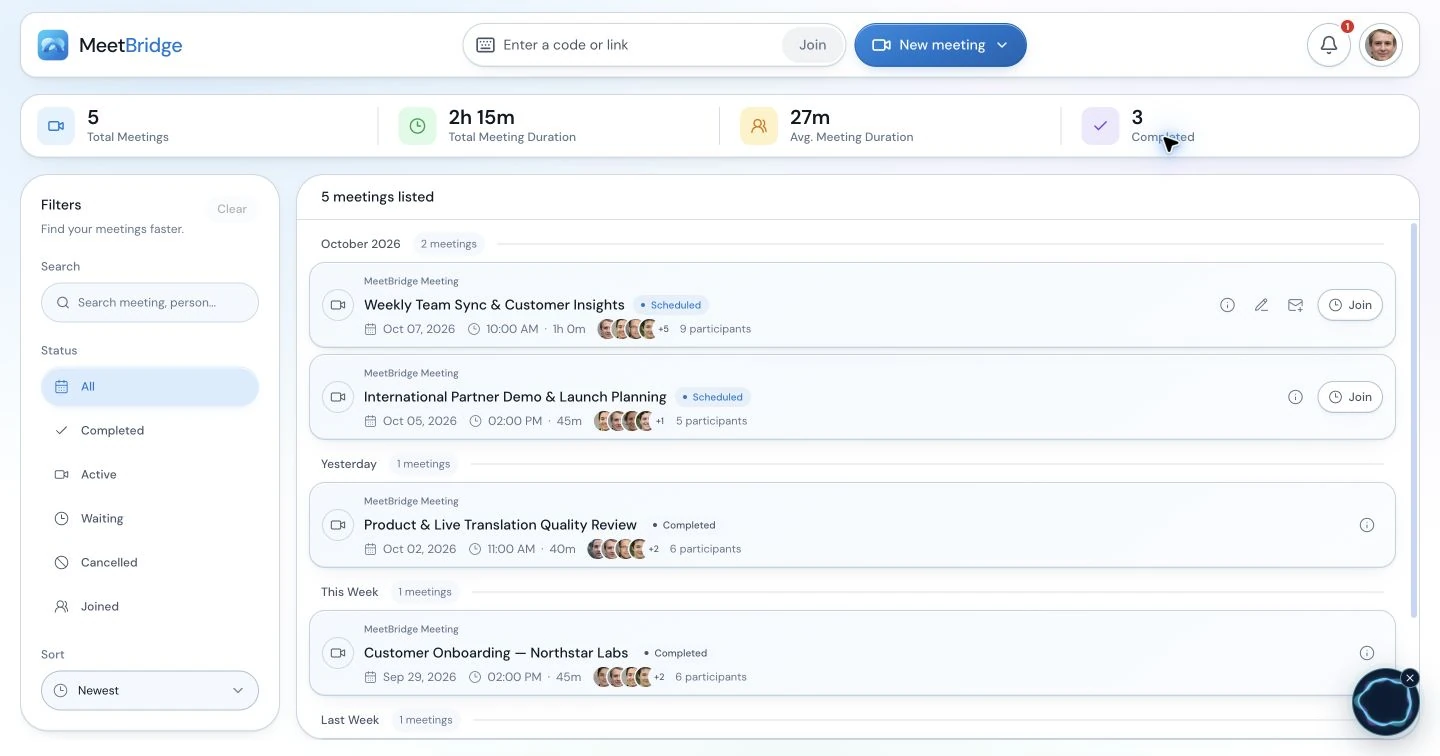
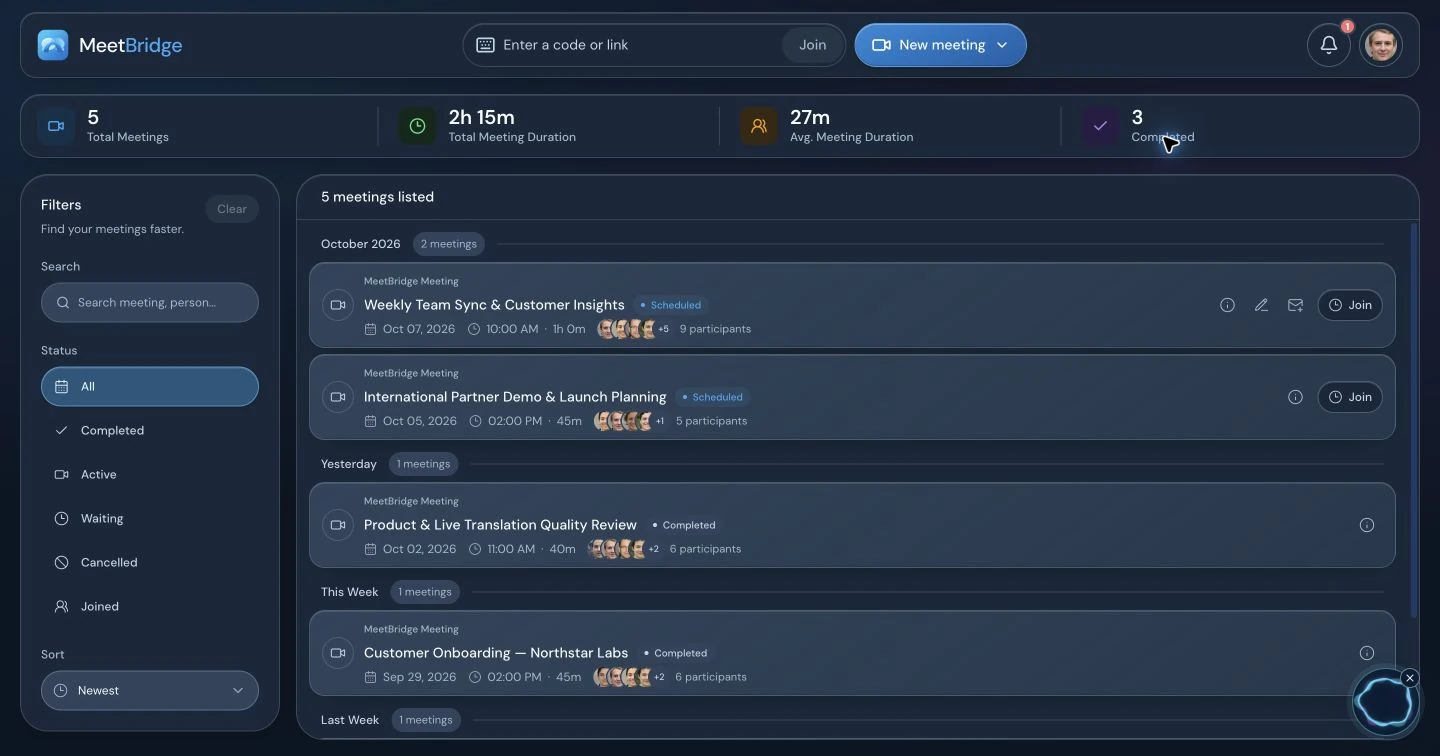
Use meeting history as the entry point for your review. A descriptive title makes a recurring project review easier to identify than a generic “weekly call.” Check the meeting date and participants before using a passage in your notes, especially when the same team has discussed the same issue several times.
- Keep the meeting title, date and participants attached to the passage you use.
- Read the surrounding lines when a short quote leaves the meaning unclear.
- Use the available summary for orientation, then return to the transcript for detail.
Follow the speaker
Review the original wording and available translated text
Saved transcript entries appear in chronological order with speaker names and times. In multilingual meetings, the detail view uses an available saved translation for your preferred language and falls back to the original text when that translation is absent. The original-text control helps you compare the captured wording with the displayed translation.
This matters when a translated requirement contains a product name, a measurement or a condition. Compare the relevant entry, keep the exact identifier from the supporting document, and ask the speaker to confirm a material detail when needed. Switching views changes how you read the saved entry; it does not create a translation that was never captured.
- Speaker labels help separate a customer request from a colleague’s interpretation.
- Language badges indicate original text or the source-to-target translation shown.
- Original text is still speech-to-text output, so check important names and numbers.
Find the detail
Locate the meeting first, then search its transcript
Search in My Meets helps narrow meeting history by title, meeting code or participant name. Inside an opened meeting, transcript search filters entries by matching text in the speaker name, displayed text, original text and stored translations. A specific term such as a model number or “delivery” is often the quickest starting point.
If the first search is empty, try a shorter phrase, another spelling or a term from the original language. A translated entry may use different wording from the phrase you remember. Clear the filter after finding a useful line so you can read the nearby entries and see whether a later speaker corrected or qualified it.
- Use meeting-history search to choose the right session, not to search all spoken content.
- Use transcript search for text matches within the opened meeting.
- Treat search results as a route to context, rather than a complete answer by themselves.
If you remember discussing a delivery exception, locate the client review by title or participant, search “delivery” in its transcript, then read the surrounding exchange. The search is a text filter within that meeting; it is not an assistant answering questions across your entire meeting archive.
Put this into practice with the guide:
Choose the right view
Speech, written messages and meeting events carry different context
The most useful handoff often draws on more than one part of the meeting. A spoken explanation may refer to a link sent in chat, while the participant timeline can explain why a colleague missed the end of the discussion. Review the view that contains the detail you need rather than expecting the transcript to contain everything.
- Check chat when someone says “the link I just sent.”
- Use joining and leaving context before assuming every participant heard a decision.
- Keep a written follow-up clear about what was agreed and what remains open.
| View | What to look for | Useful follow-up |
|---|---|---|
| Transcript | Captured speech, speaker names, times and available translated text | Check the wording of a requirement or commitment. |
| Chat | Written messages contributed during the meeting | Retrieve a shared reference or clarify an identifier. |
| Timeline | Session start and end, participant events and transcript activity | Understand the order of events and attendance context. |
| Summary | An available concise AI recap of captured conversation | Orient yourself before reviewing the detailed source. |
Carry the record forward
Download text or export an SRT file for the next step
The saved transcript view offers TXT download and SRT export when transcript entries are available. TXT keeps the displayed speech together with speaker names and times. SRT organizes the saved entries into numbered text cues, useful when your next workflow accepts a subtitle file.
Choose the original or translated display before exporting: the export follows that text view and includes all loaded transcript entries, even if a search is filtering the screen. SRT timing is derived from the captured entry timestamps, so review alignment before pairing it with any separate recording. A transcript export is not a video or audio recording.
- Use TXT for a readable working copy or a document-review process.
- Use SRT when you need timestamped cues and can review their timing.
- Label exported material with the meeting and selected language view.
- Review who should receive the file before moving it outside the meeting workspace.
Use the record
Make the next person’s job easier
Meeting memory is most useful when it resolves a concrete question. Give the next colleague a concise explanation, the relevant meeting context and a clear statement of what still needs confirmation. An entire transcript may be more detail than they need, while a short recap without supporting context may be too little.
Sales to delivery
Revisit the buyer’s requirement, an objection and the limits of what was discussed. Give delivery a reviewed account of the request so an exploratory conversation does not become an unsupported promise.
Consulting to project work
Trace a proposed scope change back to the client discussion. Carry the condition and approval status into the engagement document rather than treating every suggestion as an agreed deliverable.
Customer success to support
Find the example the customer described and check any identifier in chat. Send the relevant context with the issue so the next colleague can act without repeating the entire discovery conversation.
- Separate the customer’s words from your team’s interpretation.
- Keep exceptions and exclusions alongside the main request.
- Check that the recipient can access the meeting or provide an appropriate reviewed excerpt.
Choose the workflow
Plan for a saved record before the conversation starts
Use the full MeetBridge meeting workflow when you need its available saved transcript, chat, timeline and summary after the session. Check your plan and enabled meeting features before making that record part of a client or team process. The record can only contain speech and messages that were captured through the selected workflow.
MeetBridge Voice can run alongside Teams, Zoom or Google Meet for translated spoken conversation. Its live transcript supplies current-session context. That companion setup is a separate workflow: do not assume the video platform’s meeting, recording or chat will appear as a complete saved MeetBridge meeting record. Decide how you will document the call before inviting people.
- Choose the full meeting workflow for a planned saved-record review.
- Use Voice alongside an existing video platform when that is the right conversation setup.
- Plan manual follow-up notes when a companion Voice session is your chosen workflow.
Build a useful habit
A reliable handoff starts with a reviewable conversation
Clear turns, explicit corrections and a short recap of the agreed next step make the captured conversation easier to interpret later. Ask people to state an important identifier, name or date clearly. When a detail changes, say the correction aloud and confirm which version should be used.
Afterward, review the important passage against the surrounding discussion and any supporting document. Meeting memory is a working reference, not a guarantee that every word was captured correctly or retained without limits. Check the record you actually have, use the access available to your account and follow your team’s process for handling exports.
- Confirm decisions in the conversation instead of leaving agreement implicit.
- Keep the record attached to a specific meeting and date.
- Share a reviewed, relevant recap with the people who need to act.
Step by step
From a completed meeting to a useful handoff
Use this sequence when a colleague needs the detail behind a request or a decision.
Choose the meeting
Open My Meets, locate the session by title, code or participant, and check its date before reviewing the record.
Read the available recap
Use the summary for orientation when it is ready. Identify the question your follow-up needs to resolve.
Find the relevant exchange
Search inside the transcript, then read the surrounding entries with their speakers and times. Compare original wording where useful.
Check supporting context
Review chat for references and the timeline for attendance or sequence. Confirm a material detail with the speaker if it remains unclear.
Prepare the handoff
Write the confirmed request and open question in your normal follow-up process. Export TXT or SRT if the next step needs a separate transcript file.
Illustrative workflow
The delivery exception that should survive the handoff
An international customer review discusses a new rollout. The customer accepts the general plan but explains that one location cannot receive deliveries on Fridays. Here is how a team can use the available meeting record afterward.
Make the exception explicit
The host repeats the location name and the Friday restriction, then asks the customer to confirm. A colleague adds the site identifier in chat so the team has a written reference.
Return to the correct session
The meeting owner opens the dated customer review, searches “Friday” in the transcript and checks the customer’s line together with the host’s confirmation.
Keep the condition with the request
The owner compares the original text if the translated wording is ambiguous, checks the identifier in chat, and distinguishes the agreed restriction from an earlier proposed delivery schedule.
Send a usable operational note
The team records the confirmed restriction in its delivery process and includes the meeting date for context. Any unresolved schedule question stays open until the customer confirms it.
The value is the preserved exception and its context. The transcript supports a reviewed handoff; the team still makes the operational change in its own process.
Practical outcomes
What your team can improve
- Recover important wording without reconstructing the conversation from memory.
- Keep multilingual requirements and their qualifications together.
- Prepare clearer handoffs with transcript, chat and attendance context.
Before you get started
Frequently asked questions
What does meeting memory include?
In the full MeetBridge workflow, an accessible meeting detail view brings together available saved transcript entries, participants, chat, timeline context and an AI summary. These serve different review needs: the transcript contains captured speech, chat contains written messages and the timeline shows meeting events. Available records depend on your plan and enabled meeting features.
Can I search across everything said in every meeting?
Meeting-history search helps find a meeting by its title, code or participant names. Transcript search works inside the meeting you open and matches text in speaker names, original text, displayed text and stored translations. This workflow does not promise semantic search or question answering across your entire archive.
Can I see who said something and when?
Saved transcript entries show the speaker name and a timestamp and are ordered chronologically. Use those labels to locate an exchange and distinguish speakers. Read the surrounding lines before attributing a commitment, and confirm a material statement when the captured text or speaker information is unclear.
Can I review both the original and the translation?
Yes. The transcript view can switch between original text and the displayed text. The displayed view uses an available saved translation for your preferred language, with original text as the fallback. Switching the view does not generate missing translations, and the original is a speech-to-text record rather than an audio recording.
Which transcript export formats are available?
The saved transcript view provides TXT download and SRT export when entries are available. TXT includes speaker names, times and text. SRT creates timestamped text cues from the saved entries. These exports follow the current original or translated text view and include all loaded entries, rather than only the visible search matches.
Does the SRT export provide a meeting recording?
No. SRT is a text file with timing cues, not recorded audio or video. Its timing comes from transcript entry timestamps. If you plan to use it alongside a separate recording, review the text and alignment in your editing workflow before publishing captions.
Does a companion Voice session create the same saved meeting record?
Do not assume it does. Voice used alongside Teams, Zoom or Google Meet supplies current-session transcript context in its own conversation workflow. Use the full MeetBridge meeting workflow when you need its available saved transcript, summary and meeting-detail review, and check your plan and enabled features beforehand.
Who can open a saved meeting record?
Meeting details require a signed-in account with access to that meeting. Access can come from the meeting relationship or an authorized organization management role. An invitation or exported file is not a promise that every recipient can open the saved record. Check the recipient’s access when preparing a handoff.
What if a passage is missing or the wording seems wrong?
Try another term or clear the search filter first. Compare original and translated text, check chat for a written reference, and ask the speaker to confirm the detail. The available record reflects what was captured; it should not be treated as proof that unrecorded discussion did not happen.
How should we start using meeting memory as a team?
Choose one ordinary review meeting and a concrete follow-up question. Check whether you can identify the session, find a passage, understand its context and prepare a useful handoff. Confirm available features and access before relying on the workflow, and review current plan terms for usage and record availability.
Continue exploring
Build the right meeting workflow
Meeting summaries and actions
Turn the available recap into reviewed decisions and a clear follow-up.
Live translation
Choose how participants speak and hear across languages during the session.
Consulting live translation
Keep client context, scope and delivery follow-up connected.
MeetBridge product overview
See how meeting preparation, conversation and review fit together.