
In this guide
01 / Keep the call. Change the conversation.
How live voice translation works alongside Zoom
Your customer has already sent a Zoom invitation. The demo is ready, the camera works, and the product team has joined. The difficulty is the conversation: one person is comfortable in English, another in Spanish, and a third wants to answer in Turkish. MeetBridge Voice gives those speakers a shared audio room where each person can use their own language.
Zoom stays open for video, presentations and chat. MeetBridge Voice carries the spoken discussion separately. When a participant speaks in a different language from yours, you hear translated speech in the language you selected. When you answer, other participants receive the version appropriate to their own language. People who share a language hear each other directly.
All speakers must join the same MeetBridge Voice room. Disconnect Zoom computer audio, then use MeetBridge for your microphone and speaker. Installing Voice on one computer does not translate people who remain only on Zoom audio.
This is a companion workflow, with a visible room invitation and participant list. Voice does not join Zoom as a bot, read the Zoom attendee list, or inject translated audio into Zoom. Selecting Zoom when creating a room simply identifies the video platform you are using. Your Zoom meeting link and its admission rules remain under your control.
02 / Give guests a clear invitation
What you need for a translated Zoom conversation
The host needs a MeetBridge account, access to the Voice desktop app, and a plan with enough room usage. Check the download page for current client availability, or discuss a Voice rollout with us. Each participant needs an available microphone, a speaker or headphones, and a connection that can carry the video call and the Voice room.
- The Zoom invitation: open and distribute the video meeting link through your normal scheduling process.
- A separate Voice invitation: share this with every person who will speak or listen to the translated conversation.
- A language choice for each person: choose the language you will speak and listen in from the room’s available options.
- A short preparation window: allow time for browser permissions, guest approval and a test sentence before the presentation starts.
A guest does not need to purchase their own MeetBridge subscription. They can use the public invitation in a supported browser and request admission. Usage comes from the host’s plan. This is useful for a customer who joins one appointment and would prefer not to install another app.
Explain the two links in your calendar note. Someone may be in the Zoom waiting room while already requesting Voice admission, or the other way around. Neither system automatically admits the person to the other. Check both before you start discussing the agenda.
03 / Set up the audio path once
How to set up Zoom live translation with MeetBridge Voice
Use this walkthrough for an interactive customer call, interview or small team discussion. You are keeping the Zoom video meeting and moving its conversation into one Voice room, so everyone needs the same joining instructions.
Join Zoom for video and disconnect computer audio
Open your Zoom meeting as usual. Keep your camera, shared presentation and chat available. If Zoom asks you to join computer audio, leave that audio connection off. If you have already connected, use Zoom’s audio controls to leave or disconnect computer audio. The exact menu label depends on your client version.
Muting only the Zoom microphone leaves incoming sound playing. Disconnect the Zoom audio path rather than turning down your entire computer: MeetBridge still needs the speaker to play the translated conversation. Zoom’s audio-echo guide explains this distinction.
Create a Voice room and select Zoom
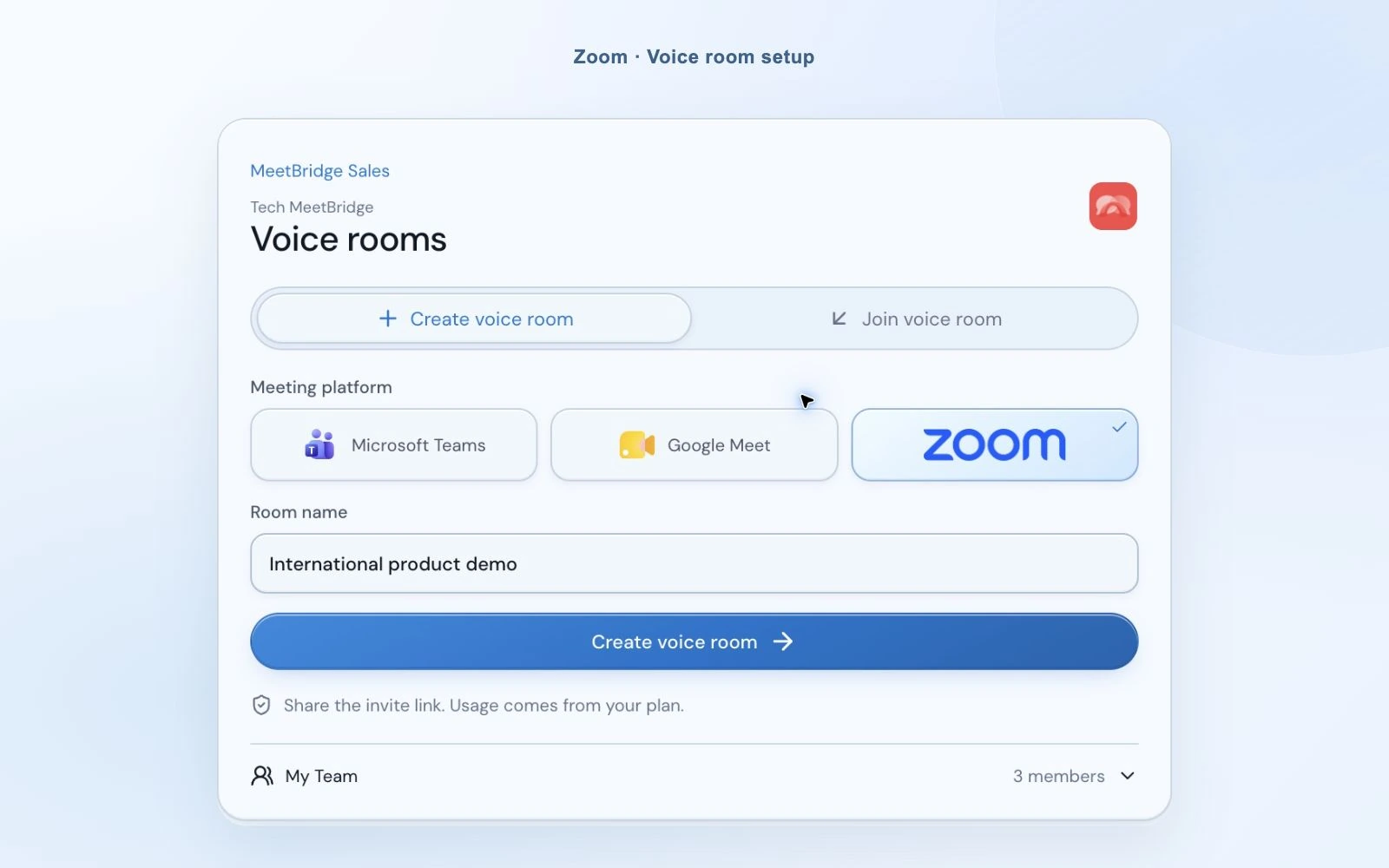
Sign in to the MeetBridge Voice desktop app. “Login with MeetBridge” continues through your browser account; email sign-in is also available. Choose “Create voice room”, select Zoom and enter a useful room name, such as “International product demo”. The resulting link is for translated audio, not a replacement Zoom invitation.
Choose your language and audio devices
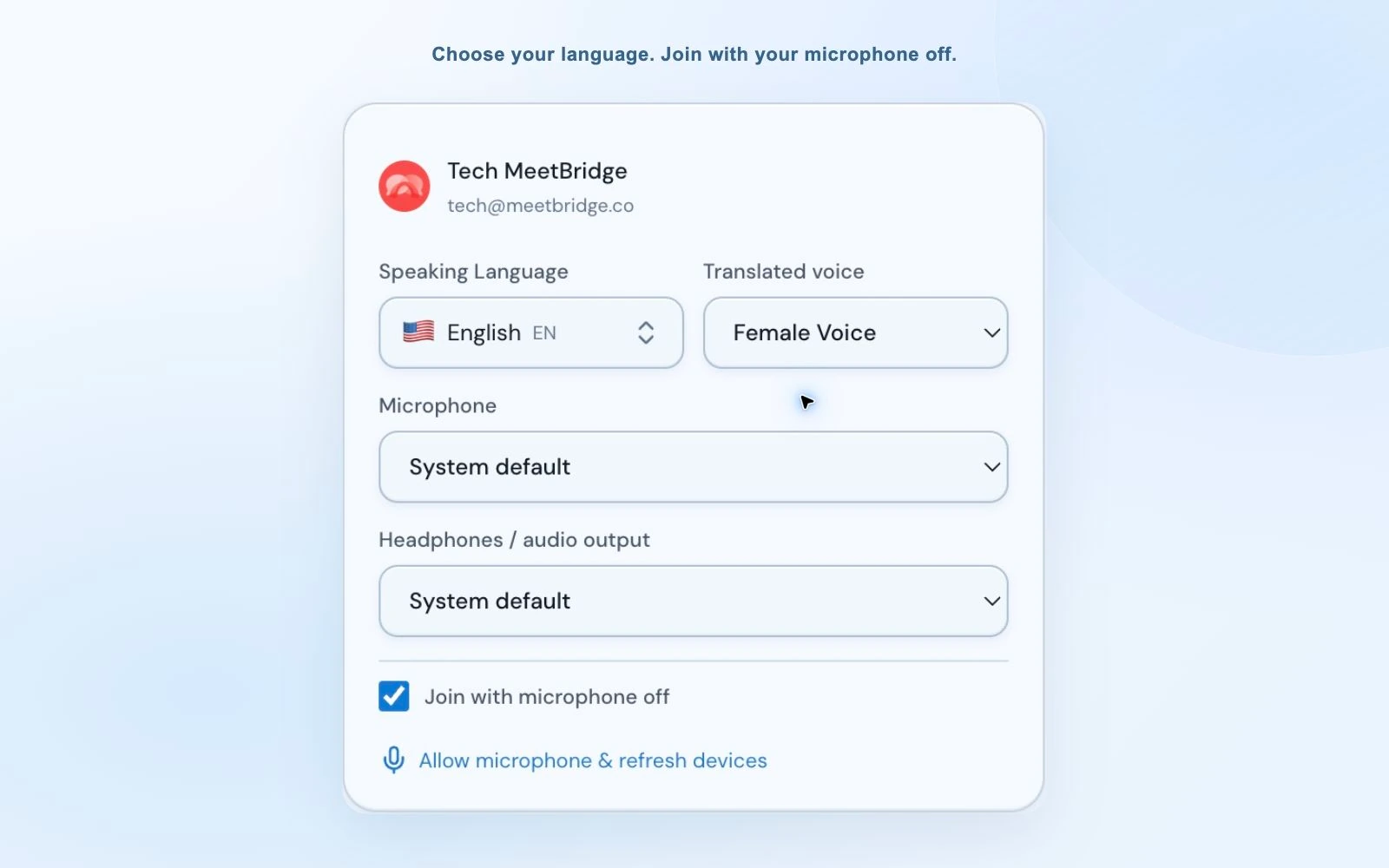
Select your own language, then the microphone and speaker you want Voice to use. For an English–Spanish call, the English speaker chooses English and the Spanish speaker chooses Spanish. You do not need to pretend to speak the listener’s language. Each listener’s choice determines the translation they receive.
Use “Join with microphone off” if you want to enter quietly while preparing your notes. Voice remembers previous device choices, but a disconnected headset may need to be replaced with an available device. Check the current selection before speaking.
Share the Voice link with the same Zoom participants
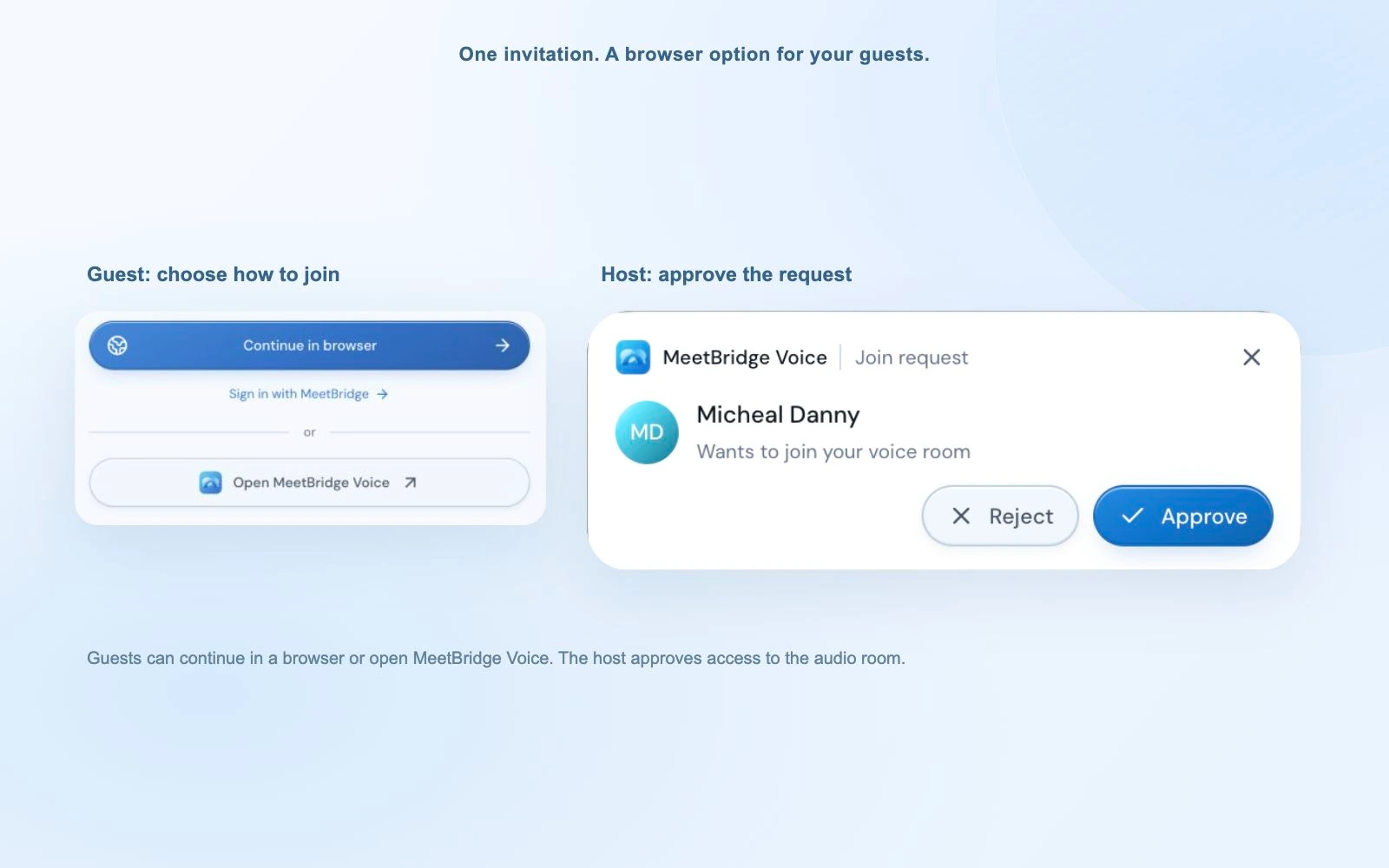
Copy the invite link and send it through the Zoom chat, your calendar invitation or the channel your guests already use. Invitees choose to open MeetBridge Voice or continue in their browser. A signed-in web user can continue with that account; a guest enters their name and requests admission.
The browser Voice room can remain open while Zoom runs in another window. Guests do not need a Zoom translation add-on to use this separate audio room. They do need access to the Zoom meeting if they want to see its camera feeds and presentation.
Approve the request and check both participant lists
The host approves or rejects the Voice join request. The desktop notification appears separately, so you can respond while using the small Voice bar. Confirm that every speaker is admitted to Voice and has disconnected Zoom audio. Seeing a person’s Zoom camera tile is not proof that their translated audio connection is ready.
Start with a short exchange in each language
Wait for “Voice room live”, switch on your MeetBridge microphone, and say one short sentence. Ask the other person to respond in their selected language. Once both directions work, begin the meeting. Leave a brief pause for the translation before answering; long overlapping turns are harder to follow than a clear question and response.
“Please join Zoom for video and the presentation, and open the MeetBridge Voice link for our conversation. Choose your language in Voice, request admission, and disconnect Zoom computer audio. We’ll speak and listen through MeetBridge.”
04 / Keep the presentation in view
Follow the speaker without filling your Zoom screen
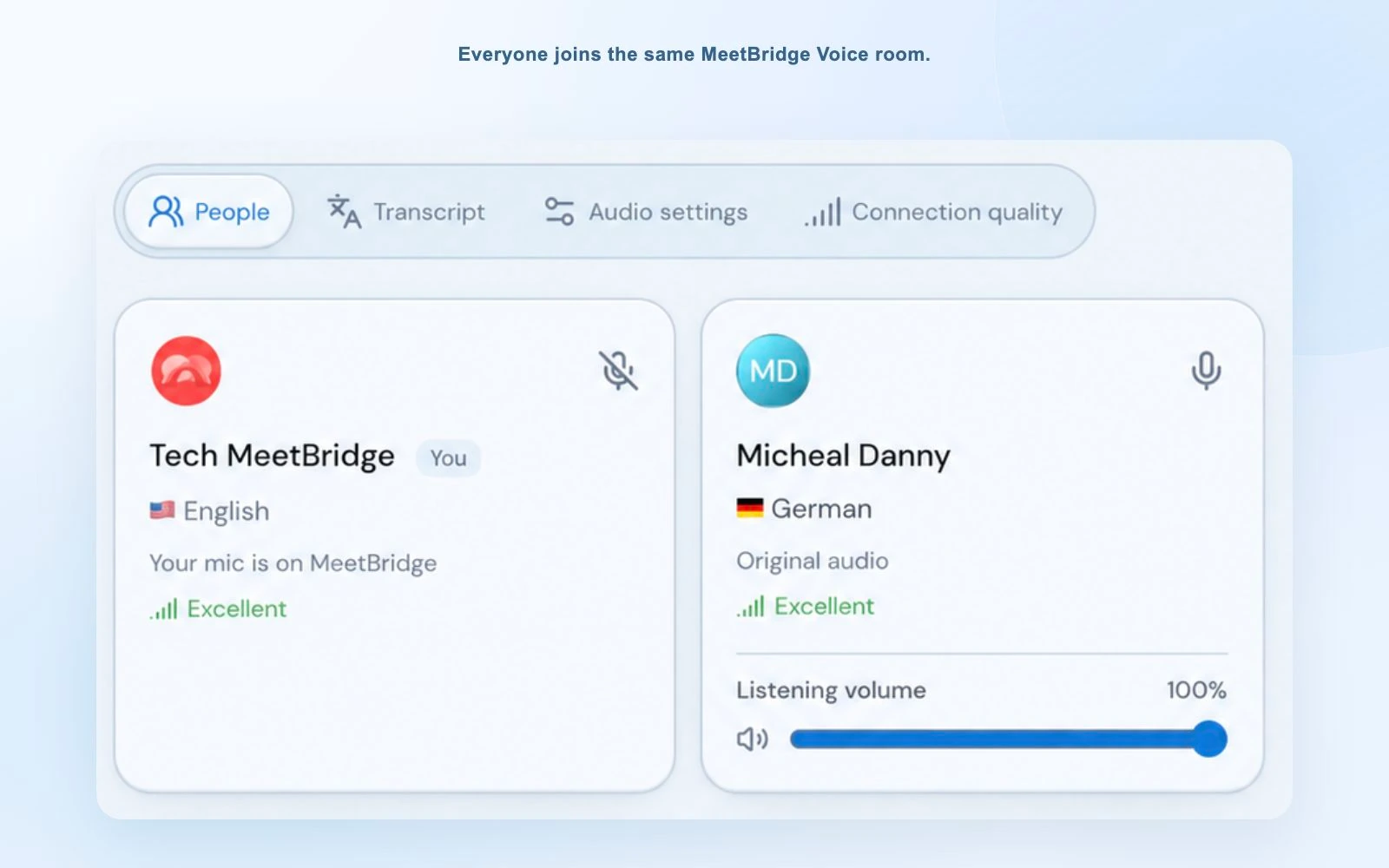
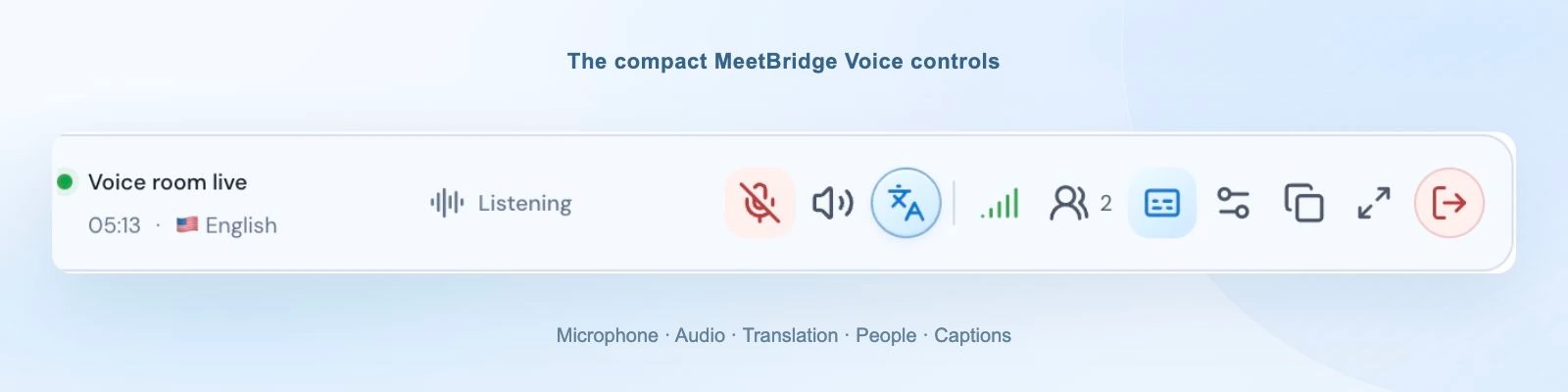
The compact desktop bar keeps room status, your language and speaker activity close to the call. You can see who is speaking or being translated, mute the Voice microphone, or open a larger panel for participant and audio settings. Browser guests use the expanded room view, with the same underlying conversation.
Keep a quiet trace of the original voice
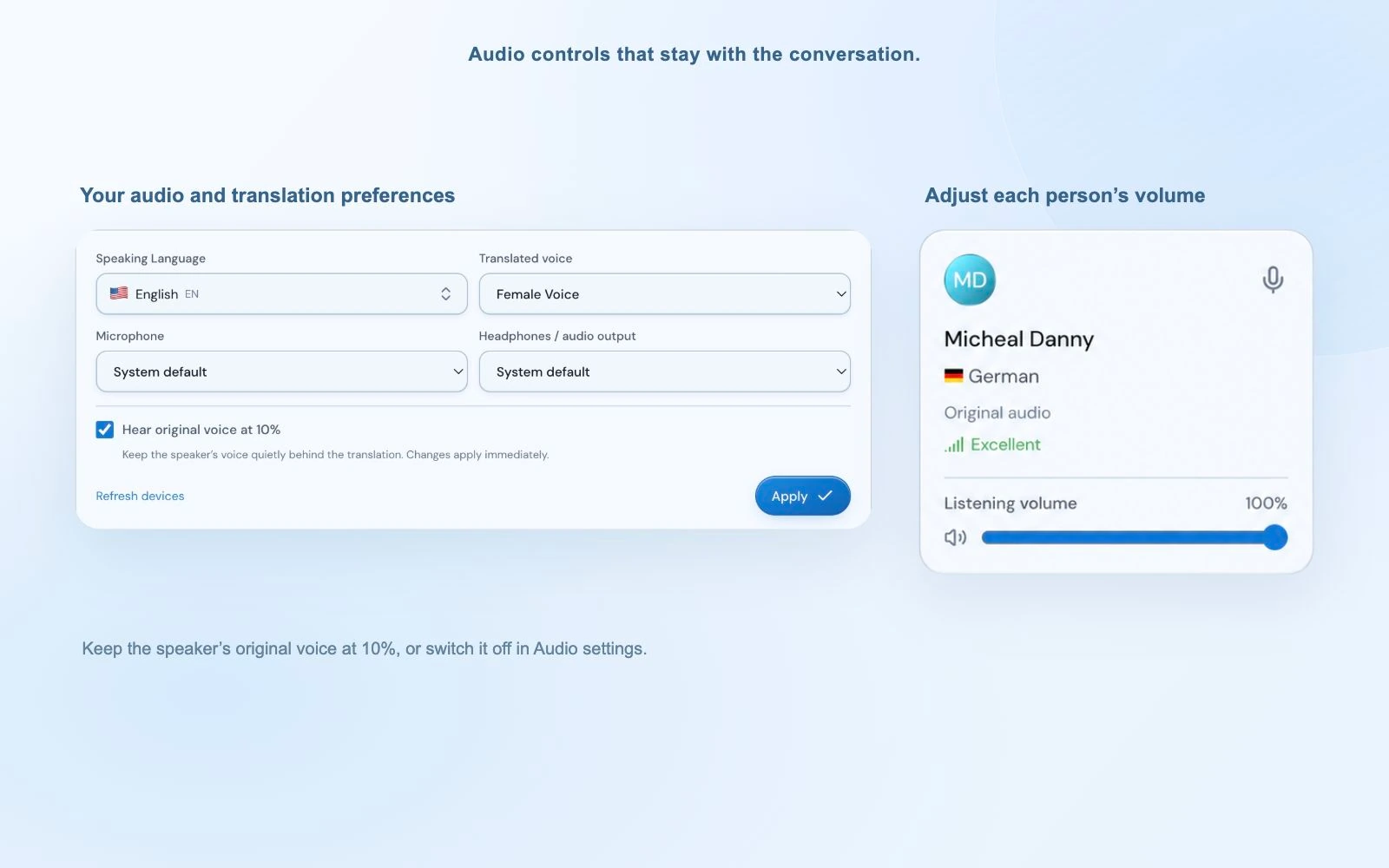
While a foreign-language translation is ready, Voice mixes the original speaker at 10% of your listening level and plays the translation at your normal level. You can keep a sense of the speaker’s delivery without making the original audio compete with the translated words. Disable “Hear original voice at 10%” in Audio settings if you prefer only the translation.
This option starts enabled in each new room and affects your own listening mix. It does not change the other person’s microphone. During translation startup or an unavailable translation connection, original speech remains audible normally. Turning translation off also returns the original conversation.
Check a word and balance individual speakers
Open the small two-line caption area for the latest translation, or expand the live transcript view for current-session context. A participant’s listening-volume slider lets you reduce a loud voice without lowering everyone else. Use the connection-quality panel to distinguish participant audio problems from the room or translation connection.
Plan separate conversations deliberately
Moving into a Zoom breakout room does not move or split your Voice room. People who remain in the same Voice room still share that conversation, even if their Zoom video locations change. Arrange separate Voice rooms and invitations for separate groups, or keep the translated discussion in the main meeting.
At the end, use the Voice leave icon and confirm. The host can end the audio room for everyone; a guest leaves their own connection. Close the Zoom meeting separately. Ending a Voice room does not end the video meeting, and leaving Zoom alone does not finish the Voice session.
05 / Work with the invitation you already have
Where a Zoom translation app fits your workflow
The companion approach works well when a customer or partner expects a Zoom call, but the discussion needs a different language for each person. A brief explanation before the call makes the extra audio link part of the invitation rather than a surprise during the demo.
Product demonstrations and discovery calls
Show the product in Zoom and ask questions through Voice. A customer can explain a requirement in their own words while you follow it in your selected language. Put product names, figures and dates in the chat as well, and confirm any important detail together.
Explore sales workflowsInterviews with international candidates
Keep the familiar video interview invitation while giving a candidate space to discuss their experience. Explain the audio setup and translation pauses first. Language translation supports the conversation; the interviewer still needs to ask clear questions and check their understanding.
Explore HR workflowsSupplier reviews and customer handovers
Discuss a shared specification, delivery plan or support issue with several language choices in one room. Keep the document visible in Zoom and use individual listening levels to balance the discussion. Confirm agreed quantities and responsibilities before ending the call.
Explore partner workflows06 / Choose the output your meeting needs
Zoom translated captions, Voice Translator, or MeetBridge Voice?
Zoom live translation can refer to several different tools. Reading translated captions is different from hearing translated speech, and an assigned human interpreter is another workflow again. Decide what participants need to receive before choosing an option.
| Option | What participants receive | What to check |
|---|---|---|
| Zoom translated captions | Translated text displayed inside Zoom. | Host configuration, available languages and account requirements. |
| Zoom Voice Translator | AI-generated translated speech inside the Zoom desktop app. | Translation entitlement, supported languages and client requirements. |
| Human language interpretation | Audio channels provided by assigned interpreters. | Arrange interpreters and configure the scheduled session. |
| MeetBridge Voice | A shared translated audio room alongside Zoom video. | Everyone joins Voice; room usage comes from the host’s MeetBridge plan. |
Zoom documents its own Voice Translator, with a Live Translation add-on or ZoomMate entitlement, an enabled feature and compatible desktop client. Translated captions and human interpretation have separate setup requirements. Use the official guides below for current eligibility instead of assuming that every Zoom account offers the same translation options.
MeetBridge Voice does not depend on enabling those native Zoom translation features. Its practical difference is the separate audio room and browser guest invitation. Pick it when that joining workflow suits your participants, and explain that everyone who speaks needs to be in Voice. It is not a listen-only capture tool for a Zoom meeting whose other attendees will not join.
07 / Make the audio path easy to diagnose
Fix echo, silence and joining problems
- I hear the same sentence twice.
- Disconnect Zoom computer audio rather than only muting its microphone. Check that you joined Voice once, on one device. If speaker sound returns through the microphone, reduce the speaker level or try headphones.
- I can see the customer, but they cannot hear me.
- Check the Voice participant list and admission request. Then check your Voice microphone, selected input and microphone permission. Zoom video admission and the Voice audio connection are separate.
- The original voice plays, but nothing is translated.
- Confirm that translation is enabled and your selected language differs from the speaker’s. Check the translation connection status. Original speech plays normally while translation is preparing or unavailable; same-language speech is heard directly.
- The browser room is silent.
- Use “Enable room audio” if the browser requests it. Check the Voice speaker control, output device and site sound permission. Keep the Voice tab open while you switch back to Zoom.
- People in another breakout group are still audible.
- They are still in your Voice room. Leave that room and join the correct group’s separate Voice invitation. A Zoom breakout move does not change MeetBridge room membership.
Speak in the language you selected and let each person finish a manageable turn. Check unusual names and important numbers in chat. AI translation can make mistakes, so ask for a rephrasing when an answer sounds unexpected rather than building the rest of the meeting on a doubtful sentence.
Explain cloud voice processing to participants and follow your organization’s requirements. Review our security information and meeting voice processing information before introducing the workflow to a team.
08 / One meeting when you can choose the platform
You can also run the entire meeting in MeetBridge
If there is no need to keep the Zoom invitation, create a full MeetBridge meeting instead. Participants join one room for video and translated speech, so you no longer need to coordinate two invitations or explain which microphone belongs to which app.
The full meeting workflow can also provide transcript context, summaries, decisions and action items, depending on your plan and enabled features. That is a different meeting record from the companion Voice room. Choose Voice for an existing Zoom call; choose a full MeetBridge meeting when you want the conversation and its follow-up together.
Do not assume a Zoom transcript or recording includes the Voice conversation. The audio in this setup is carried outside Zoom. Voice’s live transcript view helps during the current session, but it does not promise the saved record and summary features of a full MeetBridge meeting.
Explore live translation in MeetBridge09 / Your questions, answered
Zoom live translation FAQ
How can I translate a Zoom meeting in real time?
Create a MeetBridge Voice room alongside the Zoom video call and invite the same speakers. Everyone joins Voice and selects their own language. Disconnect Zoom computer audio and use MeetBridge for the microphone and speaker. Voice translates foreign-language speech into each listener’s selected language.
Is muting my Zoom microphone enough?
No. Muting a microphone stops outgoing Zoom speech, but it does not stop Zoom from playing meeting sound. Disconnect Zoom computer audio as well. Keep your computer speaker available for MeetBridge Voice and check that other participants have followed the same setup.
Does everyone need to install the MeetBridge Voice app?
The host uses the desktop app to create the Voice room. Invitees can open the app or continue in a supported browser from the public invitation. Every speaker still needs to join the same Voice room; a person using only Zoom audio is not translated by this workflow.
Do I need Zoom’s Live Translation add-on to use MeetBridge Voice?
MeetBridge Voice runs its own translated audio room, so it does not require Zoom’s translation add-on. You need access to the Zoom meeting and a MeetBridge host plan with room usage. Zoom’s own translation features have separate account, language and client requirements.
Who pays when a guest joins the translated conversation?
Voice room usage comes from the host’s MeetBridge plan. Guests can provide their name and request admission without purchasing a separate subscription. The host approves the request. Check current plans for included usage and limits.
Can I hear the original voice quietly behind the translation?
Yes. While translation is ready, the original voice is mixed at 10% of your listening level by default. Disable Hear original voice at 10% in Audio settings to remove that mix. It starts enabled in each new room; original audio remains audible normally during translation startup or an unavailable translation connection.
Does Voice follow Zoom breakout rooms automatically?
No. A Zoom breakout move does not move or split a MeetBridge Voice room. People who stay in the same Voice room continue sharing that audio space. Plan and join separate Voice rooms for separate conversations, or use a single main-room discussion.
Will my Zoom recording contain the Voice translation?
Do not assume it will. Voice audio runs outside Zoom, with Zoom computer audio disconnected. The Voice live transcript is current-session context and is not a Zoom recording or a guaranteed saved meeting record. Consider a full MeetBridge meeting for the available transcript, summary and follow-up workflow.
Can I use MeetBridge without a Zoom meeting?
Yes. You can create a full MeetBridge meeting with video and live translation in the same room. Transcript, summary and action features depend on your plan and enabled meeting features. Use Voice when you want to keep an existing Zoom video invitation.