
In this guide
01 / Keep the shared screen. Open the conversation.
How live voice translation works alongside Google Meet
A partner sends a Google Meet link and opens a shared planning document. You can follow the slides, but the conversation moves into a language you do not speak comfortably. You want to ask a real question, hear the answer and respond without translating every sentence yourself. MeetBridge Voice adds a shared multilingual audio room alongside that video meeting.
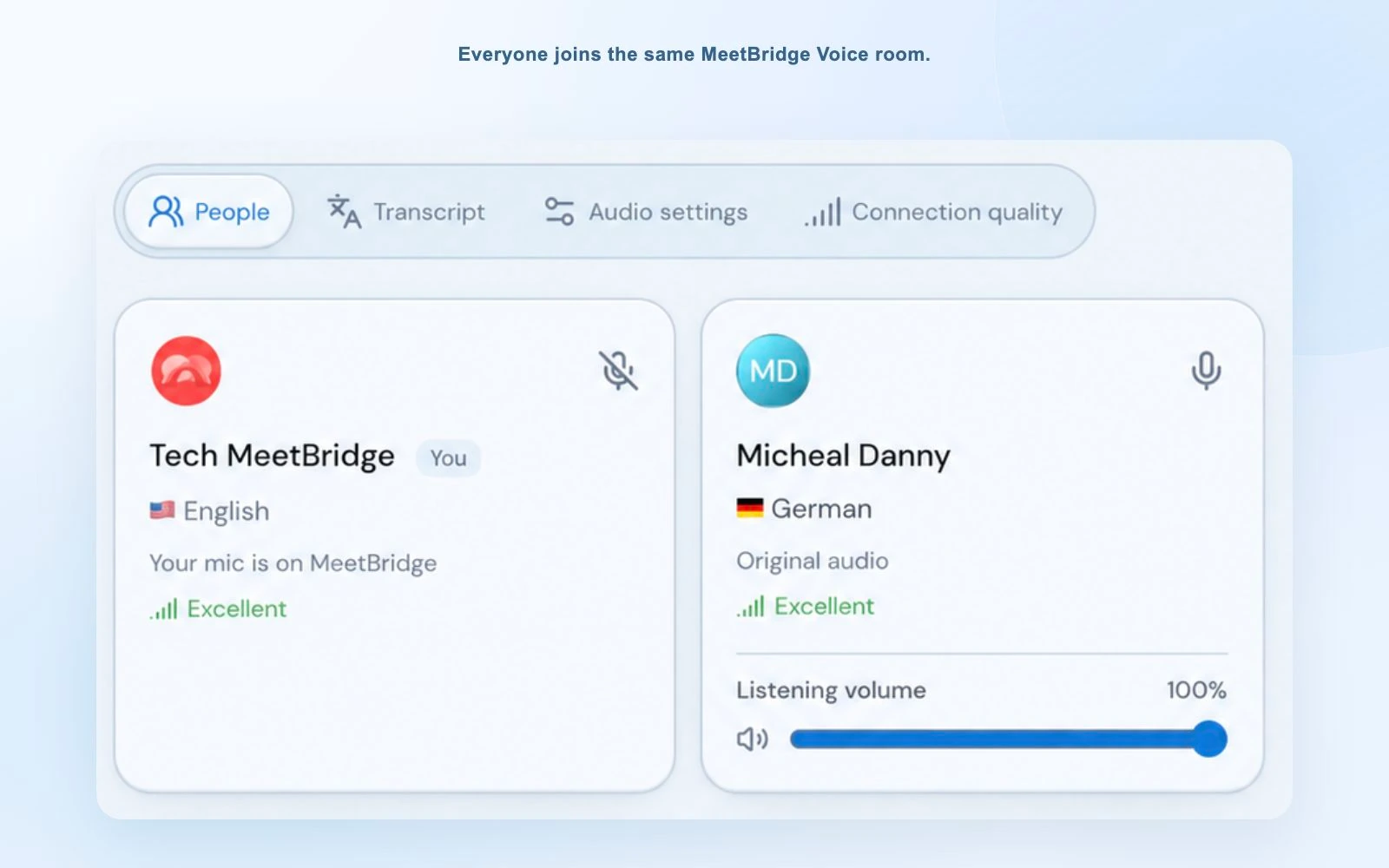
Google Meet continues to carry cameras, presentations and chat. Each speaker also joins the same MeetBridge Voice room and selects their own language. Voice delivers translated speech when the speaker uses another language, so you can listen in your chosen language and answer in it too. Participants using the same language hear each other directly.
Everyone who speaks must join the Voice room. Turn off the Google Meet microphone and incoming Meet audio, while keeping the MeetBridge microphone and speaker available. Muting Meet alone does not invite its participants into Voice.
The room runs separately from Google Meet. It does not capture a stranger’s Meet audio, import their Google identity or install controls inside the meeting. Selecting Google Meet during room creation is a platform label, not permission to access Google Calendar. This keeps the joining steps explicit: one link for the video call and one for its translated conversation.
02 / A clear plan before the first sentence
Prepare your Google Meet link, Voice invitation and devices
The host needs a MeetBridge account, access to MeetBridge Voice and enough room usage in their plan. See the download page for current client availability, or contact us about a Voice rollout. Guests can continue through the public invitation in a supported browser, without installing the desktop app or a Chrome extension.
- A video invitation: open and share your Google Meet link using your normal calendar or meeting process.
- A Voice room invitation: send it to every speaker, including people outside your organization.
- A microphone and listening device: check which headset, speaker or built-in device the Voice room should use.
- A language for each participant: choose the language you will speak and listen in from the room’s available options.
Guests provide their name and request admission; the host approves them. Their Voice usage comes from the host’s MeetBridge plan, so they do not need to purchase an individual subscription for the call. A signed-in MeetBridge web user can continue with their existing account.
Allow a few minutes for your first call. A person may already be visible in Meet but still be waiting for approval in Voice. Google Meet admission and Voice admission are independent. Check that everyone has opened both links before starting the translated discussion.
03 / Two links, one speaking path
How to set up Google Meet live translation with MeetBridge Voice
The key is to leave the video call intact while giving the conversation a single microphone and listening path. Follow these steps on a computer, and share the same instructions with the other participants.
Open Google Meet and turn off its microphone
Join your existing Google Meet call. Keep the camera and shared document available, then mute your microphone in Meet. You will speak through the separate Voice microphone once the translated audio room is ready. Keep the Meet link open for the visual part of the meeting.
Disable Meet sound without muting your whole browser
In Chrome, open the site information beside the address for meet.google.com, choose Site settings, and block Sound for that site. This leaves other sites’ sound available. Keep the MeetBridge site allowed to play sound, especially if you will join Voice in a second browser tab. Chrome’s site-permissions guide is linked below.
Do not turn down all of Chrome or mute your computer speaker to silence Meet: that would also silence your browser Voice room. Restore the Meet site’s sound permission when you return to an ordinary Google Meet call. Use a site-specific sound control in another supported browser.
Create the translated audio room in MeetBridge Voice
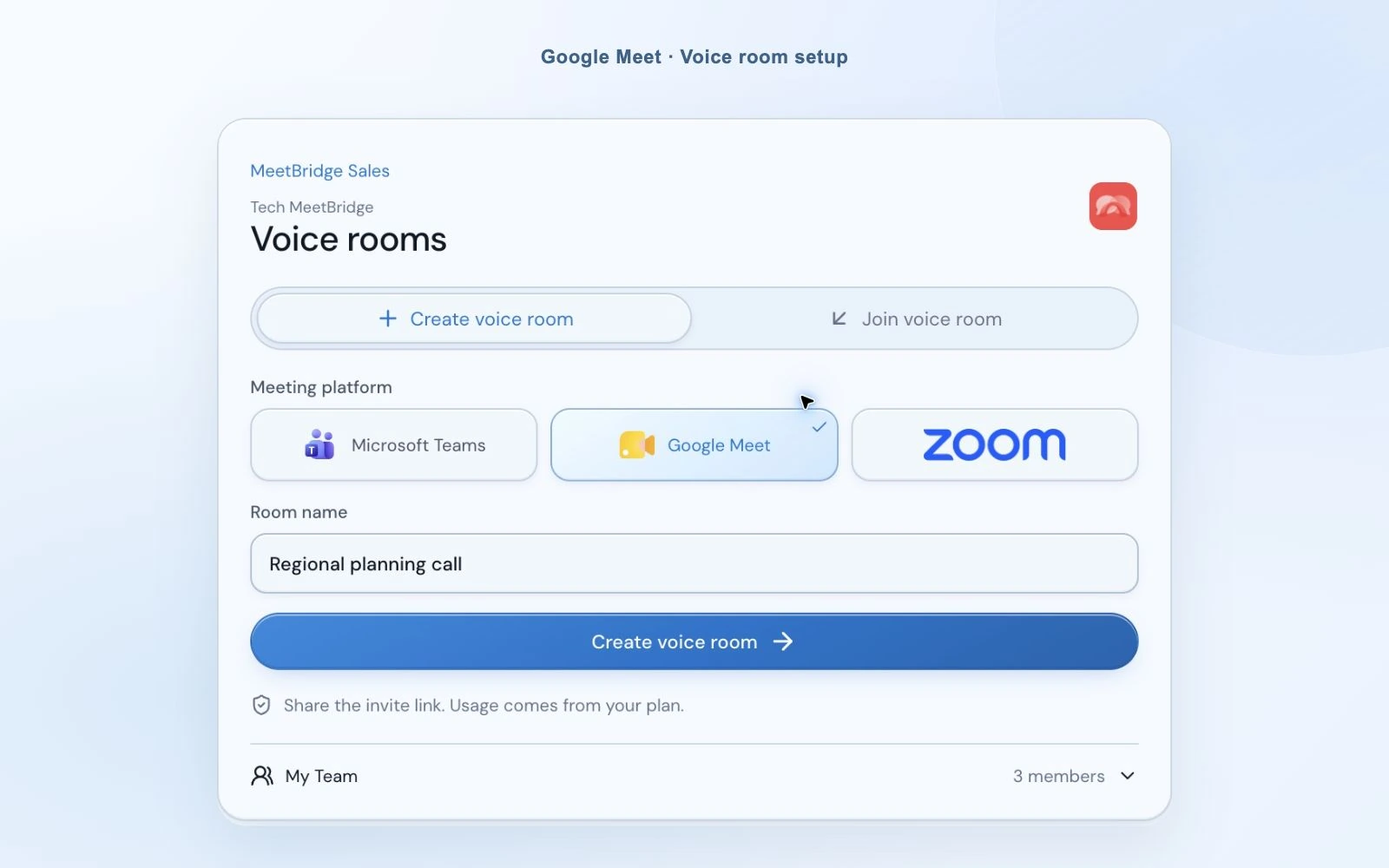
Open the Voice desktop app and sign in with your MeetBridge account. Use “Login with MeetBridge” to continue through the browser, or sign in with email. Choose “Create voice room”, select Google Meet and give the room a recognizable name. Voice creates an audio invitation; your existing Google Meet link stays separate.
Select your language, microphone and speaker
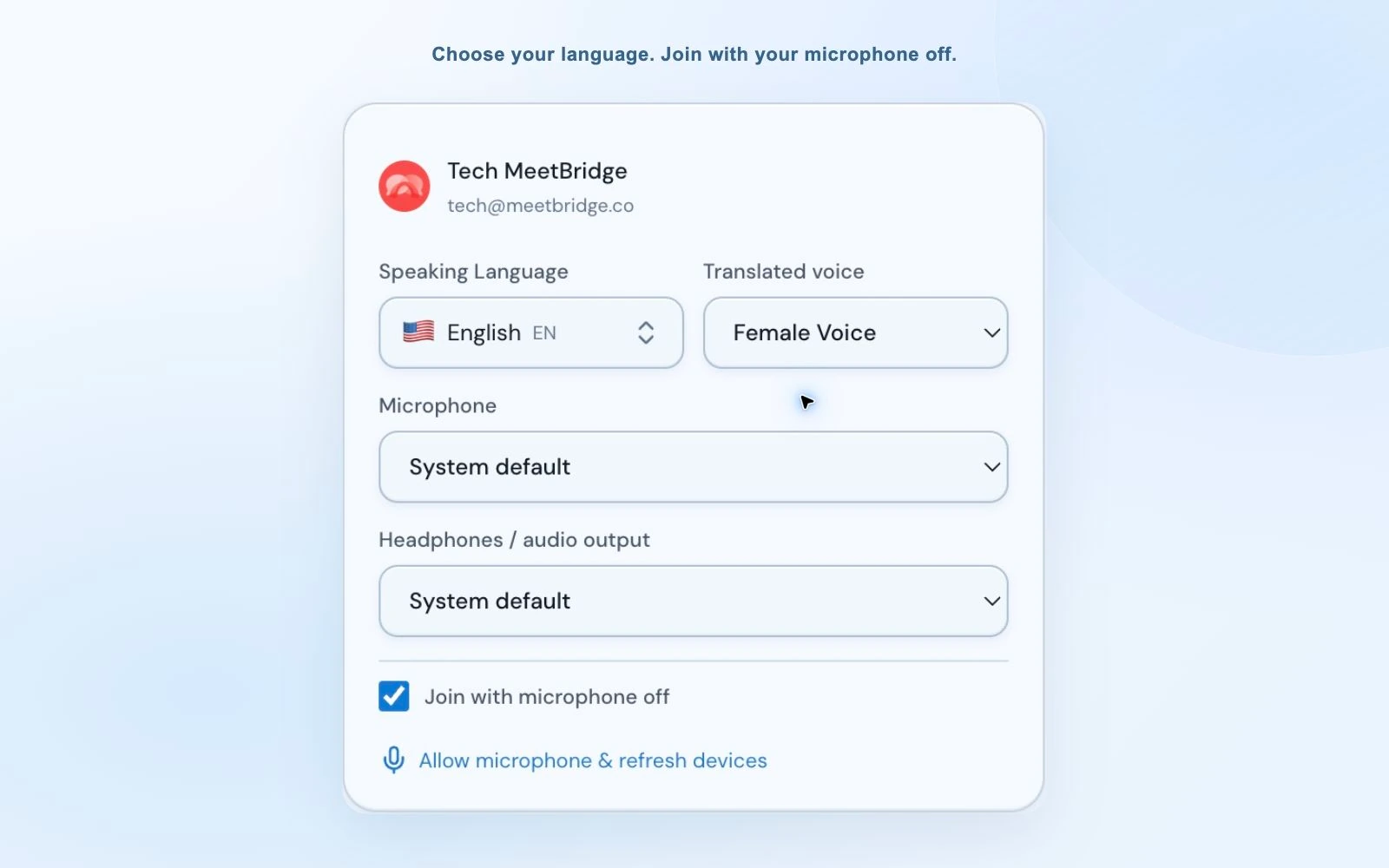
Choose the language you will actually speak. In an English–Turkish conversation, one person selects English and the other selects Turkish. Pick the input and output devices you want Voice to use, and choose a translated voice if you want to change the translation’s voice. The room uses each participant’s language choice to deliver the conversation.
“Join with microphone off” lets you enter while getting ready without sending background speech. Device selections are remembered, but a missing headset may require you to choose a current device or the system default. Check the selected microphone before switching it on.
Invite your Meet participants and approve Voice requests
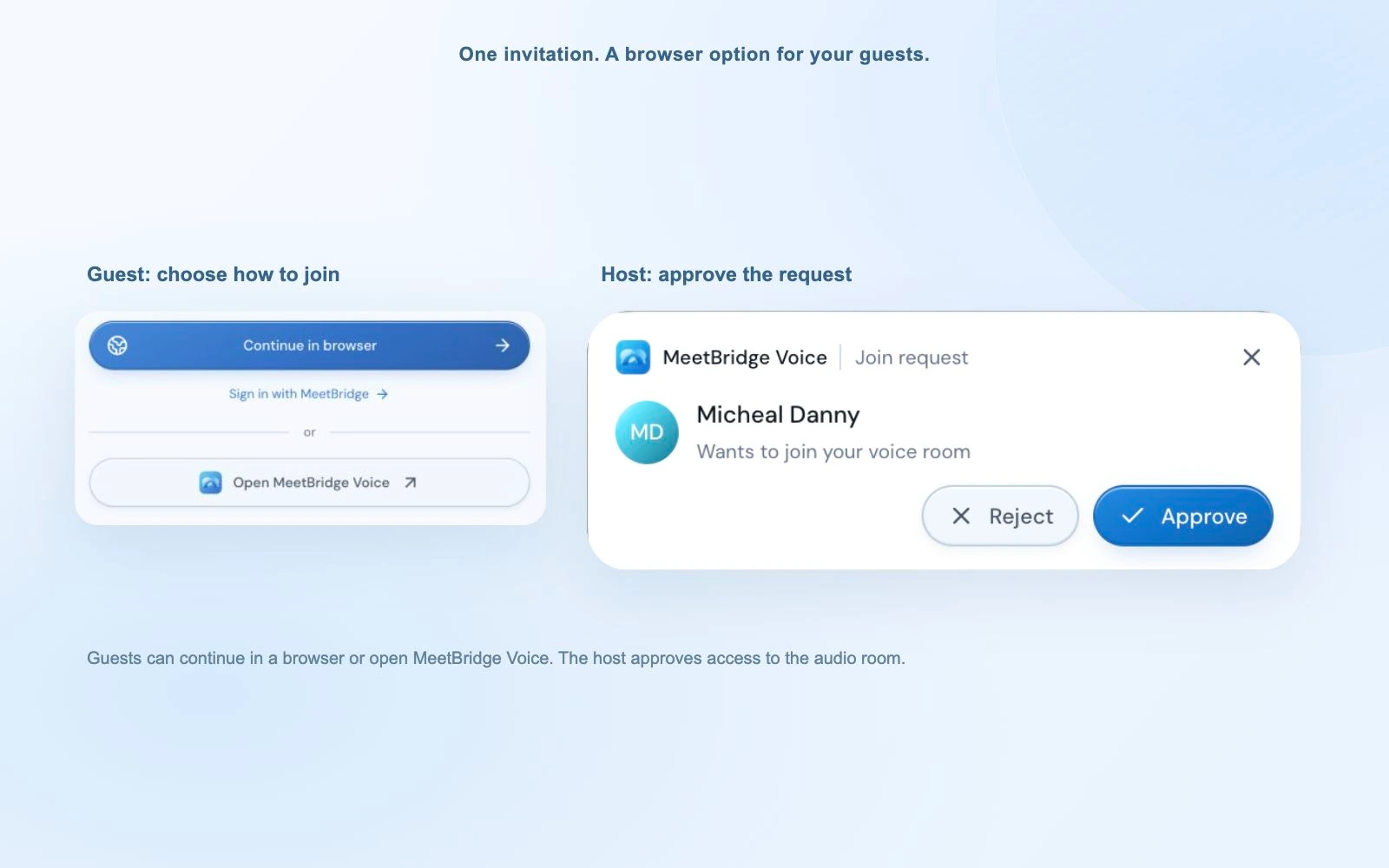
Copy the Voice link into the Meet chat, calendar invitation or your usual communication channel. The recipient chooses to open the desktop app or continue in a supported browser. Browser guests allow microphone access for MeetBridge, enter their details and request admission. These permissions are separate from the camera or microphone choices they made in Google Meet.
The host handles the Voice join notification and checks the participant list. The desktop request appears in a separate notification window, making approval available while the bar is compact. Confirm that every speaker has selected the right language and disabled Meet audio.
Enable Voice playback and exchange a short test sentence
Wait for “Voice room live”. If the browser asks you to enable room audio, select that control so it can play the conversation. Switch on the MeetBridge microphone and begin with a short sentence in your chosen language. Ask the other person to reply before moving on to the agenda.
Keep the Voice browser tab open while working in Meet. Allow a little space between turns so translated speech can finish. The desktop bar can stay above your meeting window; browser participants have the expanded room view.
“Open Google Meet for video and our shared document, and open the MeetBridge Voice link for the conversation. Choose your language and request admission in Voice. Keep the Meet microphone and Meet site sound off, while leaving MeetBridge sound on.”
What about Google Meet Companion mode?
Google also offers Companion mode, which disables the Meet microphone and meeting audio. It changes parts of the video and participant experience, so it is not a direct replacement for the ordinary video-call steps above. Review Google’s guide if your meeting is designed around that mode. Either way, the translated conversation still requires everyone to join Voice.
04 / Keep your attention on the shared work
Follow the translated conversation without losing the document
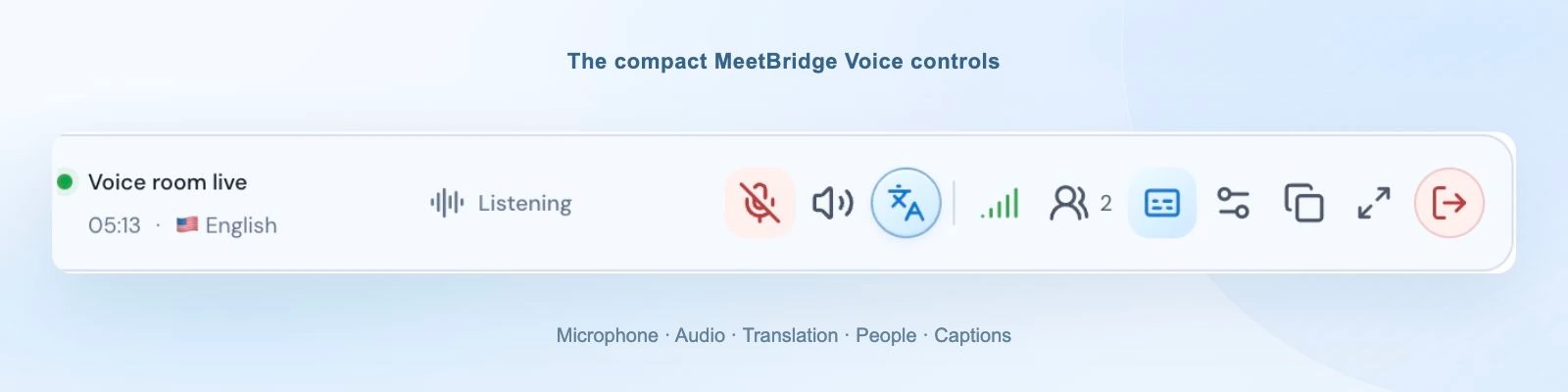
A planning call works better when you can watch the shared spreadsheet and listen, rather than switching screens for every sentence. The compact desktop Voice bar shows live status, your language and speaking or translating activity. Expand it for participant details or settings when you need them. Guests in the browser use the expanded room alongside their Meet tab.
Hear translated speech with a quiet original voice
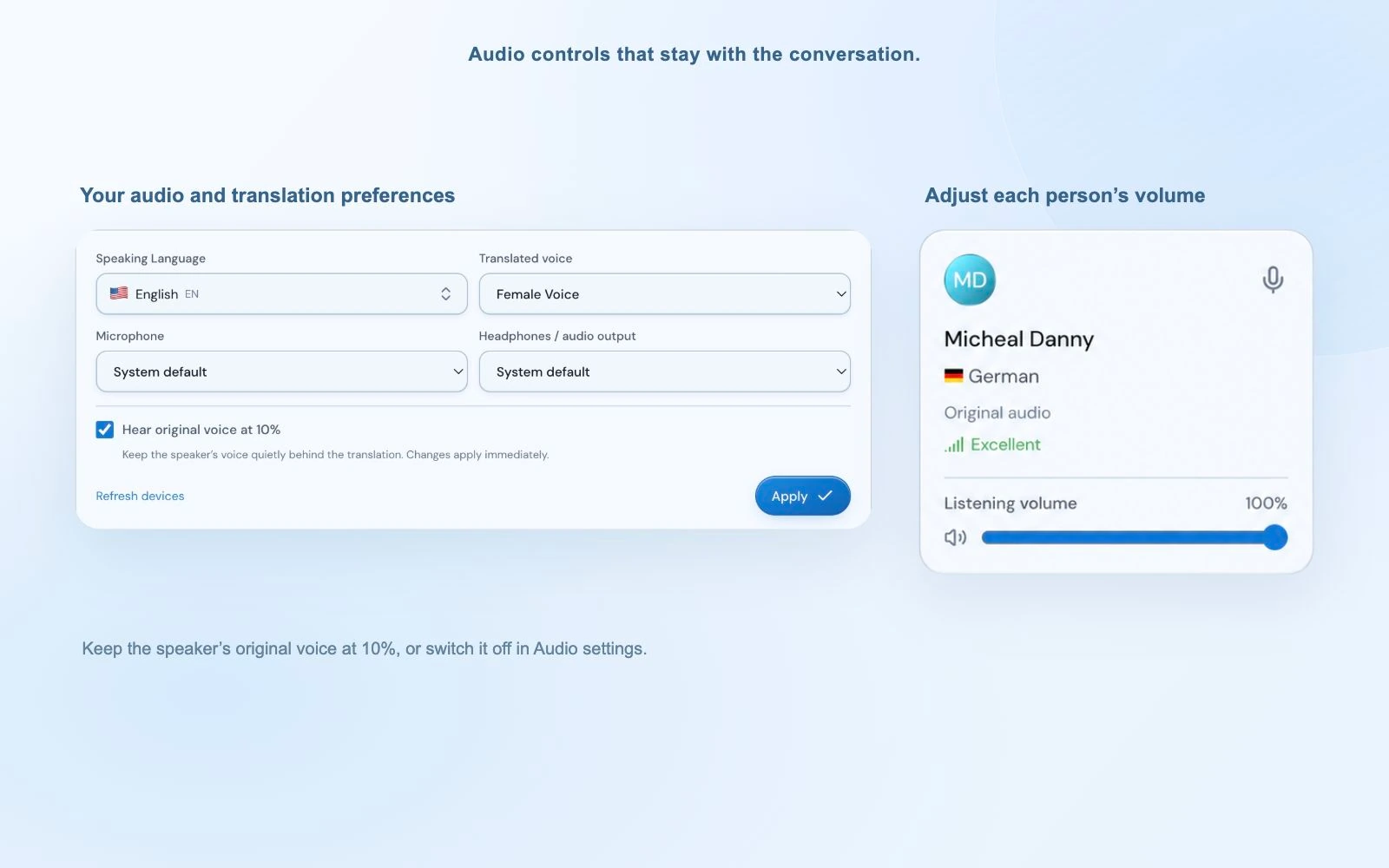
While translation is ready, Voice plays the original speaker at 10% of your listening level with the translation at your normal level. You can keep a little of the speaker’s delivery while following the meaning in your own language. Turn off “Hear original voice at 10%” in Audio settings if you prefer the translation on its own.
The setting applies to your listening mix and starts enabled in each new room. It does not mute somebody else’s microphone. Original audio remains audible normally while translation is preparing or unavailable, and participants speaking your language are heard directly.
Read a quick caption and balance each person
The two-line compact caption area shows the latest translation. Open the wider live transcript view when you need more context from the current session. For a product name, delivery date or figure, ask the speaker to confirm it in Meet chat too; generated text can contain errors.
Adjust a participant’s listening-volume slider if one person sounds louder than the others. The connection-quality panel helps separate room connectivity, participant connectivity and the translation connection. That is more useful than repeatedly changing the computer volume when only one person’s audio needs attention.
Keep shared content and spoken translation distinct
Voice translates speech from participants in its audio room. A video playing in your Meet presentation does not automatically become translated Voice speech. Plan separately for media sound, and keep the spoken conversation on the agreed audio path. A participant who joins Meet by phone but never joins Voice is also outside this translated room.
When you finish, use the Voice leave icon and confirm the action. The host can end the Voice room for everyone; a guest leaves their own connection. Leave Google Meet separately, and restore the Meet site’s sound setting if you changed it. Closing one application does not close the other meeting.
05 / Use the meeting habits people already know
Where Google Meet live voice translation fits
The companion workflow is useful when a team already collaborates in Google Meet and shared documents. Keep those visual tools in place, and give participants a separate language choice for the spoken exchange. Send the two-link explanation early so guests know what to expect.
Regional planning and supplier conversations
Review a delivery schedule or shared specification in Meet while partners explain issues in their own language. Ask one person at a time, and write agreed numbers and dates in the shared document. Translation helps the discussion; checking the details together completes it.
Explore partner workflowsCustomer onboarding and product walkthroughs
Keep the browser presentation familiar for a customer, then route questions and answers through Voice. A guest can choose browser continuation from the invitation rather than installing another client. Give them time to approve microphone access and make their language choice.
Explore customer success workflowsInterviews across languages
Use the Meet video call for the conversation’s visual cues and let the candidate answer through Voice in their chosen language. Explain translation pauses and invite clarification. A clear setup helps an interview focus on the person’s experience rather than the mechanics of joining.
Explore HR workflows06 / Spoken translation and subtitles are different
Google Meet speech translation, translated captions, or MeetBridge Voice?
People searching for Google Meet live translation may want spoken audio, readable subtitles or both. Google provides native speech translation and translated captions, with different eligibility and language requirements. MeetBridge Voice is another workflow: a separate audio room alongside the video meeting.
| Option | What participants receive | What to check |
|---|---|---|
| Google Meet translated captions | Translated text inside the Meet interface. | Eligible Workspace edition and available caption languages. |
| Google Meet speech translation | Translated speech within the Meet conversation. | Account eligibility, admin settings, language combinations and participant requirements. |
| MeetBridge Voice | Translated speech in a shared room alongside Meet video. | Everyone joins Voice; the host’s MeetBridge plan supplies room usage. |
| A full MeetBridge meeting | Video and live translation in one meeting. | Available meeting features and usage in your MeetBridge plan. |
Google’s speech-translation guide describes eligible accounts, supported language combinations and participant setup. Its caption guide covers translated on-screen text. Check those official sources for the current requirements; the presence of captions in a Meet call does not by itself mean spoken translation is enabled.
Voice does not require turning on Google’s native translation feature. Its advantage for this workflow is an explicit room invitation and individual language choices across the same Voice conversation. Evaluate it around the people you invite and the setup they can follow, rather than assuming it captures any Meet call automatically.
07 / Check the site and the room separately
Fix browser permissions, duplicate audio and silent rooms
- I muted Meet, but I still hear two versions of the conversation.
- Meet microphone mute does not disable incoming audio. Block sound specifically for the Meet site or use the browser’s equivalent site-audio control. Keep Voice sound available and check that you are not connected to Voice twice.
- My browser guest cannot hear any Voice sound.
- Keep the MeetBridge site allowed to play sound and use “Enable room audio” if offered. Check the room speaker button and output device. Muting all of Chrome to silence Meet can also silence Voice.
- The camera works in Meet, but Voice cannot hear me.
- Check microphone permission for the MeetBridge site, the chosen input device and the Voice microphone button. Permissions granted to Google Meet do not automatically grant microphone access to another site.
- The person is in Meet, but is missing from Voice.
- Send the separate Voice invitation, check their admission request and approve it. Google Meet’s participant list is not imported into Voice. Confirm that you are both using the same Voice link.
- The original language plays without a translation.
- Check translation status and the selected language for each speaker. Same-language speech is direct, and original audio also stays audible while translation is preparing or its connection is unavailable.
- My next ordinary Meet call has no incoming sound.
- Restore the site-specific Sound setting for meet.google.com. The setting can remain in the browser after the translated call, so return it to your normal preference when you stop using the Voice audio path.
Take turns, use manageable sentences and verify names or numbers in writing. If a translation seems wrong, ask the speaker to rephrase. Review your organization’s requirements for cloud voice processing and explain the separate room to participants before the meeting. Our security information and meeting voice processing information can help with that introduction.
08 / Bring the whole meeting into one place
You can also meet directly in MeetBridge
When your team can choose the platform, a full MeetBridge meeting puts video and live translation in the same room. You share one meeting link instead of coordinating a Google Meet invitation and a separate Voice room. Participants can follow the conversation and its meeting context together.
Depending on your plan and enabled meeting features, the full workflow can also provide transcript context, summaries, decisions and action items. Choose the Voice companion when the existing Meet video call needs to stay. Choose a full MeetBridge meeting when you want the translated conversation and follow-up in one place.
The records are different. Google Meet captions or recordings should not be assumed to include the Voice conversation, because its audio is carried outside Meet. The Voice transcript view supplies current-session context; it is not a promise of the full meeting’s saved summary and record.
Explore live translation in MeetBridge09 / Your questions, answered
Google Meet live translation FAQ
How can I translate a Google Meet conversation in real time?
Keep Google Meet for video and shared content, then create a MeetBridge Voice room and invite the same speakers. Everyone joins Voice and chooses their language. Turn off the Meet microphone and incoming Meet audio while keeping Voice playback and its microphone available.
Do my guests need a Chrome extension or the desktop app?
A guest can continue in a supported browser from the Voice invitation without installing an extension or the desktop app. The host creates the room in MeetBridge Voice. All speakers must join that Voice room; people who stay only in Google Meet audio are outside its translated conversation.
How do I mute Google Meet without muting MeetBridge?
Turn off your microphone in Meet, then disable sound for meet.google.com using the browser’s site-specific sound controls. Leave the MeetBridge site allowed to play sound. Do not mute all of Chrome or your system output if you are listening to the Voice room in a browser. Restore Meet sound when returning to a normal Meet call.
Do I need an eligible Google speech-translation subscription?
MeetBridge Voice uses a separate audio room and does not require Google’s native translation feature. You still need access to the Google Meet call and a MeetBridge host plan with room usage. Google’s own speech translation and translated captions have their own eligibility and language requirements.
Is Google Meet admission the same as Voice room approval?
No. Google Meet access and MeetBridge Voice admission are independent. A guest may be admitted to the video call but still be waiting for Voice approval. Share both links, check both participant lists and approve the Voice request before beginning the translated conversation.
Does a guest need to pay for MeetBridge?
A guest can enter their name and request admission without buying their own subscription. Voice usage comes from the room host’s MeetBridge plan. The host approves their request. Review current pricing for the host’s usage allowance and room limits.
Can I turn off the original voice at 10%?
Yes. Turn off Hear original voice at 10% in Voice Audio settings. The mix is enabled by default in each new room and applies while translation is ready. During startup or an unavailable translation connection, original audio remains audible normally. Same-language participants are also heard directly.
Will Google Meet captions or a recording include Voice audio?
Do not assume they will. The translated conversation is carried outside Google Meet, with Meet audio disabled. Voice captions provide live session context rather than a Google recording or a guarantee of saved meeting notes. For broader meeting records, consider a full MeetBridge meeting with the features enabled for your plan.
Can I move the entire meeting to MeetBridge instead?
Yes. A full MeetBridge meeting combines video and live translation in one room. Available transcripts, summaries and action items depend on your plan and enabled meeting features. The companion Voice workflow is for conversations where the Google Meet video meeting needs to remain in place.