
 By MeetBridge Team
Zoom, Teams & Google Meet: Built-In Translation vs Apps
Compare native voice translation and translated captions in Zoom, Microsoft Teams and Google Meet. Learn how language coverage, licensing, guest access and companion audio rooms affect the right choice for your meeting.
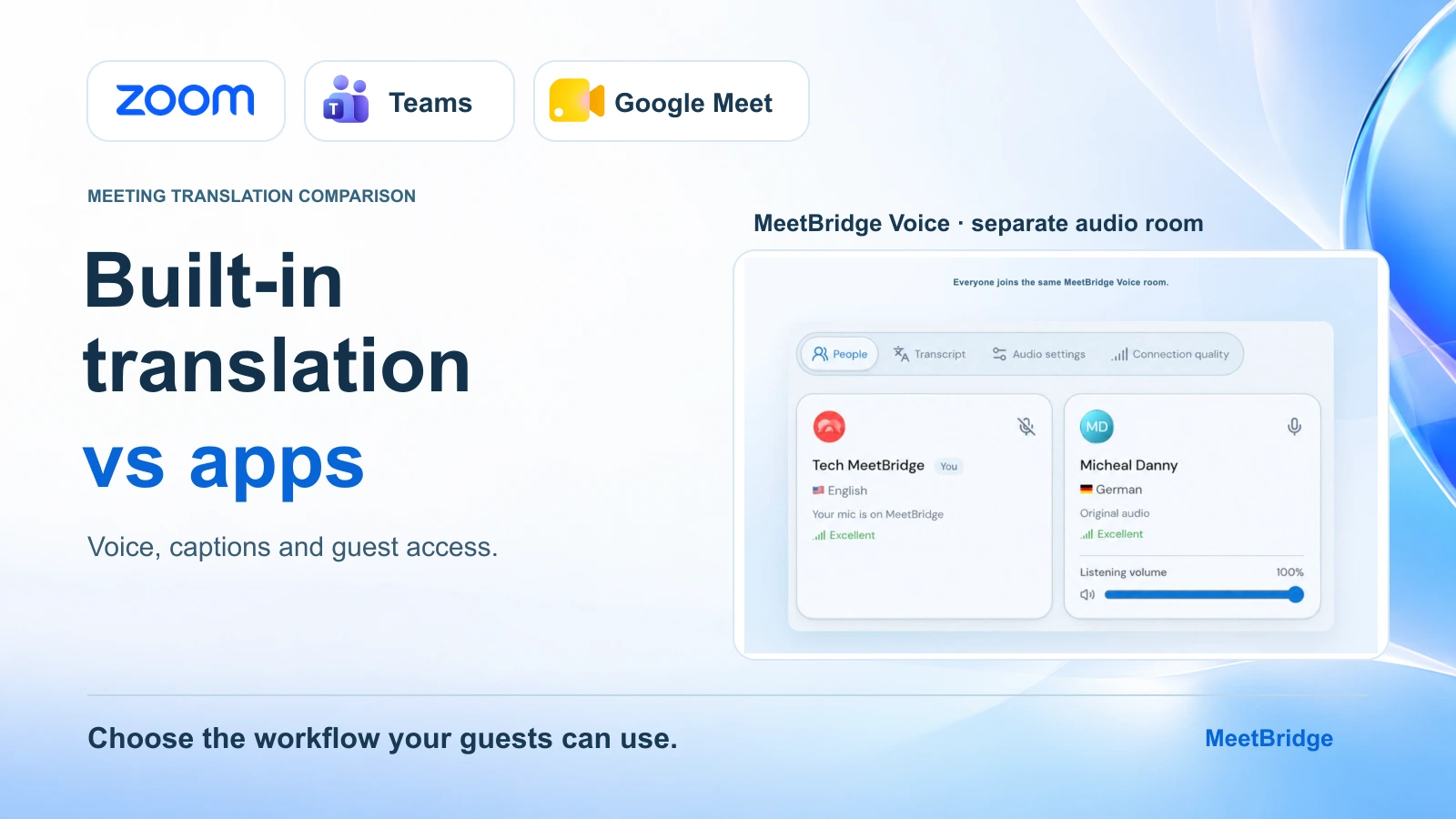
Your next meeting is in Zoom, Microsoft Teams or Google Meet. Some participants want to speak their own language. Before buying a meeting translation app, it makes sense to ask: can the platform already handle the conversation?
All three platforms now offer native spoken translation options as well as translated captions. The decision depends on the languages people need, their licenses, their devices and how they join. A feature that works for colleagues inside one organization may be a different proposition for an external customer.
This meeting translation comparison explains where built-in features fit, when an app deserves a closer look, and how MeetBridge Voice keeps your existing video meeting while moving the translated conversation into a separate audio room.
Quick answer: start with native translation if it covers your exact language pair and every participant can use it. Compare dedicated apps when language coverage, guest access or working across platforms creates friction. For MeetBridge Voice, everyone who needs translation must join the same Voice room; joining only the Zoom, Teams or Meet call is insufficient.
The platform details below were reviewed against official documentation on October 3, 2026. Check the linked requirements before choosing a subscription or planning a rollout.
In this comparison
- Voice translation versus translated captions
- What Zoom, Teams and Google Meet include
- What meeting translation apps change
- How MeetBridge Voice works alongside your platform
- Which option fits your meeting?
- Frequently asked questions
Voice translation versus translated captions
Translated captions put translated text on screen. Voice translation lets a participant hear speech in another language. Neither label, on its own, guarantees a saved transcript or a translated recording.
That difference matters during a product demonstration. A listener who needs to read subtitles is dividing attention between the explanation, the screen share and the caption line. Spoken translation may suit that listener better. Another participant may prefer text so they can inspect a technical term. Start with the listening experience people need rather than the largest advertised language count.
| Experience | What the participant receives | What to check |
|---|---|---|
| Live captions | Text in the spoken language | Recognition of names, accents and terminology |
| Translated captions | Text in a selected target language | Supported source and target languages |
| Voice translation | Translated speech | Both speaking directions, playback delay and device support |
| Meeting records | Saved material after the call | Whether the original speech, translation or both are retained |
Language lists can differ within the same product. For example, Turkish appears in the translated-caption documentation for Zoom, Teams and Google Meet. It is absent from the current native spoken-translation lists reviewed for this comparison. A claim that a platform “supports Turkish translation” therefore needs a second question: in captions, in audio, or both? See the official caption lists for Zoom, Teams and Google Meet.
For a fuller explanation of these output types, read live translation versus translated captions.
What Zoom, Teams and Google Meet include
Use this table as a shortlist. The following sections explain the requirements behind each feature; “available in the platform” does not mean included in every plan.
| Native option | Spoken translation scope | Access requirement to investigate | Caption alternative |
|---|---|---|---|
| Zoom Voice Translator | English, Chinese, French, Japanese and Spanish | Live Translation add-on or ZoomMate; supported desktop client | Translated captions with separate eligibility |
| Microsoft Teams Interpreter | Ten listed spoken languages | Microsoft 365 Copilot; participant identity matters | Live translated captions through Teams Premium or Copilot |
| Google Meet speech translation | English paired with French, German, Hindi, Italian, Portuguese or Spanish | Eligible Google AI or Workspace subscription | Translated captions on eligible Workspace plans |
Sources: Zoom Voice Translator, Teams Interpreter, Google Meet speech translation, and the caption documentation linked above.
Zoom: check the spoken translator separately from captions
Zoom's Voice Translator requires the Live Translation add-on or ZoomMate and a Windows or macOS desktop client at version 7.0.0 or later. Its documentation lists English, Chinese, French, Japanese and Spanish. Participants configure speaking and hearing languages; longer speech may play back after a pause. ZoomMate use may also involve AI credits. Zoom Voice Translator requirements.
Zoom translated captions provide text, with their own plan or add-on requirements and available language pairs. Check the host's entitlement rather than assuming that ordinary captions include caption translation. Zoom translated captions.
A useful fit: a team already using Zoom, working in a supported spoken language pair, with compatible desktop clients. For customer meetings, make the customer's actual device and joining method part of the evaluation.
If you want a companion voice room instead, the Zoom live translation guide explains how MeetBridge Voice works alongside Zoom video.
Microsoft Teams: Interpreter and translated captions have different access rules
Teams Interpreter provides spoken translation with Microsoft 365 Copilot and a documented allowance of 20 hours per person per month. It lists ten languages. Verified external Microsoft 365 users with valid Copilot licenses can use it; anonymous and guest users cannot. Interpreter audio is excluded from meeting recordings, and the translated transcript is available during the meeting rather than as the post-meeting transcript. Microsoft's Interpreter documentation.
Translated captions follow another entitlement model. An eligible Teams Premium or Copilot organizer can make caption translation available to participants without each buying that license. When only a participant is licensed, their entitlement applies to them. Microsoft's caption documentation.
A useful fit: an organization whose participants meet Interpreter's identity and licensing requirements. For an external meeting, distinguish a verified external user from someone arriving anonymously through a link.
The Microsoft Teams live translation guide covers MeetBridge Voice's separate-room approach and Teams audio settings.
Google Meet: confirm the language pair and meeting length
Google Meet speech translation supports one active language pair per meeting: English with French, German, Hindi, Italian, Portuguese or Spanish. Eligible subscriptions include Google AI Pro and Ultra, Workspace Business Standard and Plus, and Enterprise Standard and Plus. The feature has a 90-minute meeting limit and a short translation delay. Participants opt in; room hardware can listen to translations but cannot have its outgoing speech translated. Speech translation is unavailable in recordings and live streams. Google's speech translation requirements.
Meet also offers translated captions on eligible Workspace plans, with a broader language list. Read caption eligibility independently of spoken translation eligibility. Google's translated-caption documentation.
A useful fit: a meeting organized around one supported English-based pair, using eligible accounts and supported devices. A discussion involving several language pairs deserves a separate assessment.
For the companion workflow, use the Google Meet live translation guide.
What meeting translation apps change
“Meeting translation app” describes several workflows. Some applications add a subtitle overlay. Others offer translated audio alongside the meeting, provide a platform integration, or host the whole meeting themselves. Compare how participants join and where speech travels before comparing feature lists.
DeepL, for example, now describes a Voice desktop app offering translated audio and subtitles for Zoom, Teams and Google Meet. Its app page says it detects supported calls and lets others join through a shared link. That is one vendor's workflow, not a rule for every translation app. DeepL Voice desktop app.
For any app, ask these questions:
- Who hears the translation? Only the person running the app, or every participant who joins its translation workflow?
- What must guests do? Install software, sign in, open a browser invitation or satisfy a platform identity requirement?
- Where does the conversation happen? In the platform's audio, through an app's audio route, or in a separate shared room?
- What does the bill cover? Host usage, participant seats, minutes, credits or a separate platform upgrade?
- What survives the call? Live captions, a saved transcript, a recording or a separate meeting summary?
An app is worth considering when its answer to an important question fits your meeting better. “Works with three platforms” is a starting point; it does not tell you whether a guest can join comfortably or whether a recording captures the translated conversation.
How MeetBridge Voice works alongside your platform
MeetBridge Voice is a separate shared audio room. You keep Zoom, Teams or Google Meet open for video and screen sharing. The translated conversation takes place in Voice, where participants choose their own language and listening controls.
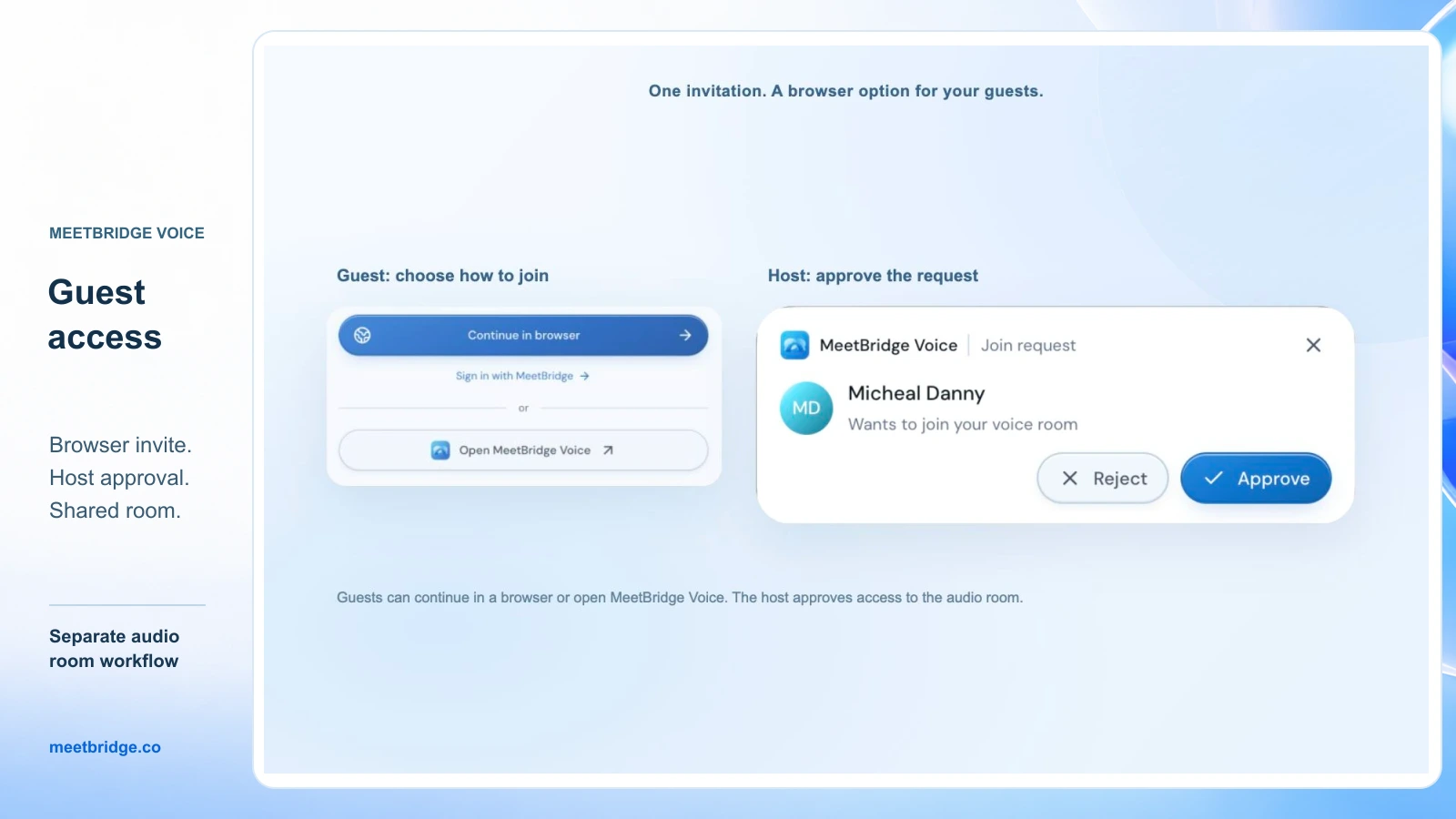
The host creates the room in the MeetBridge Voice desktop app and shares its invitation. Invitees can use the app or continue in a supported browser, enter their name and request admission. The host approves access. Guests do not need to purchase their own MeetBridge subscription; room usage comes from the host's plan. Review MeetBridge pricing for the current allowance and limits.
Availability: the public download page currently lists macOS and Windows as coming soon. Confirm Voice host availability and your required devices through MeetBridge's download page or contact the team before planning this workflow for a live customer meeting.
Choosing Zoom, Teams or Google Meet in Voice prepares the room workflow. It does not connect platform accounts or automatically import attendees. Every speaker who needs to take part must join that Voice room, including the host. Platform admission and Voice admission are separate.
This approach can suit teams that want to keep their usual video platform while using one translated audio workflow. The tradeoff is another invitation and a deliberate audio setup. Make those two steps part of the meeting plan.
Alongside Zoom
Keep Zoom video and screen sharing running, and disconnect Zoom computer audio so incoming and outgoing conversation use Voice. Muting only the Zoom microphone would still leave another incoming audio path.
The approved guide image below shows MeetBridge Voice's room setup, with Zoom selected. It is a companion room rather than Zoom's native translator.
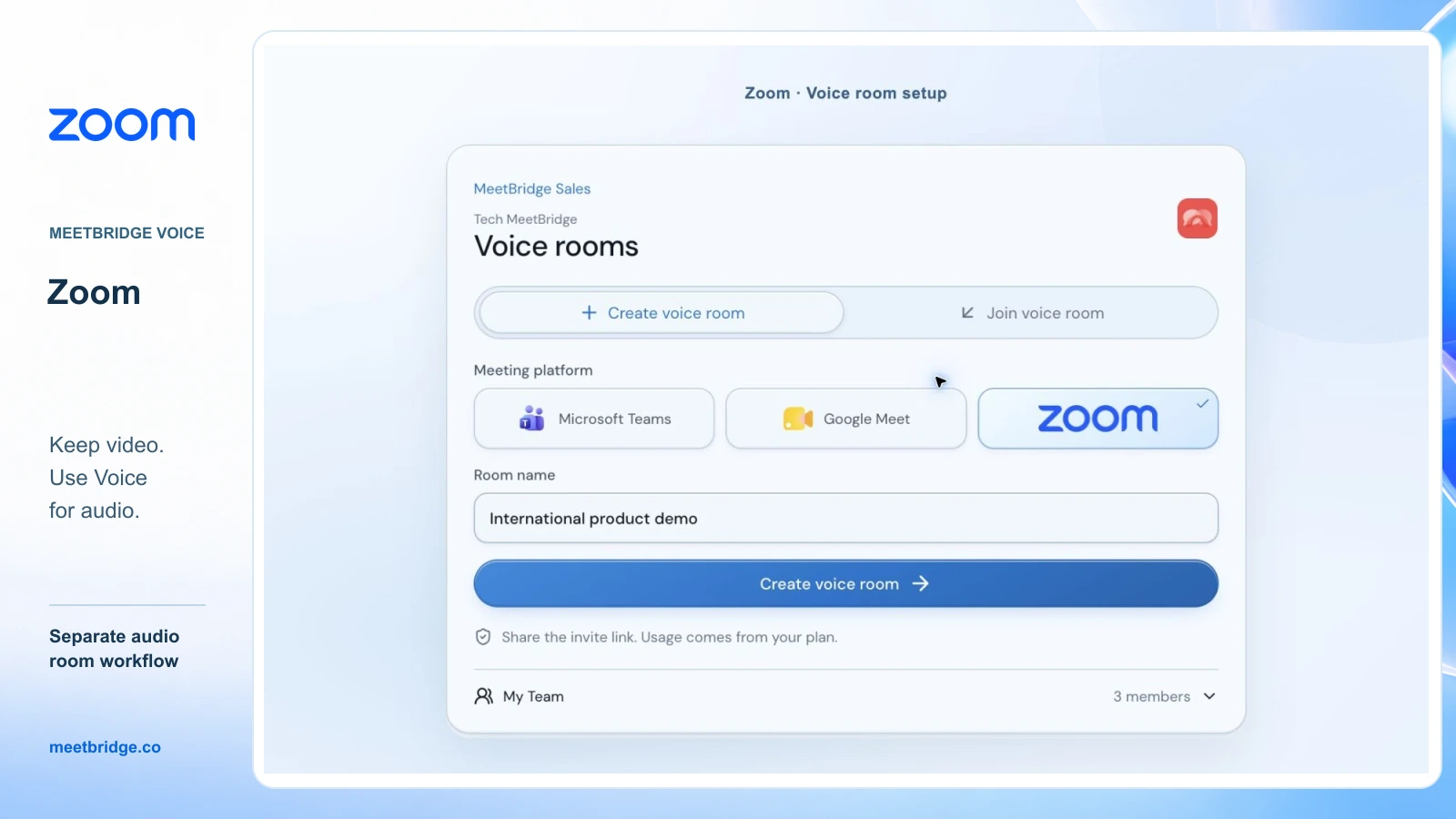
Follow the Zoom live translation setup guide for the invitation and audio steps. If you use Zoom breakout rooms, plan separate Voice conversations too: a Zoom breakout move does not automatically move or split the Voice room.
Alongside Microsoft Teams
Keep Teams video and screen sharing, then turn off both the Teams microphone and incoming meeting audio. Continue the translated conversation in the shared Voice room.
This gives a host a separate invitation and admission process for Voice guests. A person admitted to Teams still needs Voice admission to participate in its translated audio.
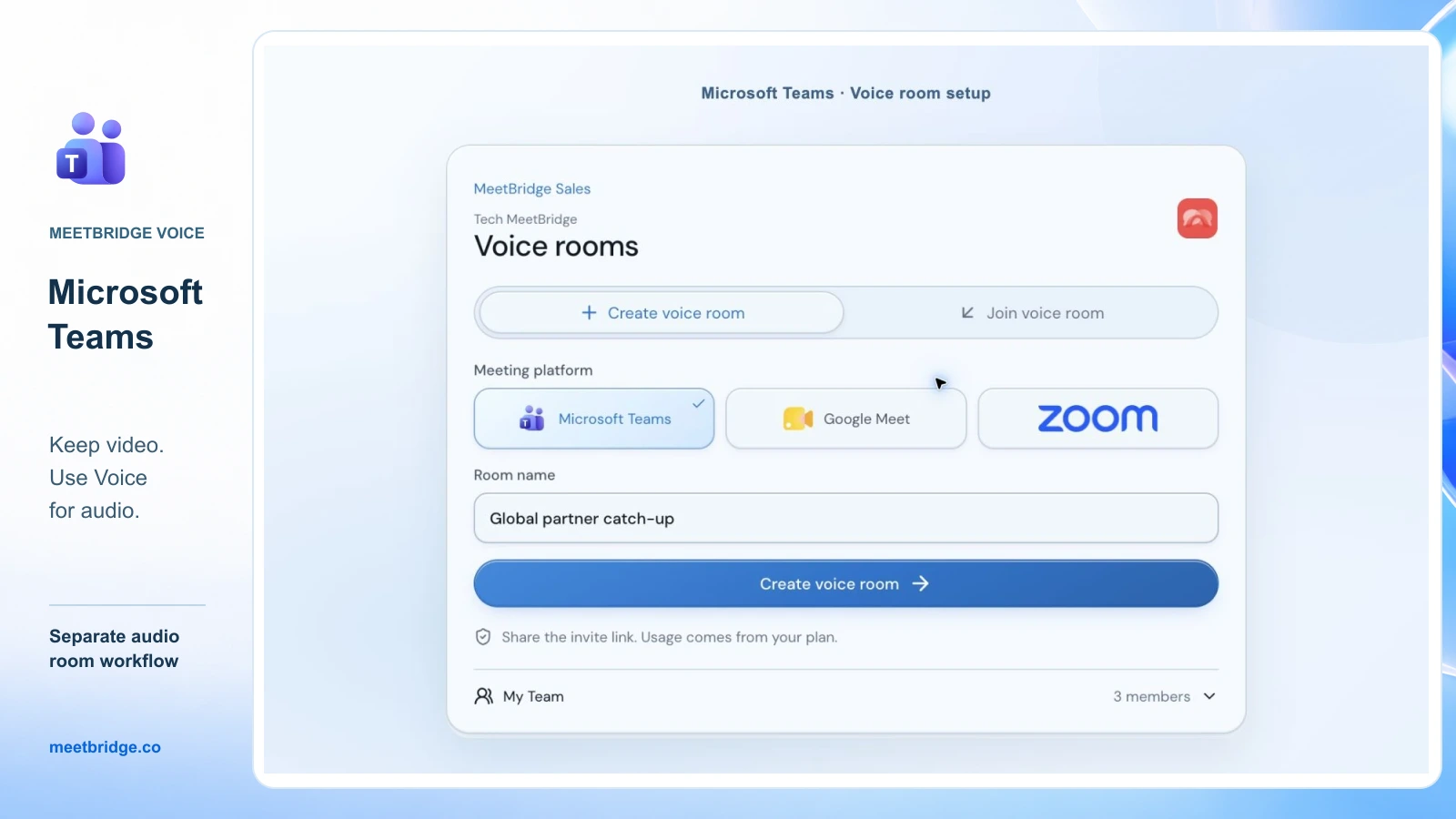
Use the Microsoft Teams live translation setup guide to prepare the two audio controls and invite participants.
Alongside Google Meet
Turn off your microphone in Meet and disable sound specifically for meet.google.com in the browser's site settings. Leave the Voice site allowed to play sound if you are listening through a browser. Restore Meet sound when returning to a normal Meet call.
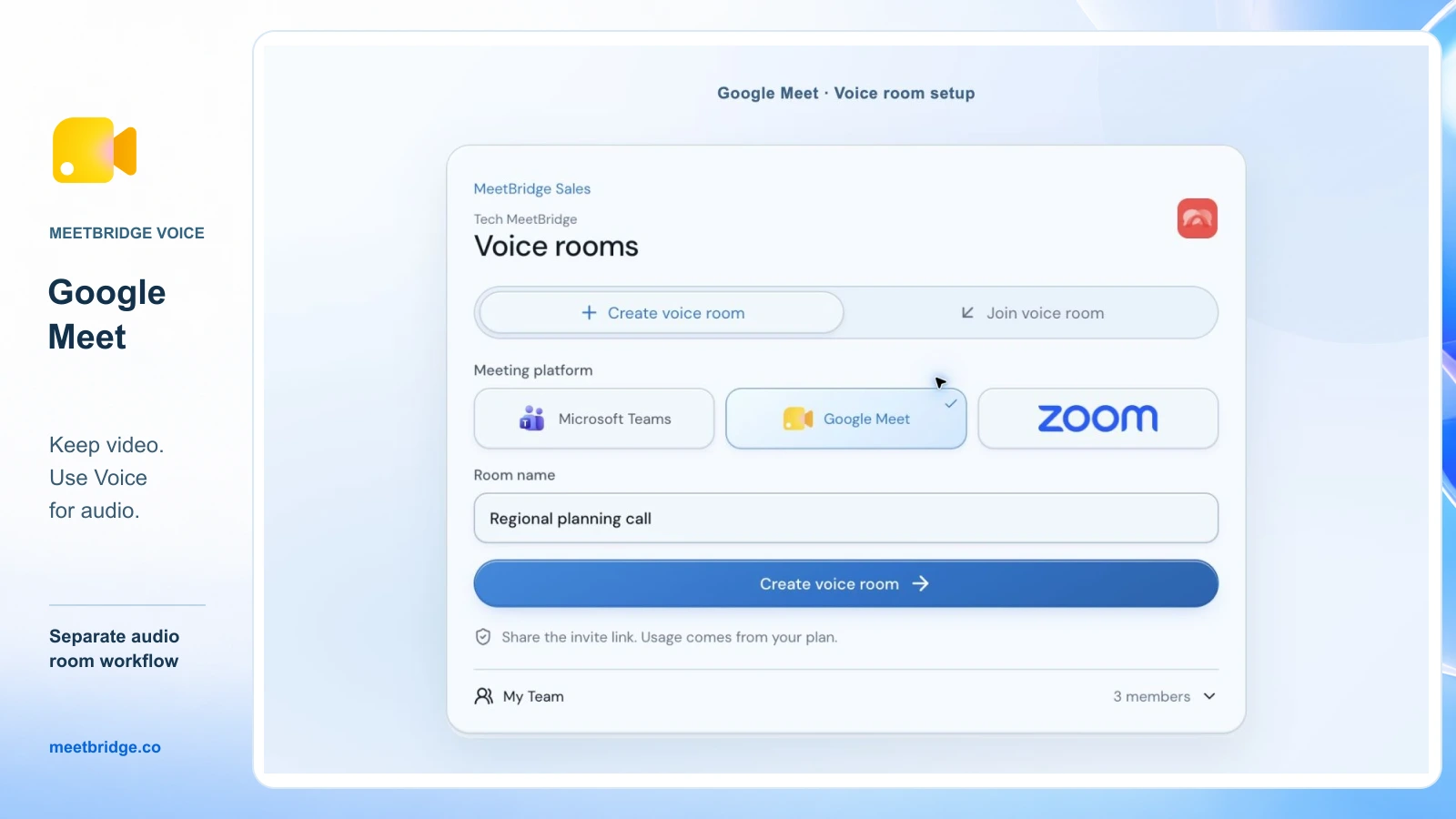
The Google Meet live translation setup guide explains browser joining and site-specific audio settings. This distinction matters because muting the whole browser would also silence a browser-based Voice room.
Guest access and listening controls
A supported browser invitation gives guests a route into Voice without requiring a desktop installation. The host approves their request; the meeting platform retains its own joining rules.
Inside Voice, participants choose their language and can adjust how loudly they hear another participant. When translation is ready, the original voice is mixed quietly at 10% by default. Each listener can turn that mix off in Audio settings. Original speech remains normally audible while translation is starting or unavailable; same-language participants are heard directly.
Voice captions provide live session context. Do not assume that Zoom, Teams or Meet recordings will capture this separate audio conversation. If saved records are central to your workflow, compare a full MeetBridge meeting with the plan-dependent transcript and meeting memory and summary and action features.
Which option fits your meeting?
Choose around the meeting you actually run. The following recommendations are an interpretation of the documented workflows, rather than a translation-quality benchmark.
| Your situation | Start by evaluating | Why |
|---|---|---|
| Internal meeting; supported languages; eligible participants | Your platform's native feature | Participants can stay in an existing workflow |
| Listeners prefer reading while hearing the original speaker | Translated captions | Text may satisfy the need without translated audio |
| External participants have varied accounts or devices | Guest access for each candidate | The invitee's experience may determine whether the feature is usable |
| Your team switches between Zoom, Teams and Meet | A dedicated translation app or companion workflow | A consistent process may reduce retraining across platforms |
| Keep current video, but use a separate translated conversation | MeetBridge Voice, subject to host availability | Video stays in the existing platform; audio moves into a shared Voice room |
| Need live translation and saved meeting outcomes in one place | A full MeetBridge meeting | Evaluate the live meeting and enabled record features together |
When comparing cost, include the people who need access and the expected usage. A subscription that looks inexpensive for one employee may have a different total when several participants need licenses. A host-funded workflow also needs enough room usage for the meetings you expect. Use current plan details rather than assuming either model is always cheaper.
Run a short comparison before committing
Test the same conversation with the participants' real joining methods. A successful demonstration between two employees says little about a customer joining from a different account or device.
- Ask an external invitee to join through the invitation you intend to send. Note any account, installation or approval steps.
- Have each person speak in turn and confirm that the other person receives the intended text or audio. Include every required language direction.
- Share a screen and explain one familiar task. Ask whether the listener can follow both the presentation and translation comfortably.
- Say a product name, a number, a date and a next step. Have the listener confirm them instead of treating fluent output as proof of accuracy.
- Review the expected meeting record and the plan's usage rules. Confirm what is saved and which feature or service creates it.
Record the result for each requirement. If a tool fails a requirement you cannot change, remove it from the shortlist. If two tools meet the requirements, let participant comfort and operating cost decide. This is a practical way to evaluate meeting translation apps without claiming that one is universally best.
Frequently asked questions
Does Google Meet have a built-in translator?
Yes. Google Meet offers both speech translation and translated captions, with different eligibility and language support. Confirm your exact language pair and account in Google's speech translation documentation.
Does Zoom translate spoken audio or only captions?
Zoom offers a Voice Translator as well as translated captions. They have separate requirements and language coverage. Check the Voice Translator documentation for the spoken-audio workflow.
Can anonymous guests use Teams Interpreter?
Microsoft's current documentation excludes anonymous and guest users from Interpreter. Verified external users are a separate category with their own requirements. Check the Interpreter access rules; translated captions use a different licensing model.
What app can I use to translate meetings across Zoom, Teams and Google Meet?
Compare apps by language direction, guest joining and audio workflow. MeetBridge Voice provides a separate shared audio room alongside these platforms, subject to host availability. Everyone who needs its translated conversation must join Voice. Start with the platform guide for your meeting and confirm availability with the team.
Are built-in meeting translation features free?
Do not assume that ordinary live captions include translated captions or spoken translation. Eligibility may depend on a paid subscription, add-on or usage entitlement. Check the relevant feature's current requirements and compare the total for your meeting participants.
Do all guests need a MeetBridge plan or desktop app?
No. Voice invitees can request admission through a supported browser without purchasing their own plan. The host creates the room in the desktop app, approves entry and supplies usage through their plan. Confirm current desktop host availability before scheduling the workflow.
Will my meeting recording contain the translation?
Check this separately from live translation. For MeetBridge Voice, the conversation happens outside the meeting platform's audio path, so do not assume its recording includes Voice. Compare your required record with the service's documented recording and transcript behavior.
Choose translation your participants can actually use
The best starting point is the smallest workflow that meets your language, access and listening requirements. Native translation may already do the job. An app deserves attention when it resolves a specific gap without making participation harder.
To evaluate MeetBridge Voice, open the Teams, Google Meet or Zoom guide, then contact MeetBridge with your language pair, guest devices and meeting volume. That gives the team the information needed to discuss availability and a suitable host plan.
For a practical buyer invitation, audio setup and demo walkthrough, read How to Translate Sales Calls on Zoom, Teams and Google Meet.