
 By MeetBridge Team
How to Translate Sales Calls on Zoom, Teams and Google Meet
A practical guide to translated discovery calls and product demos: prepare buyer invitations, set individual languages, route audio correctly and confirm the next step while keeping Zoom, Teams or Google Meet video.
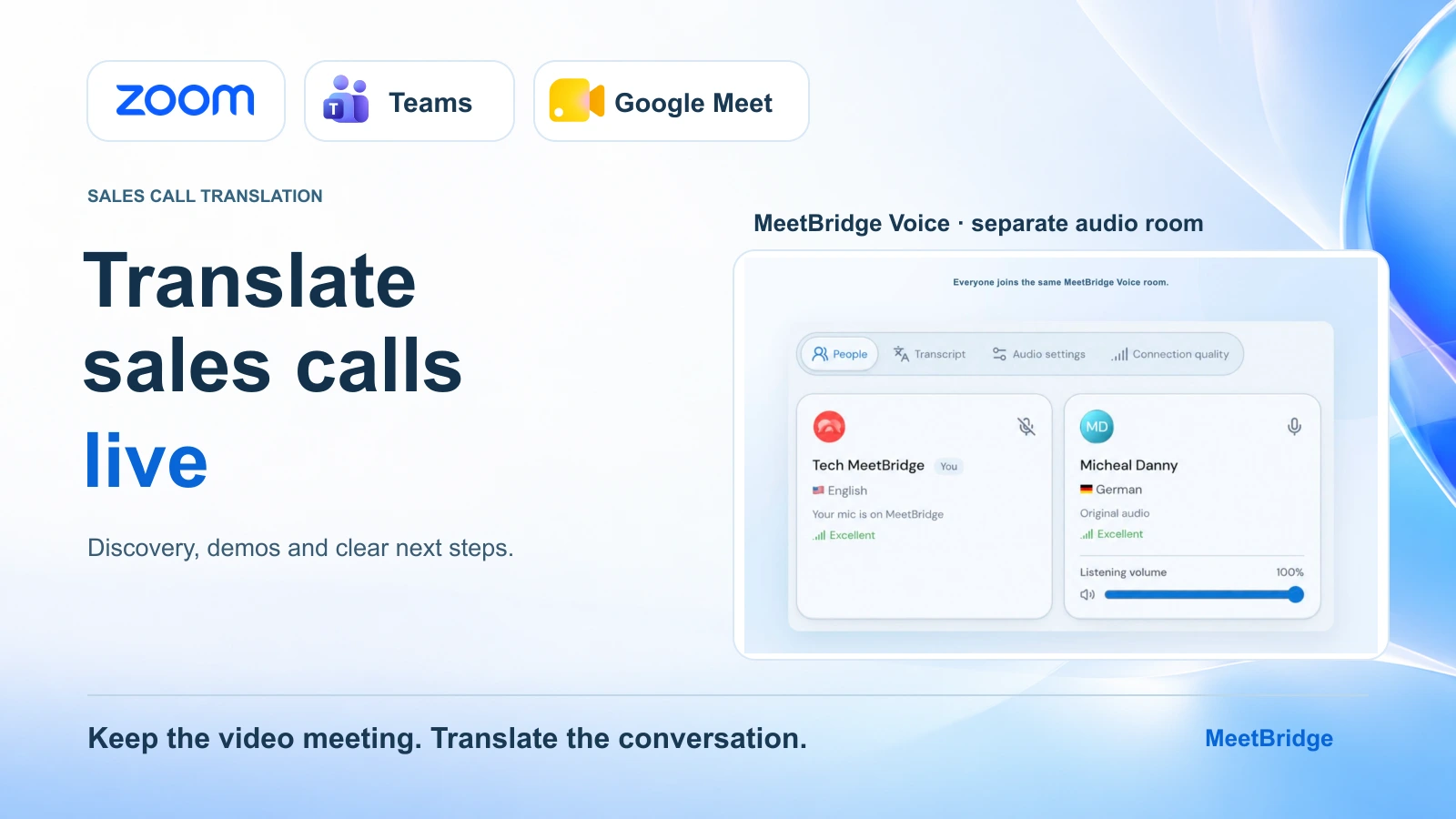
An international buyer agrees to a demo. They want to speak German; your sales rep and sales engineer work in English. The customer has already sent a Zoom, Teams or Google Meet invitation. How do you make the conversation work in both directions?
Start by choosing where translation will happen. You can use the platform's native features when the required languages and participant access are supported. Alternatively, keep its video and screen sharing while using a shared translation workflow such as MeetBridge Voice for audio.
This guide walks through the companion Voice workflow: prepare the buyer, share the right invitations, choose languages, remove competing audio paths, and run discovery, a product demo and the closing discussion. It covers online video meetings rather than automatic translation of ordinary telephone or dialer calls.
The short version: the host creates a MeetBridge Voice room and sends its invitation alongside the video meeting link. Every speaker joins the same Voice room, selects their language and turns off the original platform's microphone and incoming audio. Zoom, Teams or Meet keeps the presentation; Voice carries the translated conversation.
Check availability first: Voice hosting uses the desktop app. MeetBridge's public download page currently lists macOS and Windows as coming soon, so confirm host availability and the buyer's devices before promising this setup for a customer call. See the current download options.
Choose the translation route before sending the invitation
The first decision is whether the buyer needs translated text, translated speech or both. Captions can suit a listener who is comfortable reading while watching the presentation. A discovery call with frequent questions may benefit from spoken translation so both sides can answer in their own language.
Native features can be sufficient. Zoom's Voice Translator has a supported-language list and client requirements; Teams Interpreter has participant identity and license requirements; Google Meet speech translation uses eligible accounts and one active language pair per meeting. Check the requirements for everyone who will speak, including the customer. Official guides: Zoom Voice Translator, Teams Interpreter, Google Meet speech translation.
For the current language, caption and guest-access comparison, read Zoom, Teams & Google Meet: Built-In Translation vs Apps. This guide continues with a separate Voice room after you have confirmed that workflow is available and appropriate.
Ask the buyer for these details before the call:
- Their preferred speaking and listening language.
- The device and browser they expect to use.
- Who else will join, including a colleague arriving halfway through the demo.
- Whether they prefer voice, captions or a combination.
- The question or business task they want the demonstration to answer.
An account executive can send those questions with the booking confirmation. A sales engineer can use the answers to prepare product names and relevant examples. You can also use MeetBridge booking links in a full meeting workflow to collect the buyer's context.
Step 1: Create the Voice room and invite every speaker
The host creates a room in MeetBridge Voice, selects the meeting platform and gives the room a recognizable name. Choosing Zoom, Teams or Google Meet prepares the companion workflow; it does not connect platform accounts or import the platform's attendees.
Share the Voice invitation with the rep, sales engineer, buyer and any other speaker. Invitees can open the app or continue in a supported browser. A browser guest enters their name and requests admission, which the host approves. Guests do not need to buy a separate MeetBridge plan; usage comes from the host's plan. Check current plans and room usage.
The customer receives two links: one for the existing video meeting and one for the Voice room. Explain what each does in a single clear message.
A buyer invitation you can adapt
We will use your Zoom, Teams or Google Meet link for video and the product demonstration. Please also open the MeetBridge Voice invitation for the translated conversation. You can choose Continue in browser on a supported browser, enter your name and request admission. I will approve your request. Once you join, choose the language you want to speak and hear. We will take a minute together to set up audio before the demo.
Below that message, put the video meeting link, the Voice invitation and the agreed start time. Send it to every participant who needs the conversation, rather than assuming the buyer will forward the audio instructions to a colleague.
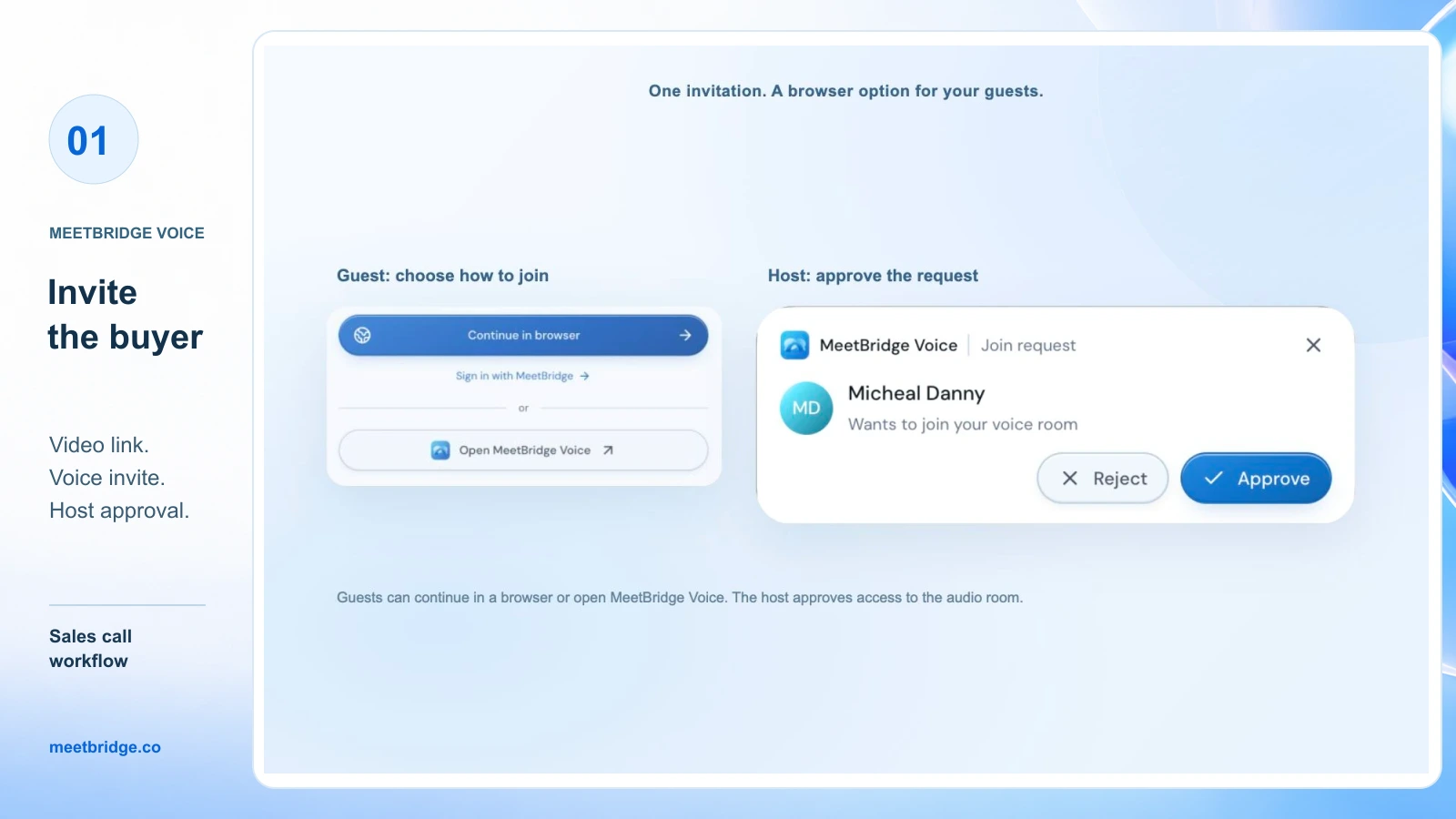
Joining the video call alone does not place someone in Voice. Before discovery begins, compare the people you expect to hear with the Voice participant list. A colleague who only joins Teams audio cannot take part in this translated conversation.
Step 2: Set each participant's language
Each person selects their language from the Voice room's available options. Confirm the actual required languages during preparation; this guide does not promise that every possible language or device combination is supported.
For an English-speaking rep and German-speaking buyer, the rep selects English and the buyer selects German. Participants using different languages receive the conversation translated into their selected language. People using the same language hear one another directly.
Do the same for the sales engineer and any additional stakeholder. The language of the customer's company, browser or calendar invitation is not a substitute for each participant's choice inside Voice.
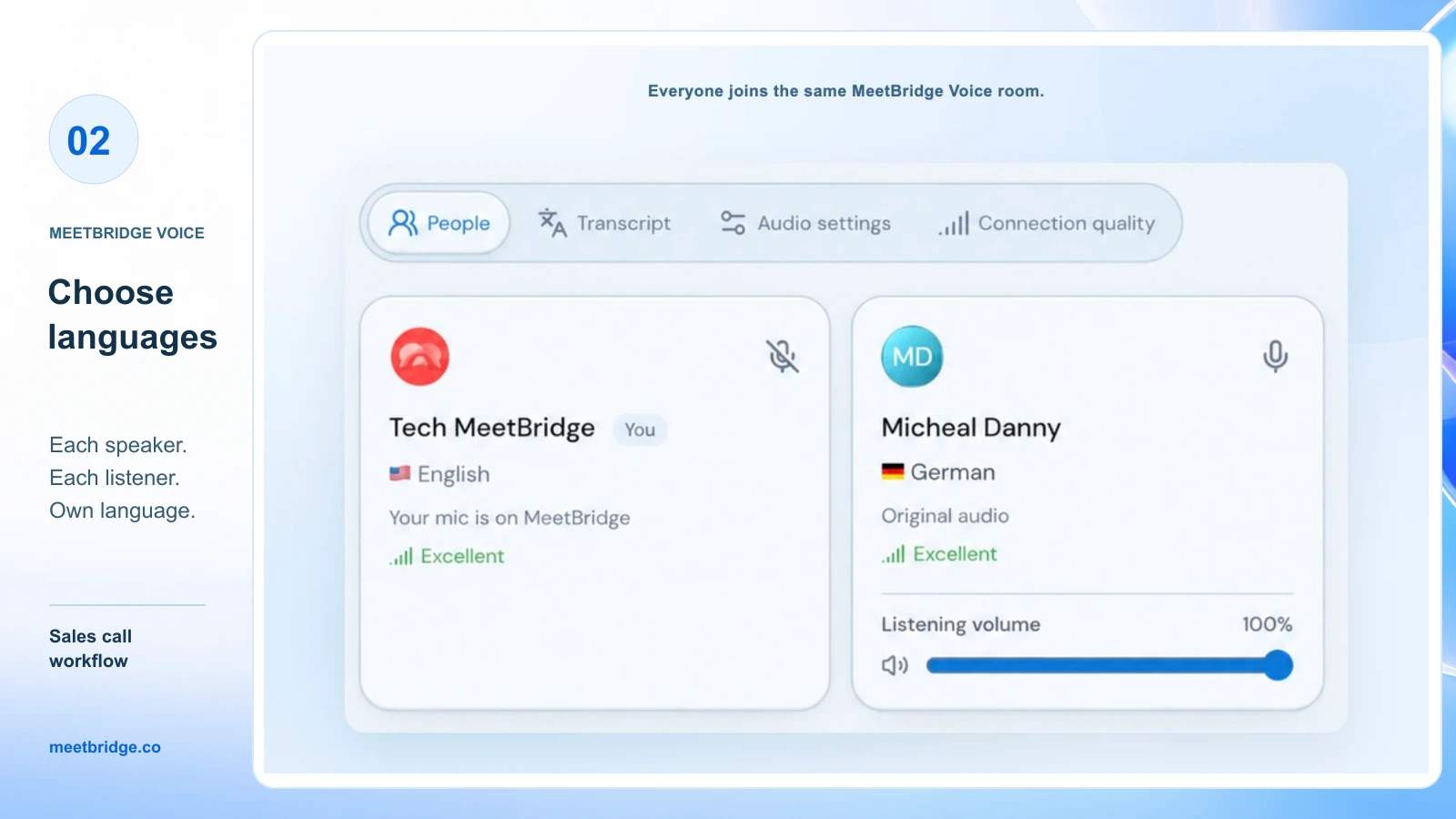
Then try one short exchange. The rep asks, “Which workflow would you like us to demonstrate first?” The buyer answers in their preferred language. Confirm that both people can understand the response before opening the deck. This exchange is also a useful discovery question, so the setup minute moves the meeting forward.
Step 3: Keep one audio path while retaining the video meeting
When two applications carry the same conversation, people may hear the original speech twice or hear overlapping original and translated audio. Prepare the platform's microphone and incoming audio together.
| Video platform | Keep using it for | Audio change for the Voice workflow | Full setup guide |
|---|---|---|---|
| Zoom | Camera, screen sharing and chat | Disconnect Zoom computer audio | Zoom live translation |
| Microsoft Teams | Camera, screen sharing and chat | Turn off the Teams microphone and incoming meeting audio | Microsoft Teams live translation |
| Google Meet | Camera, screen sharing and chat | Turn off the Meet microphone; disable sound specifically for meet.google.com | Google Meet live translation |
Muting the original platform's microphone alone does not remove incoming meeting audio. With Google Meet, avoid muting all of Chrome or the system output if the buyer listens to Voice in a browser; the Voice site needs to remain audible. Restore Meet's site sound after returning to a normal Meet call.
Keep the Voice microphone and speaker available for the conversation. Headphones can help reduce sound from speakers feeding back into the microphone. If the buyer cannot be heard, check that they are in the correct Voice room, that the host has approved them and that their browser has microphone permission.
Adjust the original voice mix for the listener
When translation is ready, Voice mixes the original speaker quietly at 10% by default. A listener can turn off Hear original voice at 10% in Audio settings or adjust an individual participant's listening volume. These are personal listening controls, so ask the buyer what feels comfortable.
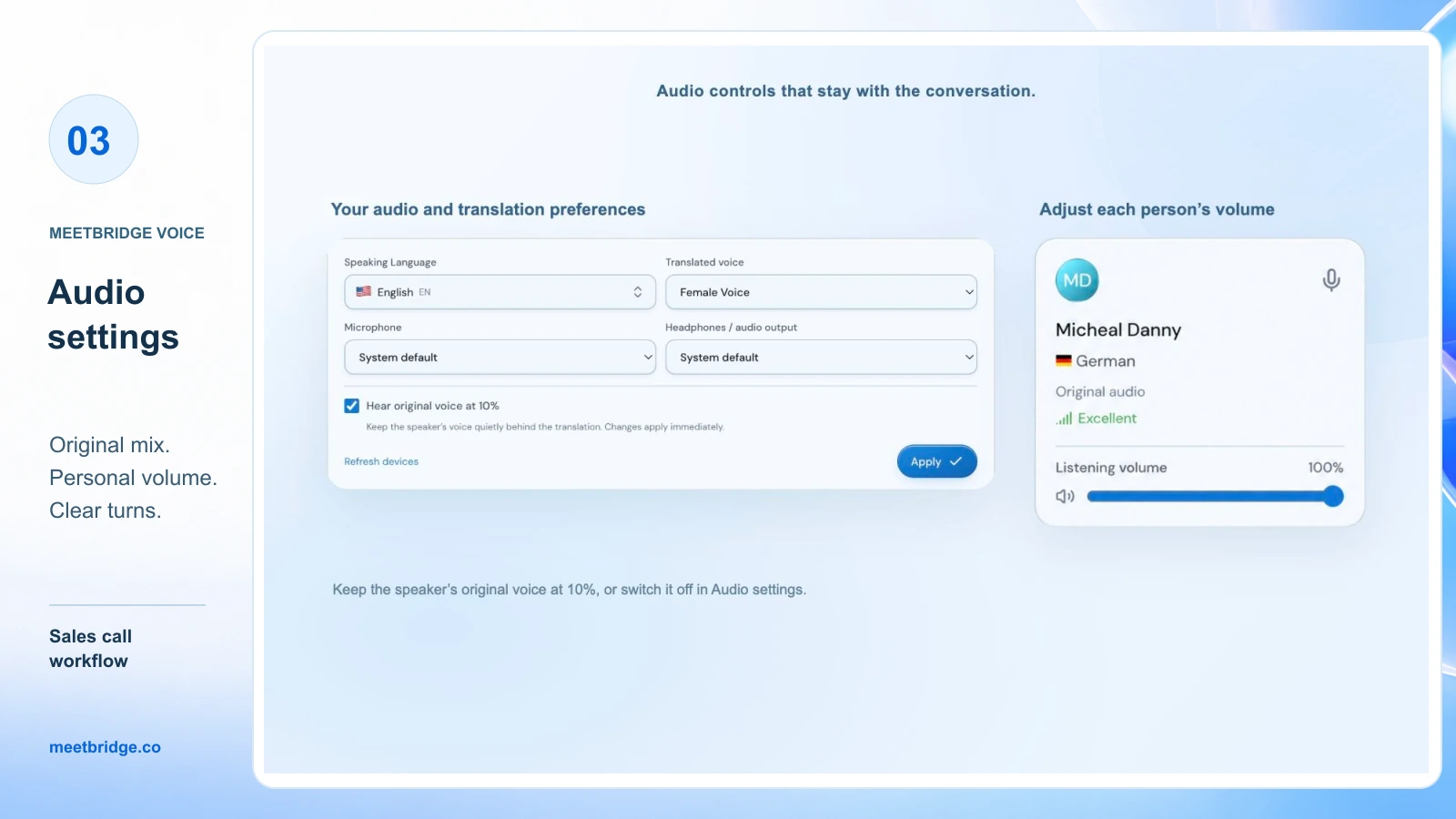
Original audio remains normally audible while translation is starting or unavailable. Same-language speech is heard directly. If someone suddenly hears the original language, pause and check the room and translation state before continuing the explanation.
Step 4: Run discovery one question at a time
After the audio exchange, explain the conversational rhythm: one person speaks, the other listens to the translation, then answers. Leave a short pause between turns. The goal is to preserve the buyer's answer, including the part that changes your next question.
Ask one question about a concrete task, rather than stacking several qualification questions into one sentence. For example:
Which step takes your team the most time today?
After the buyer answers, follow the thread:
Who handles that step, and what happens when it is delayed?
Separate the buyer's need from your interpretation of it. If they say a review is “slow,” ask what slow means in their process. A delay of one hour and a delay of one week call for different demonstrations. Put key names, numbers and terms in the video meeting chat or on the shared screen when it helps both sides confirm them.
Assign one seller to lead the questions and another to capture agreed details if two colleagues are present. Avoid the rep and sales engineer answering over each other. Translation does not remove the need for clear turn-taking.
Step 5: Demonstrate one relevant workflow, then invite a question
Keep Zoom, Teams or Meet screen sharing active. Introduce the action you are about to show, perform it, and stop at an obvious result. Give the buyer space to respond before moving to the next feature.
A useful sequence is:
- State the task: “I will show how the reviewer finds the request.”
- Show the task on screen.
- Point to the result the buyer can see.
- Ask how that result compares with their current process.
- Let the buyer finish and hear the translated answer before continuing.
When the sales engineer joins an answer, introduce them by name and let one person explain at a time. If an unfamiliar term appears, write its exact spelling in chat and describe its function in one plain sentence. Do not assume a fluent translation means that a product acronym was understood.
An illustrative discovery-to-demo exchange
Imagine a German-speaking buyer evaluating approval software. The English-speaking rep plans to show a dashboard, but the buyer explains that regional managers cannot find requests awaiting their approval. The sales engineer responds by showing that specific request queue.
The rep then asks whether visibility or approval authority is the real issue. The buyer says it is authority: only certain managers should approve requests. That answer changes the next demonstration from a dashboard view to role permissions.
This is an example of how to guide the conversation, rather than a measured customer result or an actual recorded call. Translation supports the exchange; the seller still needs to listen, clarify and choose the appropriate next step.
Step 6: Handle objections and late arrivals without splitting the conversation
When a buyer raises an objection, repeat your understanding in a short sentence and ask them to confirm it. “Your concern is whether the regional manager can approve without seeing other regions. Have I understood correctly?” is more useful than immediately presenting another feature.
For a late participant, pause at a natural point, send the same Voice invitation, approve the request and confirm their language. Try one sentence before returning to the demo. The video participant list does not automatically add them to the audio room.
If the call needs a separate discussion, plan a separate Voice room and confirm who has joined it. Moving to a Zoom or Teams breakout does not automatically move or split Voice. Keep one group together if managing several audio rooms would distract from the buyer's questions.
For repeated meeting preparation, the multilingual customer meeting checklist provides broader context.
Step 7: Confirm the next step where both sides can see it
Before closing, share a short written recap on screen or in chat. Read each item separately and ask the buyer to confirm it. Capture the owner and timing along with the task.
| Detail | Example to confirm |
|---|---|
| Requirement | Regional managers approve only requests within their region |
| Open question | Which existing identity provider will the pilot use? |
| Seller action | The sales engineer sends role-permission documentation |
| Buyer action | The operations lead confirms the pilot participants |
| Next conversation | 13 October, 14:00 UTC, with the buyer's technical lead |
These are illustrative details, not a real proposal. When a call includes quantities, prices, dates or commitments, make the exact value visible and confirm it with the buyer. Separate a question the team will investigate from a capability the seller has already established.
Voice captions supply live session context. The companion workflow carries audio outside Zoom, Teams or Meet, so do not assume that their recording contains the translated conversation. Plan how the team will retain agreed details before the call.
If you need video, live translation and the available saved meeting features together, consider a full MeetBridge meeting. Transcripts and meeting memory and summaries and actions depend on the plan and enabled features. Review the available record before writing a recap or transferring details to your CRM; this workflow does not promise automatic CRM updates.
Fix the problem before resuming the pitch
| What happens | What to do next |
|---|---|
| The buyer hears overlapping voices | Check the original platform's incoming audio and microphone; leave Voice as the conversation path |
| A buyer is visible on video but cannot participate in translation | Confirm that they joined the same Voice room and that their request was approved |
| A browser guest cannot be heard | Check the guest's microphone permission, selected input and Voice mute state |
| Translation sounds different from the buyer's intent | Ask for a shorter restatement and confirm the meaning in writing |
| A product name or number is unclear | Put the exact spelling or value in chat and have the buyer confirm it |
| A late stakeholder misses the audio setup | Pause, send the Voice invitation, approve entry and repeat the short exchange |
| The customer moves to a breakout | Coordinate a separate Voice room or keep the discussion in one main group |
If the translated conversation cannot be restored, agree on a workable fallback or a new meeting time. Continuing a demo that one side cannot follow wastes the opportunity to hear the buyer's questions.
Frequently asked questions
Can I translate sales calls automatically?
Live translation can automate speech translation after the required workflow is set up. Participants still need the appropriate feature or room, language choices and audio settings. This guide covers online meetings, rather than automatic translation of an ordinary phone or dialer call.
Can I keep the customer's Zoom, Teams or Google Meet invitation?
Yes. In the companion workflow, the existing invitation continues to serve video and screen sharing. Add a separate Voice invitation for the conversation and ensure every speaker joins that room. Use the audio instructions for the customer's platform.
Does the buyer need to install MeetBridge Voice?
The host creates the room in the desktop app. Invitees can continue in a supported browser, enter their name and request admission. Confirm the actual device and browser before the customer call; do not assume that every joining method is supported.
Does every buyer need a paid MeetBridge account?
Voice guests can request admission without purchasing their own subscription. Room usage comes from the host's plan, and the host approves entry. Check current plan allowances, room limits and desktop host availability during preparation.
Is native translation enough for a sales demo?
It can be, if the languages, devices and participant access match the platform's requirements. Use the built-in translation versus apps comparison to choose the route before sending the invitation.
Will the platform recording capture Voice translation?
Do not assume so. Voice is a separate audio room and the original platform's meeting audio is disabled in this workflow. Its live captions provide session context; saved records should be planned separately or evaluated in a full MeetBridge meeting with the relevant features enabled.
How should I prepare a multilingual sales call?
Confirm languages, guest devices, participants and the buyer's main question. Send both invitations with clear joining instructions. Try a short two-way exchange, choose one relevant demonstration and finish by confirming the next action, owner and time in writing.
Prepare your next international demo
Start with the guide for your customer's platform: Zoom live translation, Microsoft Teams live translation or Google Meet live translation. Each explains the companion room and its audio setup.
For a team rollout, contact MeetBridge with your language pairs, guest devices and expected call volume. The sales solution explains the broader meeting workflow; the sales call translation software guide helps evaluate requirements before choosing a plan.