

Real-Time Meeting Translation Online: Free Options, Limitations, and a Business Setup Guide
Compare free and paid real-time meeting translation online, understand captions versus voice, test accuracy, and build a secure business workflow.

Real-Time Meeting Translation Online: Free Options, Limitations, and a Business Setup Guide
Searching for real-time meeting translation online free usually starts with a simple need: two or more people want to speak naturally without stopping to copy sentences into a translator. The first demo can feel almost magical. A browser listens, captions appear in another language, or a synthetic voice plays a translated version a few seconds later.
The harder question is whether that setup will still work when the conversation becomes a customer call, an interview, a supplier negotiation, a training session, or a recurring team meeting.
Free tools can be useful for a quick test, a short one-to-one conversation, travel, or low-risk informal coordination. Business meetings add requirements that a simple demo may not cover: multiple speakers, participant consent, stable language settings, terminology, admin controls, a usable transcript, access rules, and a reliable follow-up record.
The practical answer: use a free option to validate the language pair and interaction style. Choose a managed meeting workflow when the call affects revenue, hiring, customer delivery, operations, or another process that needs an accountable record after the live translation ends.
MeetBridge connects live translation, transcripts and meeting memory, and summaries and actions in one multilingual meeting workspace. This guide explains how to evaluate that full workflow without assuming that “free,” “online,” “voice,” and “meeting-ready” mean the same thing.
Research note: Product availability, plan requirements, language support, session limits, and regional access were reviewed on September 13, 2026. They can change. Check each provider's current documentation and your organization's privacy, recording, and procurement requirements before rollout.
Quick answer: what is the best way to translate an online meeting in real time?
The best method depends on what participants need during the call and what the team needs afterward.
| Need | Most suitable starting point | Main tradeoff |
|---|---|---|
| A short informal conversation | A free browser or voice translator | Often designed for one device or turn-by-turn use |
| Participants need to read another language | Translated captions in the meeting platform | Reading competes with eye contact and shared content |
| Participants need to hear another language | Real-time speech translation or an interpreter channel | Adds delay and may support fewer language pairs |
| A customer or business process needs a record | A meeting workspace with translation, transcript, summary, and history | Requires governance and usually a paid plan |
| A high-stakes, legal, medical, safety, or sensitive discussion | A qualified human interpreter, sometimes supported by technology | More planning and cost, but human judgment matters |
There is no universal “best” real-time translator for every meeting. A tool that works well for an informal two-person test may fail in a six-person call with overlapping speech. A caption feature may cover many languages but not produce translated audio. A voice translator may sound natural but leave no usable post-meeting record.
Evaluate the complete path:
- How speech enters the system.
- How each participant receives the translation.
- How the group repairs an error during the call.
- What the team can review after the meeting.
- Who can access, retain, export, or delete the resulting data.
If you are new to the category, start with what a live meeting translator is and how it works. The rest of this guide focuses on the “online free” search intent and the point at which a free translator stops being enough.
What “real-time meeting translation online” can mean
Search results often place several different products under the same phrase. Separate them before comparing prices.
Translated captions
The system converts speech to text and displays translated subtitles. Each participant may be able to choose a target language.
Captions are useful when participants want to hear the original speaker's tone while reading a translation. They can also help when someone prefers text, works in a noisy environment, or wants to see how a proper noun was recognized.
Their limits are practical. Participants must divide attention between faces, slides, chat, and captions. Long caption blocks may arrive after the speaker has moved on. A caption error can disappear before anyone corrects it. Captions also do not automatically create a durable, organized meeting record.
Translated voice
The system recognizes speech, translates it, and generates audio in the listener's language. Some tools play the translated voice after short phrases; others layer it over reduced original audio.
Translated voice can make a conversation feel more natural because participants do not need to read continuously. It also adds another stage to the pipeline. Speech recognition, translation, and voice generation each introduce time and potential error. The group needs disciplined turn-taking so people do not speak over translated audio.
Human interpretation channels
Some meeting platforms let an organizer assign professional interpreters to language channels. This is different from automatic AI translation.
A human interpreter can handle context, ambiguity, cultural references, and high-stakes clarification. The organization still needs to schedule the interpreter, prepare terminology, and choose how the original and interpreted audio will be heard or recorded.
A separate browser or mobile translator
A general-purpose translator may listen through a microphone and produce text or voice on one device. It can be convenient for a fast test and may not require installing meeting software.
But the translator may not know who is speaking, may capture only the sound reaching one microphone, and may not integrate with the actual participant list, meeting controls, transcript, or follow-up workflow. “Works in a browser” is not the same as “works as a shared meeting system.”
A multilingual meeting workspace
A meeting workspace treats translation as one layer in a broader process. It can connect the live conversation to a transcript, summary, action items, meeting history, and participant context.
That difference matters after the call. A translated sentence helps someone understand the current moment. A structured meeting record helps a team remember what was decided, confirm who owns the next step, and return to the original context when a translation is disputed.
For a deeper comparison of the two live experiences, read live translation vs translated captions.
Can you get real-time meeting translation online for free?
Yes, but “free” describes a commercial entry point, not a guaranteed meeting outcome.
A free option may be one of the following:
- A permanently free feature with usage or language limits.
- A free account tier that includes captions but not voice translation.
- A limited trial of a paid translation product.
- A public browser demo intended for one-to-one or microphone-based use.
- A meeting platform feature bundled with an existing workplace subscription.
- A consumer voice assistant that can translate a back-and-forth conversation.
These can all be valuable. They are not equivalent.
What a free tool can prove
A focused free test can answer useful questions:
- Does the required source and target language pair exist?
- Can the system recognize the speakers' accents and normal pace?
- Is the delay acceptable for the planned conversation?
- Do participants prefer reading captions or hearing translated audio?
- Are product names, role titles, and common terms handled reasonably?
- Can everyone find and control their own language settings?
- Does the experience work on the devices participants actually use?
That is enough for discovery. It is not enough for deployment.
What “no sign up” often changes
The query real time meeting translation online free no sign up signals a preference for speed and low friction. A no-account browser tool may be suitable when one person needs to understand nearby audio or test a microphone.
Without an account or managed meeting space, however, the product may have no stable identity for participants, no organization policy, no reusable glossary, no meeting history, and no clear place for an accountable record. The user may also have less visibility into retention and access settings.
Do not assume that avoiding sign-up means avoiding data processing. The service still needs to receive audio or text to translate it. Read the current privacy notice and verify what is processed, stored, logged, or used to improve the service.
What “free download” often changes
A downloadable desktop or mobile app can improve audio capture and background operation. It also creates a deployment question.
Before asking employees, candidates, customers, or partners to install software, verify:
- The publisher and download source.
- Operating-system compatibility.
- Microphone, accessibility, and screen permissions.
- Update and security policy.
- Whether the app captures system audio, microphone audio, or both.
- Whether it joins the meeting as a participant or runs locally.
- Whether IT administrators can approve and manage it.
A free download is not automatically safer or more capable than a browser tool. It simply moves more of the experience onto the device.
The hidden cost is often operational
If a free tool requires one teammate to relay translations, copy notes, label speakers, rebuild action items, and send separate follow-up messages, the software price may be zero while the workflow cost is high.
For one conversation, that effort may be acceptable. Across ten customer calls a week, manual reconstruction creates delay and inconsistency. Evaluate the time from invitation to follow-up, not just the price shown on the translation screen.
Free versus paid: choose by risk and repetition
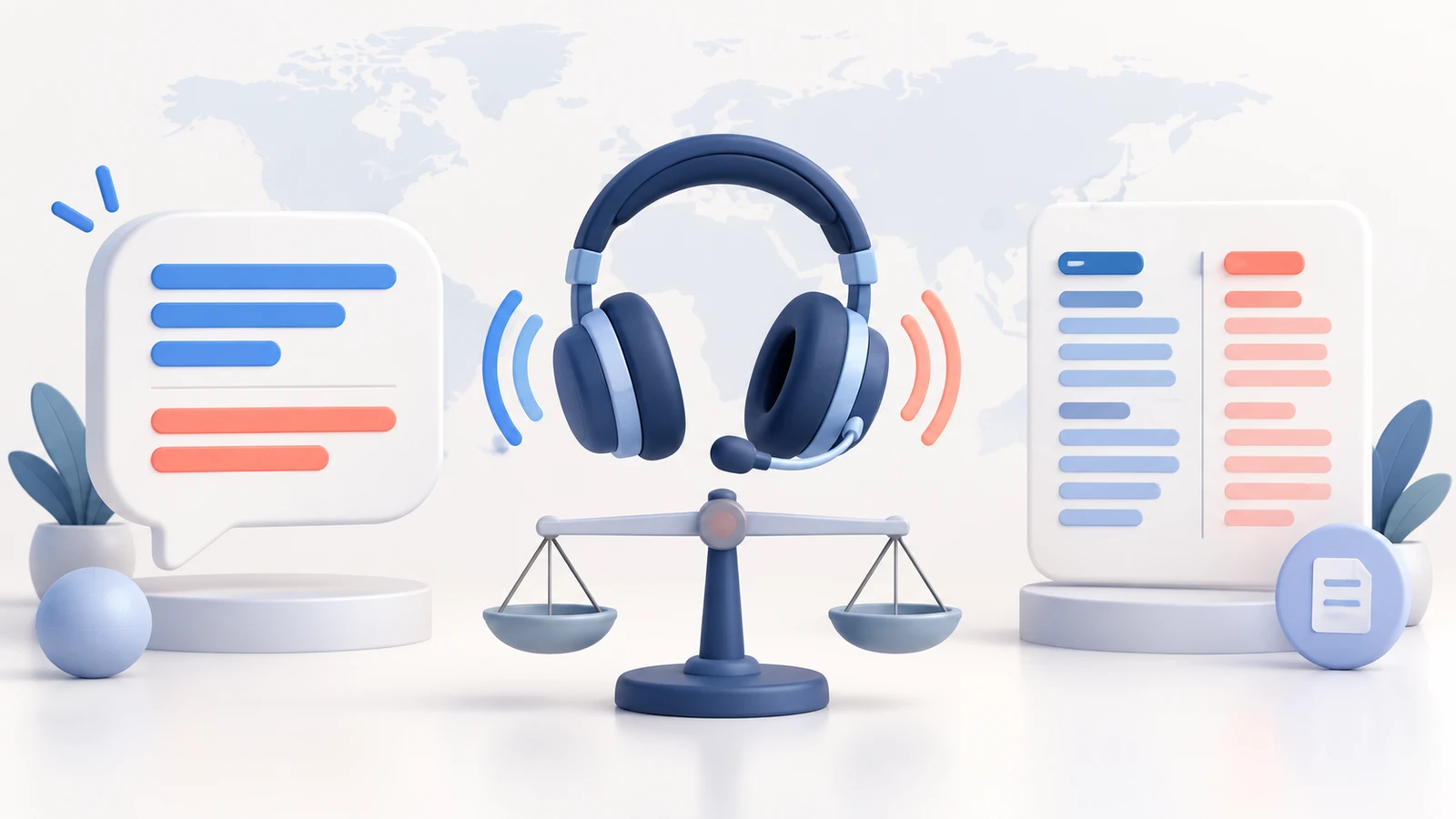
Use the lowest-complexity option that reliably supports the meeting's purpose.
| Scenario | Free test may be enough | Managed or paid workflow is more appropriate |
|---|---|---|
| Informal one-to-one conversation | The language pair works and no record is needed | The conversation becomes recurring or customer-facing |
| Internal brainstorming | Participants can tolerate occasional repair | Decisions or responsibilities must be traceable |
| Sales discovery or demo | A low-risk practice call | Buyer requirements, objections, commitments, and follow-up matter |
| Recruiting screen | A technical rehearsal only | Candidate notice, fairness, structured notes, and review are required |
| Customer onboarding | A short orientation with no sensitive data | Training history, questions, tasks, and handoff must be retained |
| Supplier or operations call | Early exploration | Specifications, dates, quantities, safety, or contractual terms are discussed |
| Medical, legal, financial, or safety-critical discussion | Generally not as the sole language-access method | Use the qualified human and governed process required for the context |
Three signals usually justify moving beyond a free translator:
- The conversation repeats. A recurring process benefits from reusable settings, participant context, consistent records, and administration.
- The cost of misunderstanding is material. A missed delivery date, hiring detail, implementation dependency, or customer commitment can exceed the subscription cost.
- Someone must act after the call. Translation alone does not assign ownership, preserve the decision trail, or distribute next steps.
The goal is not to pay for the most features. It is to avoid a workflow where live understanding improves but accountability remains fragmented.
Current platform snapshot: Google Meet, Microsoft Teams, Zoom, and voice assistants
Platform features change quickly. Use this section as a map to the current official documentation, not a permanent feature table.
Google Meet
Google documents both translated captions and Speech Translation.
Translated captions in Google Meet can translate captions to and from supported languages for eligible Workspace editions. Participants choose a meeting language and the language they prefer to read.
Google Meet Speech Translation translates speech into generated audio for eligible plans and language pairs. Google's current documentation notes a delay of a few seconds, participant permission, a 90-minute limit per meeting, device and region constraints, and a smaller speech-translation language set than the translated-caption set.
That distinction illustrates an important buying rule: do not compare platforms by one headline language count. Ask separately about speech recognition, translated captions, translated audio, direction of translation, device support, and post-meeting availability.
Microsoft Teams
Microsoft offers several different multilingual paths.
The Interpreter agent in Microsoft Teams provides speech-to-speech interpretation for supported languages and eligible licenses. Microsoft's documentation also lists limitations for rapid exchanges, overlapping dialogue, names, technical terms, and the post-meeting translated transcript.
Teams also supports multilingual speech recognition and live translated captions. A separate human language-interpretation feature lets organizers assign professional interpreters.
These options solve different problems. An AI voice experience, translated text, and a human interpreter channel should not be grouped as one feature during evaluation.
Zoom
Zoom documents both translated captions and a newer Voice Translator for meetings.
Translated captions depend on eligible accounts or an add-on, administrator settings, automated captions, and enabled language pairs. Zoom's Voice Translator adds generated translated audio and has its own account, add-on, app-version, and language constraints.
Again, the practical question is not “Does Zoom translate?” It is “Does the exact translation mode work for our plan, language pair, device, host settings, meeting type, and record requirements?”
ChatGPT and general voice assistants
Google users also ask, “Can ChatGPT do real-time translation?” ChatGPT Voice supports spoken conversations and can respond in another language. That can help with a direct back-and-forth exchange, practice, or clarification.
A general voice assistant is not automatically a managed meeting system. Verify how it handles multiple participants, identity, consent, admin controls, background audio, transcripts, distribution, and organizational retention before using it as the language layer for a business process.
Dedicated meeting workspaces
A dedicated platform can focus on the path from booking and live participation to transcript, summary, actions, and meeting history. That does not remove the need to test language quality or define governance. It can reduce the manual work that appears when translation is treated as an isolated utility.
For a platform-oriented evaluation framework, see what to look for in multilingual meeting software. For a broader current shortlist, see the 2026 real-time meeting translation software buyer's guide.
How to set up real-time translation for an online meeting
The strongest rollout begins before the meeting link is sent.
1. Define the conversation outcome
Write one sentence describing what must be true when the call ends.
Examples:
- The buyer understands the implementation plan and confirms the next workshop.
- The candidate has a comparable opportunity to explain job-related experience.
- The supplier and operations team agree on quantity, date, owner, and escalation path.
- The customer can repeat the setup steps and knows where to ask for help.
This determines whether you need only live translation or also a transcript, summary, action list, and retained meeting history.
2. Confirm languages, direction, and devices
Do not ask only, “Do you support Japanese?” Ask:
- Can Japanese be the spoken source language?
- Can it be translated into the listener's target language?
- Does the feature support both directions?
- Is the mode captions, voice, or both?
- Does it work on browser, desktop, iOS, Android, and meeting-room hardware?
- Can each participant choose an individual target language?
Test the exact device and account combination. Features available to a desktop host may not be available to a guest on mobile.
3. Choose the live experience
Use captions when participants benefit from reading, need to hear the original tone, or want a second representation of names and numbers.
Use translated audio when reading would distract from the conversation, when participants are mobile, or when a more voice-led interaction is important.
Use both when the system supports them and the added information does not overload participants. Let people reduce or disable a layer they do not need.
Use a human interpreter when law, accommodation, risk, complexity, or the dignity of the interaction requires professional judgment.
4. Explain processing and participant controls
Tell participants in advance:
- Which translation mode will be used.
- Whether speech, text, generated audio, a transcript, notes, or a recording will be processed or retained.
- Who can access the resulting record.
- How to request correction, pause, or another arrangement.
- Which parts of the process are automated and which decisions remain human.
Notice is not a decorative line. It lets people prepare, choose a suitable device, request another access method, and understand what happens to their conversation.
5. Prepare terminology
Create a short list of:
- Names and pronunciations.
- Company and product names.
- Acronyms and role titles.
- Technical terms.
- Units, currencies, dates, and locations.
- Words that are similar across languages but mean different things.
Do not turn the list into a dense script. The purpose is to identify language that deserves slower speech, explicit definition, spelling, or a confirmation in chat.
6. Assign a meeting facilitator
The facilitator protects turn-taking and meaning. They do not need to speak every language.
Their responsibilities include:
- Confirming each participant's spoken and target language.
- Reminding the group to pause for translated audio.
- Stopping overlapping speech.
- Asking for confirmation after names, numbers, requirements, and commitments.
- Marking a translation uncertainty for later review.
- Switching to the backup process when audio or connectivity fails.
In a one-to-one call, the host may take this role. In a larger or high-stakes call, separating facilitation from presenting makes the conversation easier to manage.
7. Use translation-friendly speech
Participants should:
- Speak in complete, reasonably short thoughts.
- Ask one question at a time.
- Avoid talking over one another.
- Expand an acronym the first time.
- State dates, quantities, prices, and identifiers clearly.
- Pause after an important claim.
- Rephrase instead of repeating the same unclear sentence faster.
- Confirm the intended meaning rather than debating the exact translated wording.
Translation-friendly speech is also good meeting practice. It improves comprehension for everyone, including people listening in their first language.
8. Create an error-repair rule
Every multilingual meeting needs a socially safe way to correct the system.
Use a phrase such as:
“The translation may have changed that meaning. Let's pause, say it in shorter terms, and confirm the final wording in chat.”
For critical information, use closed-loop confirmation:
- The speaker states the point.
- The listener explains what they understood.
- The speaker confirms or corrects it.
- The final version is written in the meeting record.
Do not treat correction as a failure or blame the participant whose language is being translated.
9. End with a bilingual or clearly shared recap
Reserve the final minutes for:
- Decisions.
- Unresolved questions.
- Action owners.
- Dates and dependencies.
- The next meeting or handoff.
- Any translation uncertainty that still requires review.
The spoken recap should be visible in the language each responsible participant can verify. Afterward, distribute the appropriate transcript, summary, or action list according to the access policy.
How to test a real-time translator before rollout
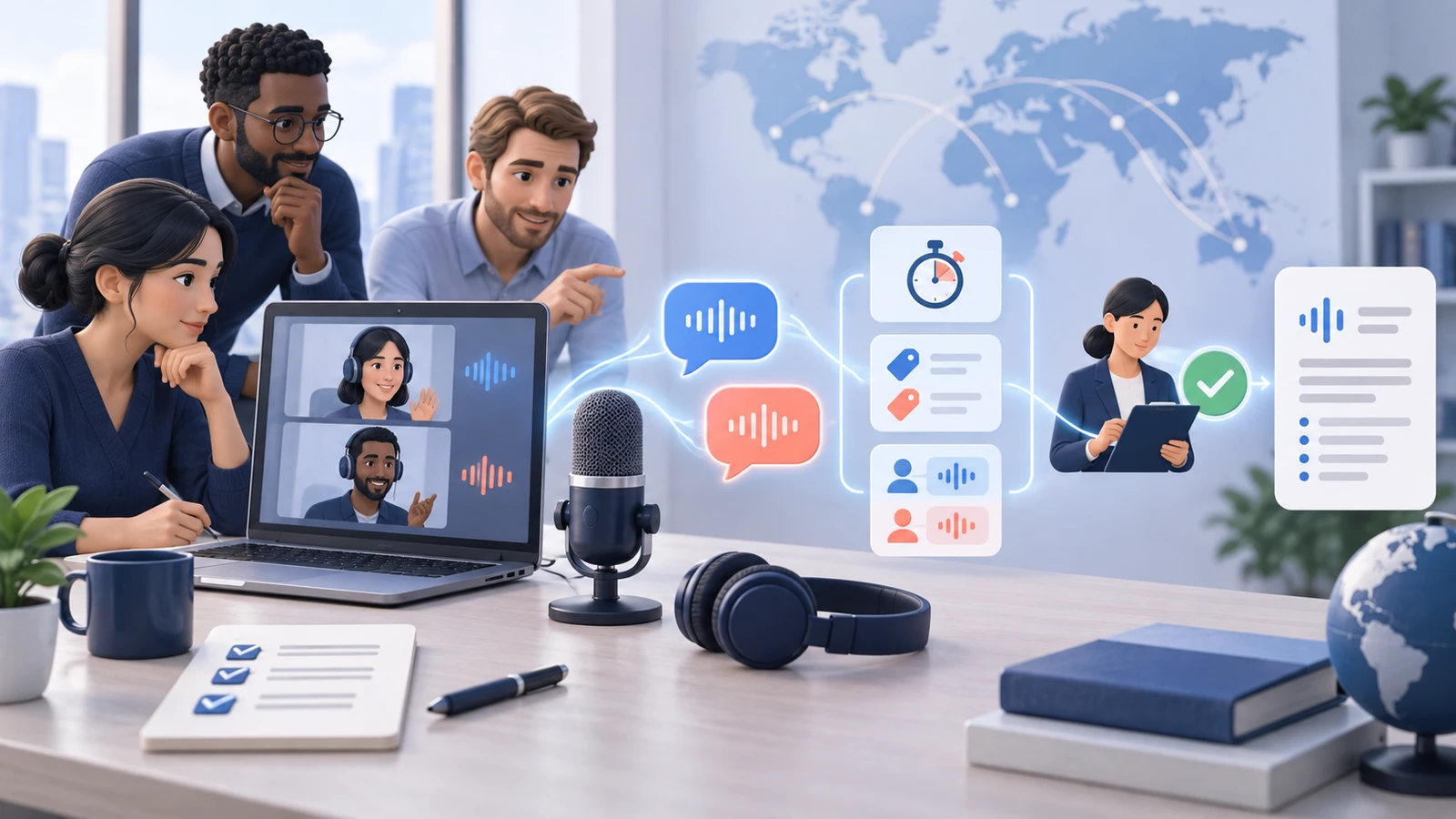
A polished product demo usually contains clear audio, prepared speakers, and simple sentences. Your test should resemble your real meeting.
Build a 20-minute test script
Use four sections:
- Introductions: names, roles, companies, cities, and ordinary small talk.
- Domain content: five minutes of realistic product, hiring, support, or operational terminology.
- Precision content: dates, currencies, quantities, version numbers, email-like identifiers, and a conditional commitment.
- Natural interaction: follow-up questions, one polite interruption, one correction, and a final recap.
Use two speakers with the accents and microphones the real process will encounter. If the meeting normally has six people, test six people.
Score the system by consequence, not one accuracy percentage
An overall accuracy score can hide the errors that matter most.
| Test dimension | What to observe | Failure that matters |
|---|---|---|
| Meaning | Main claim, question, and answer survive | A positive becomes a negative or a condition disappears |
| Terminology | Product and domain terms remain usable | A specification, diagnosis, role, or feature changes |
| Entities | Names, companies, dates, and numbers | The wrong person, amount, date, or location appears |
| Turn-taking | Speakers know when to respond | People answer before translated audio finishes |
| Latency | Delay remains conversational | Pauses cause repeated interruptions or topic drift |
| Speaker separation | The record identifies contributions | A commitment is assigned to the wrong speaker |
| Recovery | Users can repair an error | No one knows how to pause, rephrase, or annotate |
| Post-meeting record | Transcript and recap remain reviewable | The live translation disappears with no usable history |
Classify errors as low, medium, or high consequence. A slightly awkward greeting may be harmless. A changed price, medical instruction, hiring condition, delivery date, or safety requirement is not.
Test degraded conditions
Run at least one test with:
- A weak Wi-Fi connection.
- A participant on a phone.
- Background noise.
- A fast speaker.
- A regional accent.
- A speaker who code-switches.
- Two people beginning to speak at once.
The goal is not to make the tool fail. It is to learn when the team should slow down, use chat, switch modes, bring in a human, or reschedule.
Record the decision
After the test, document:
- Approved meeting types.
- Approved language pairs and devices.
- Known limitations.
- The participant notice.
- The facilitator and backup steps.
- The data-access and retention rule.
- The threshold for using a human interpreter.
- The date for re-testing after a major product change.
A tool should not move from “someone tried it” to “the whole team uses it” without that small operating decision.
Build the post-meeting workflow, not only the live translation
Live comprehension is the first half of the job.
A business meeting typically produces four kinds of information:
- Context: why the conversation happened and who participated.
- Evidence: what people actually said, including qualifications and disagreement.
- Decisions: the option or interpretation the group accepted.
- Actions: who will do what, by when, with which dependency.
A simple online translator may help with the evidence while the conversation is happening. It may not connect that evidence to decisions and actions.
MeetBridge brings live translation, transcript, meeting history, summaries, and follow-up into one workspace. The useful distinction is not “AI versus no AI.” It is whether the workflow lets people return to the source conversation, verify the recap, and see the next step.
Use the following hierarchy when a summary and transcript disagree:
- Confirm the participants' intended meaning.
- Review the original-language context and translated context.
- Use the transcript as a navigation and evidence aid.
- Treat the summary as a compressed aid, not a replacement for the conversation.
- Correct the decision or action record before distribution.
For practical meeting operations, read how to run multilingual meetings without slowing them down.
Privacy and governance checklist for online meeting translation

Real-time translation processes participant speech. Depending on the product and settings, it may also create generated audio, captions, transcripts, summaries, recordings, logs, and analytics.
Ask these questions before using any free or paid tool for business meetings.
What data enters the service?
- Microphone audio.
- System or meeting audio.
- Video or screen content.
- Chat messages.
- Participant names, emails, or account identifiers.
- Uploaded vocabulary, agenda, or context.
- Transcript, summary, and action items.
Do not assume that a feature called “voice translation” processes only the final translated voice.
What is stored, and for how long?
Separate transient processing from retained data.
Ask whether the provider stores:
- Original audio.
- Translated audio.
- Captions.
- Original and translated transcripts.
- Model inputs and outputs.
- Diagnostic logs.
- Meeting metadata.
- User feedback or corrections.
Then verify default retention, administrator controls, deletion, export, backup behavior, and what happens after an account is closed.
Who can access the record?
Define access by role and meeting type. A public webinar, internal planning session, candidate interview, customer escalation, and supplier negotiation should not automatically share one retention policy.
Confirm whether hosts, organizers, administrators, external guests, invited users, and link holders can view the transcript or summary. Test access with a real guest account before rollout.
Is data used to train or improve models?
Read the current product and plan terms. Consumer and business plans may use different defaults. An opt-out in one product area may not cover every integration or third-party service.
Do not copy a generic promise into an employee or customer notice. Describe the settings and contract that actually apply to the organization's account.
What participant choice exists?
Participants should know how to:
- Allow or decline voice translation where the feature requires permission.
- Change their spoken or target language.
- Turn captions or translated audio on or off.
- Request a correction.
- Ask for another meeting arrangement.
- Contact the organization about access, retention, or deletion where applicable.
Consent and notice requirements vary by country and context. Review employment, recording, biometric, accessibility, confidentiality, and data-protection obligations with qualified specialists.
What is the fallback for sensitive content?
Define topics that should not be discussed through an unapproved tool. Examples may include regulated personal data, credentials, unreleased financial information, source code, legal strategy, medical details, or confidential customer records.
The fallback may be an approved platform, a qualified interpreter under contract, a rescheduled secure session, or a written channel. “Everyone was already on the call” is not a data-handling policy.
Common mistakes when choosing a free meeting translator
Comparing only language counts
A platform may list many caption languages and far fewer voice-translation languages. Some pairs may work only through English or in one direction. Some languages may be supported for listening but not speaking.
Test the exact pair and mode.
Treating latency as an engineering detail
Delay changes social behavior. Participants interrupt, repeat themselves, answer early, or assume silence means confusion.
Measure whether the group can hold a natural turn, not just the number of milliseconds shown in a demo.
Ignoring the guest experience
The organizer may have a compatible plan and desktop app while the customer joins anonymously on mobile. Evaluate the least-privileged participant, not only the host.
Assuming live captions become a translated transcript
Some systems display translated text during the meeting but retain only original-language content afterward. Others retain no translation at all.
Verify the record you can actually access after the call.
Using summaries as facts without review
A clean summary can make an uncertain translation look authoritative. Require a human to verify important decisions, dates, amounts, requirements, and action owners.
Letting a bilingual teammate carry the whole process
A bilingual colleague can be invaluable for terminology and repair. Asking them to translate, facilitate, take notes, and contribute at the same time overloads one person and hides the operational cost.
Rolling out without a stop rule
The team should know when to pause translation, switch to captions or chat, bring in a human, or reschedule. A fallback chosen during a customer escalation is already late.
A practical buying checklist
Use this checklist after the free test.
Live experience
- Exact source and target language pairs.
- Captions, voice, or both.
- One-to-one and group behavior.
- Individual language controls.
- Original-to-translated audio balance.
- Delay during short and long speech.
- Handling of interruptions and overlap.
- Browser, desktop, mobile, and room-device support.
Quality and repair
- Accent and domain-term performance.
- Names, numbers, dates, units, and currencies.
- Visible indication that translation is active.
- Easy pause, correction, and rephrasing.
- Access to original context for review.
- Human interpreter path for exceptions.
Meeting workflow
- Participant and agenda context before the call.
- Speaker-aware transcript.
- Original and translated content availability.
- Summary and action-item review.
- Meeting history and search.
- Clear sharing and follow-up.
- Export or integration needed by the team.
Administration and governance
- Plan and add-on requirements.
- Host, guest, and anonymous-user rules.
- Administrator enablement.
- Identity and access controls.
- Retention, export, and deletion.
- Security and compliance documentation.
- Data-processing and model-improvement terms.
- Regional availability and data residency where required.
Commercial fit
- Free-tier limits.
- Trial length and required payment method.
- Per-user, per-minute, credit, or add-on pricing.
- Cost of guest participation.
- Cost of translated audio versus captions.
- Manual work removed after the call.
- Support and service expectations.
Score the product against the meetings you actually run. Do not give equal weight to a language you never use and a transcript workflow your team needs every day.
Frequently asked questions
Can ChatGPT do real-time translation?
ChatGPT Voice can support a spoken back-and-forth conversation and respond in another language. It can be useful for practice, informal translation, and one-to-one clarification. For a business meeting, separately evaluate multiple-speaker handling, participant consent, administration, access, recording, transcript, retention, and follow-up. A voice assistant and a managed meeting workspace solve overlapping but different problems.
Can Google Meet translate in real time?
Yes. Google currently documents translated captions for eligible Workspace editions and Speech Translation for eligible plans and supported language pairs. The language sets, device support, timing, permission, regional access, and plan rules differ between captions and translated speech. Check the current Google Meet help pages before scheduling the call.
How can I translate a live conversation online?
For a quick low-risk conversation, use a reputable browser or voice translator, select the spoken and target languages, allow microphone access, and take turns speaking in short complete phrases. For a scheduled meeting, prefer a platform where each participant can control their language and where the group has a clear error-repair method. If the result affects a business process, add a reviewed transcript, recap, access rule, and follow-up record.
Is there a real-time translator for meetings that is free?
Free browser tools, trials, consumer voice assistants, and some meeting-platform caption features can translate live speech with different limits. “Free” may restrict minutes, languages, translated audio, participants, exports, or administration. Test the exact language pair and read current plan terms rather than assuming the search result covers a full meeting workflow.
Do I need to download an app?
Not always. Some translators run in a browser, and some meeting platforms include translation in their web or desktop experience. A desktop or mobile app may be required for system-audio capture, background operation, or specific voice features. Verify device support for the host and guests before asking anyone to install software.
What is the difference between live captions and voice translation?
Live captions display translated text. Voice translation adds speech generation so the listener hears another language. Captions can support visual verification but require reading. Voice can feel more conversational but adds delay and may support fewer languages. Some meetings use both.
Can I use a free translator for customer meetings?
Use it first for a rehearsal with non-sensitive content. Before a real customer call, verify the provider, language pair, guest experience, accuracy, notice, data handling, record, and fallback. If commitments, requirements, support details, or next steps matter, use a workflow that preserves and verifies them after the call.
Does real-time translation replace a human interpreter?
No. AI translation can improve access in many routine conversations, but it does not replace human judgment in every context. Use a qualified interpreter when required by law, accommodation, risk, complexity, or professional standards, and whenever an error could create serious harm.
How do I know whether the translation is accurate enough?
Run a realistic test with actual accents, terminology, devices, numbers, interruptions, and degraded conditions. Score high-consequence errors separately. Accuracy is sufficient only when participants can detect uncertainty, repair it, and verify the final decision or instruction.
From a free test to a repeatable multilingual meeting workflow
A free online translator is a sensible place to start. It can reveal whether a language pair works, whether participants prefer captions or voice, and whether the delay fits the conversation.
Do not let a successful five-minute demo answer questions it was never designed to answer.
For recurring business use, evaluate the complete system: invitation, participant controls, live translation, error repair, transcript, summary, actions, access, retention, and follow-up. The best result is not a meeting that merely sounded translated. It is a meeting in which people understood one another, verified the important details, and knew what would happen next.
Explore MeetBridge live translation to see how multilingual conversation connects with meeting memory and follow-up, or start with the product overview to review the broader workflow.