

Meeting Summary Template: Examples for Multilingual Teams
Write a meeting summary that makes the next step clear. Copy the template, see a completed example and use the follow-up email with your team.
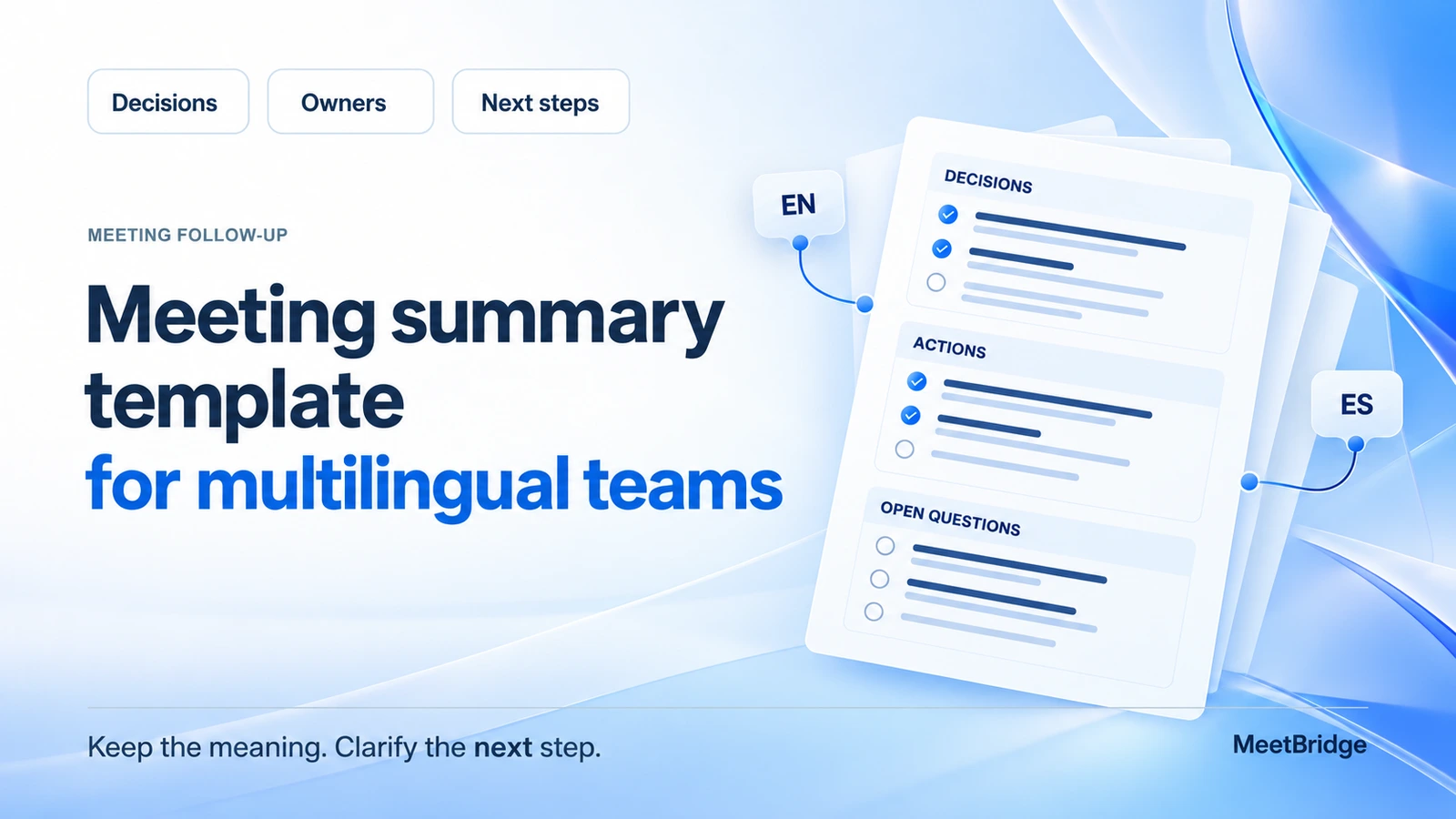
A meeting summary is a short note that tells people what was decided and what happens next. Someone who missed the call should be able to read it and answer three questions:
- What did we agree on?
- Who will do what?
- When will it be done?
This matters even more when people speak different languages. “Send the plan for approval” can become “The plan is approved” in a rushed recap. The words are similar, but the next steps are very different.
Below is a meeting summary template you can copy, followed by a completed example, a follow-up email and tips for keeping different language versions consistent. You can use it with your own notes or an available meeting transcript.
Copy this meeting summary template
Paste the template into a document or email. Replace the text in brackets and delete anything you do not need. If nobody agreed on a person or a date, write “not yet confirmed.”
Meeting details
Meeting: [For example: Customer software installation review] Date: [Day Month Year] Participants: [Names] Summary prepared by: [Name] Summary language: [Language; other versions if needed]
Short summary
[Write one or two sentences explaining what the meeting achieved and what still needs to happen.]
Decisions
- [A decision the participants agreed on.]
- [Any condition attached to that decision, such as customer approval.]
Next steps
| What needs to be done? | Who will do it? | By when? |
|---|---|---|
| [Specific task, such as sending the updated office list] | [Name] | [Agreed date or not yet confirmed] |
Still to be confirmed
- [A question that was not answered.]
- [A proposed change that has not been approved.]
Useful details
Related document or meeting: [Document name, version or meeting reference] Next update: [Agreed date, or not yet confirmed]
Message to participants: Please let me know if this summary changes what we agreed. Anything marked “not yet confirmed” is still open.
For a short internal meeting, this may be all you need. Add more detail only when it helps someone understand a decision or complete a task.
What is the difference between notes, a transcript and a summary?
You do not need to copy the whole conversation into your summary. Each type of record has a different job.
| Record | What it contains | When to use it |
|---|---|---|
| Meeting notes | Details you write down during the call | To remember questions, ideas and useful information |
| Transcript | Speech captured as text, with available speaker labels and times | To check what someone said |
| Meeting summary | The main result, decisions and next steps | To tell people what happens after the call |
If your organization requires formal meeting minutes, use its required format and approval process. This template is for everyday team and customer follow-up.
Before the call ends, confirm three things
Choose someone to prepare the summary. Then leave a few minutes at the end to ask:
- What have we decided? Repeat the decision and any condition, such as “after the customer approves the list.”
- Who is doing the next task? Ask the named person to confirm. “Someone from support” is not a clear answer.
- What date did we agree on? If no date was agreed, ask for one or leave it unconfirmed.
In a translated conversation, let each person finish and wait for the translation before moving on. Write product codes, document names and numbers in chat when useful. This gives everyone the same written reference.
Ask which language people want to use for the follow-up. Their location or the language of an earlier email does not necessarily tell you which language they prefer to read.
The multilingual customer meeting checklist covers invitations, joining and language preparation.
Do not mix a suggestion with a decision
“We discussed it” does not always mean “we agreed to do it.” Use wording that shows the difference.
| During the meeting | Write in the summary |
|---|---|
| “Could we include the second office?” | Adding the second office was suggested. No decision was made. |
| “Let's start with the first office,” followed by agreement | The team agreed to start with the first office. |
| “I will send the updated list on 27 October.” | Alex will send the updated list on 27 October. |
| “We can start once the customer approves the list.” | Installation cannot start until the customer approves the list. |
Keep the condition next to the decision. If “after approval” disappears, a possible next step can look like permission to begin.
Make each next step easy to understand
Write a task as something someone can finish. “Follow up with the customer” is vague. “Ask the customer to confirm the office list and share their reply with the team” explains the work.
| Too vague | Clearer, if agreed in the meeting |
|---|---|
| Check the problem | Luis will reproduce the two reported errors and send his findings. |
| Arrange training | Alex will suggest two training times after the customer confirms who will attend. |
| Finish by Friday | Send the updated plan by 30 October 2026, 15:00 UTC. |
Only write a person's name or a deadline as confirmed when they were actually agreed. Otherwise, mark the missing detail and ask about it.
Also say what the date is for. A deadline for sending a plan is different from the date work will start. Write dates in full, and include the time zone when the hour matters.
Completed example: planning software installation at two offices
This is a fictional example, not a customer case study.
Alex's team is preparing to install new software for a customer. Elena is the customer contact, and Mina organizes the meetings. Alex speaks English; Elena prefers Spanish.
The customer has two offices, but only the first office is in the current plan. Elena wants to check the office list before approving installation. Alex agrees to send an updated list on 27 October. Nobody agrees on an installation date.
Here is how the summary could look.
Completed meeting summary
Meeting: Customer software installation review — R-17 Date: 26 October 2026 Participants: Alex, Elena and Mina Prepared by: Mina
Short summary: Installation has not been approved yet. Alex will send the updated office list on 27 October 2026 so Elena can review it. The installation date will be decided after approval.
Decisions
- Continue planning for the first office only.
- Wait for the customer's approval of the office list before starting installation.
Next step
| What needs to be done? | Who will do it? | By when? |
|---|---|---|
| Send the updated office list, version B, to Elena | Alex | 27 October 2026 |
Still to be confirmed
- When can Elena review the list?
- Who will confirm the installation date after approval?
- Will the second office be added later?
Related document: Office list R-17, version B to be sent.
The key point is simple: 27 October is the date for sending the list, not the installation date. The summary keeps those two things separate. It also leaves the second office as a proposal rather than adding it to the plan.
How to keep that meaning in another language
The same message should remain the same in each language:
| English | Spanish |
|---|---|
| Alex will send the updated office list for review on 27 October 2026. | Alex enviará la lista actualizada de oficinas para su revisión el 27 de octubre de 2026. |
| Installation has not been approved yet. | La instalación todavía no se ha aprobado. |
Neither version says that installation is approved. This is the distinction to check before sharing a bilingual summary.
Check each language version for the same facts
Start with one checked summary, then prepare the other language versions. Give them the same version number, such as “R-17 summary v1,” so people know which copy they are reading.
Compare these details in every version:
- Decision: Does a suggestion still read as a suggestion?
- Person: Is the same person responsible for the same task?
- Task: Are they being asked to send, review or approve the same thing?
- Date: Is the date attached to the same task?
- Condition: Are words such as “after approval” still there?
Keep document names, product codes and version numbers consistent. Ask someone who can review the relevant languages to check important wording.
If a correction changes the meaning, update all prepared versions. For example: “Version 2 corrects the date: 27 October is the list delivery date. Installation is still unscheduled.”
How to use MeetBridge when writing your summary
In a full MeetBridge meeting, you can return to the available saved conversation after the call. Start in My Meets, open the correct meeting and check the date and participants.
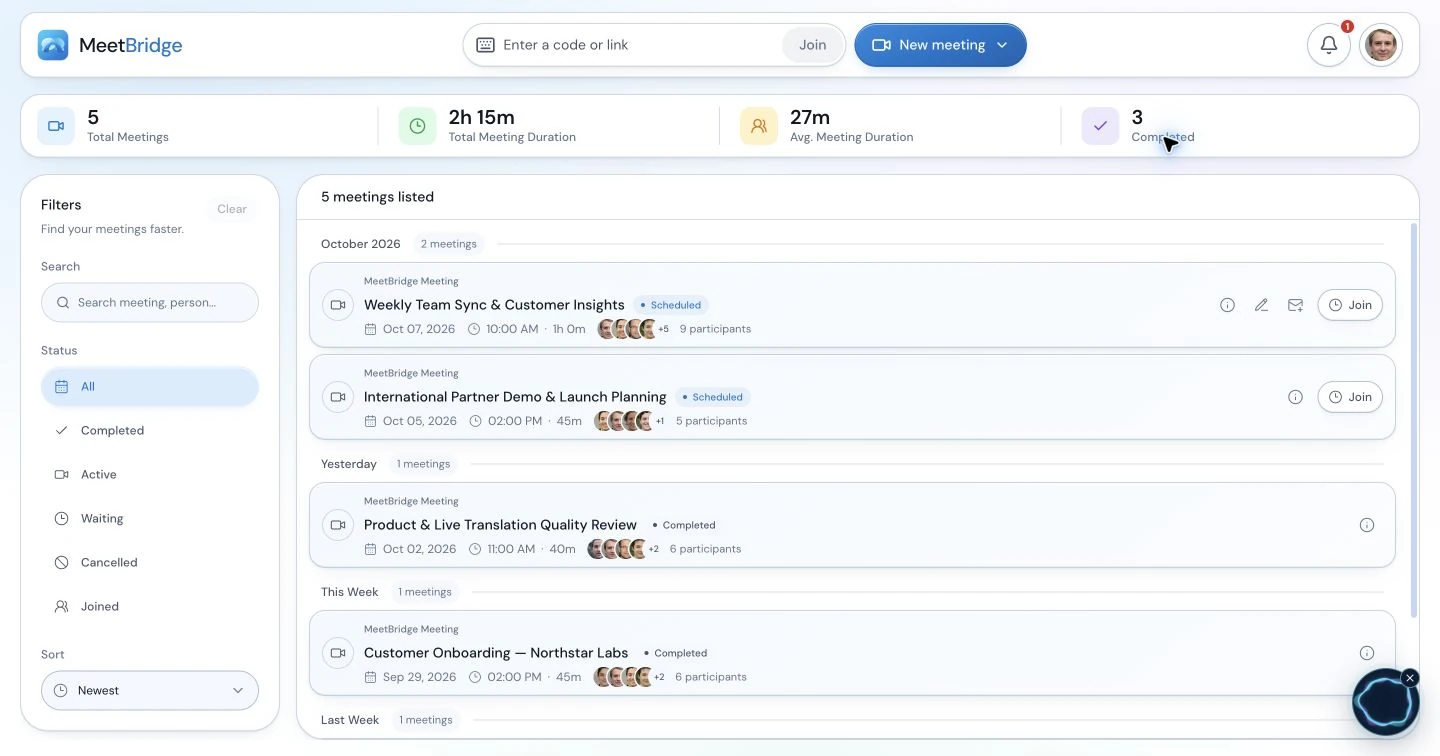
My Meets helps you find the meeting you want to review. This product screenshot is not a record of the fictional example above.
Use the available AI summary to remember the main topics. Then check the saved transcript—the text of the conversation—when a decision, number or date needs a closer look.
For example, search for “office list” inside the opened meeting. Once you find the passage, clear the search filter and read the surrounding lines. Someone may have corrected the date later in the discussion. Check chat too if the document name or product code was written there.
A few points help you plan this correctly:
- Saved transcripts, chat, timeline and summaries depend on your plan and enabled features.
- The post-meeting summary is generated after the meeting ends. It may still be pending or unavailable.
- Its language follows the host's preference; it does not automatically change to every reader's language.
- The transcript can show original text and available saved translations. Switching views does not create a missing translation. The original is also speech-to-text output and can contain errors.
MeetBridge helps you review the conversation. You still fill in this template and confirm the tasks with people. The summary does not automatically assign tasks, set deadlines or track completion in your project system.
See the meeting summaries guide and transcript guide for the available features, including TXT and SRT transcript exports. For more on finding a passage, read the searchable meeting transcripts guide.
Copy this follow-up email
Send the short result and the tasks that matter to the recipients. They do not usually need the whole transcript in the email.
Subject: [Meeting or project] — summary and next steps — [date]
Hello [names],
Thank you for today's meeting about [topic].
We agreed: [Decision, including any condition.]
Next step: [Name] will [specific task] by [agreed date and time zone if needed].
Still to confirm: [Unanswered question or approval still needed.]
Our next update is [agreed date, or not yet confirmed]. Please let me know if anything here differs from what we agreed.
Thank you, [Name]
If a participant corrects a task or date, update the main summary as well as the email thread. Silence does not confirm an approval or acceptance of an unassigned task.
For client projects, the consulting meeting guide adds advice on discussing changes to the work. For quotations, samples and production dates, use the supplier meeting guide.
If you use Zoom, Teams or Google Meet
You can fill in this template manually after any meeting. If you use MeetBridge Voice alongside an existing video call, decide who will take notes before the call begins.
| Your setup | What to plan for the summary |
|---|---|
| Full MeetBridge meeting | Check that your plan and enabled features include the saved record you need. |
| Existing video call with companion MeetBridge Voice | Plan your notes separately. Voice's live session context does not promise the same saved transcript and post-meeting summary. |
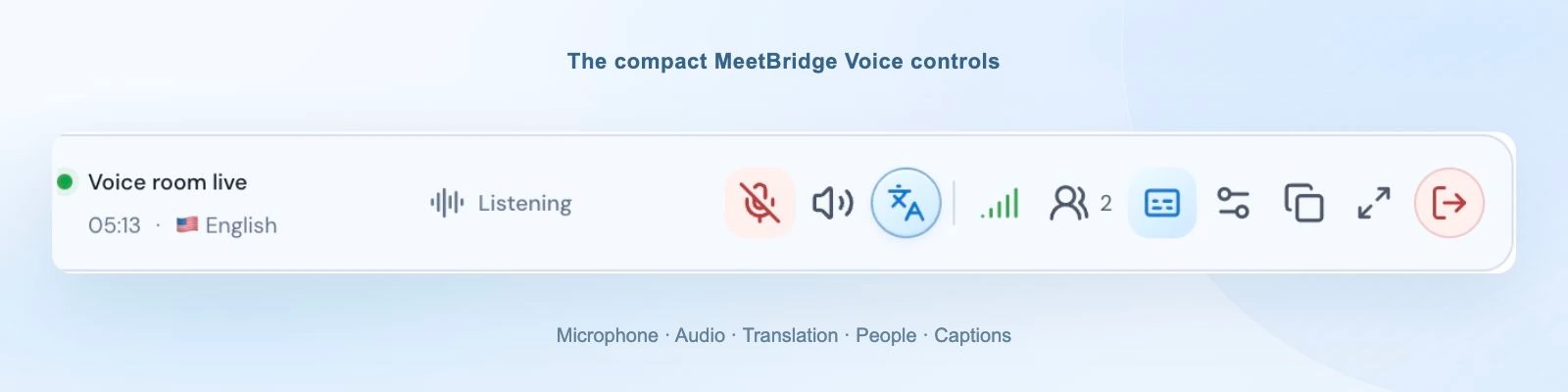
The compact Voice bar provides live controls beside another application. It is not a saved-summary screen.
With companion Voice, all speakers must join the same Voice room. Follow the microphone and incoming-audio steps for Zoom, Teams or Google Meet to keep one conversation audio path. Do not assume the video platform's recording includes the separate Voice conversation.
If reviewing a saved meeting is essential, look at the full MeetBridge meeting workflow before choosing your setup.
Before sending, read it as the person doing the work
Can that person tell what to do, when to do it and what they are waiting for? If not, rewrite the relevant sentence.
Check names, dates and document versions. Make sure any “after approval” condition is still visible. If you include a link to the meeting record, check that the recipient has access; otherwise provide an appropriate reviewed excerpt.
FAQ
What should a meeting summary include?
The meeting name and date, the main result, agreed decisions, tasks with names and dates, and unanswered questions. For a multilingual meeting, also say which language versions are available.
How long should it be?
Long enough to explain the result and next steps without repeating the whole conversation. A short meeting may need only a few lines. Add detail when a condition or a customer request would otherwise be misunderstood.
Can I use this as a meeting minutes template?
You can use it for everyday notes and follow-up. If your organization requires formal minutes, follow its format and approval process and add any required fields.
How do I write a summary for people who speak different languages?
Check one version first, then prepare the other languages. Compare names, tasks, dates and conditions. Have important wording reviewed by someone who can check the languages involved.
Does MeetBridge fill in this template automatically?
No. Its available AI summary is a short recap based on the saved transcript. You review that information and fill in this template yourself. Available features depend on your plan and settings.
Does everyone get a summary in their own language?
The saved MeetBridge summary follows the host's preferred language, not each reader's interface language. Prepare additional checked language versions separately.
What if the summary or transcript is missing something?
Read the available record and ask participants to confirm the missing detail. Do not invent a person, date or approval. If you cannot confirm it, leave it marked “not yet confirmed.”
Try it at your next meeting
Copy the template before the call. At the end, confirm the decisions, names and dates. Then send a short summary that tells everyone what happens next.
To use available meeting summaries and saved transcripts together, create your MeetBridge account and check the current plans for the features you need.